Codebook Cloud offers multi-user subscription plans for families and businesses. The owner of the account sends an Invitation to each person they want to join their account. Members of multi-user accounts do not need their own subscription and are automatically a trusted contact with all members of the account.
You have received an email with a invitation to join another person's Codebook Cloud account. There are 2 scenarios that determine the steps you need to take to accept the invitation and join the account.
To create your Codebook Cloud Account, you first need to install Codebook.

The Sign Up for Codebook Cloud screen will be shown. Your email address will be populated for you. Please enter your first and last name. You can allow Codebook to create your Codebook Cloud Password by tapping the Generate Password button (recommended) which will be displayed when your cursor is in the Create Password field or create your own Codebook Cloud Password. With either option, your password will be stored inside Codebook under the category named Codebook Cloud.
Tap CREATE ACCOUNT.

Your Codebook Cloud Account has been created. In addition, a Sync Key was automatically generated for you. You will use the Sync Key later to setup Codebook Cloud on additional devices. More information is available about the Sync Key.
Tap on CONTINUE to setup Codebook.
You need to perform a few more steps to configure Codebook, including establishing the Master Password you will use! Create a Master Password, reenter to confirm.

The Codebook Cloud is Ready screen will be displayed. Tap on CONTINUE.


After you complete setup, Codebook will unlock the main interface and display your Categories. If you setup a Codebook Cloud account, your credentials will be saved in the Codebook Cloud category.


The Sign Up for Codebook Cloud screen will be shown. Your email address will be populated for you. Please enter your first and last name. You can allow Codebook to create your Codebook Cloud Password by tapping the Generate Password button (recommended) which will be displayed when your cursor is in the Create Password field or create your own Codebook Cloud Password. With either option, your password will be stored inside Codebook under the category named Codebook Cloud.
Tap Create Account.

Your Codebook Cloud Account has been created. In addition, a Sync Key was automatically generated for you. You will use the Sync Key later to setup Codebook Cloud on additional devices. More information is available about the Sync Key.
Click on Skip to setup Codebook.

Now that you are done creating your Codebook Cloud account, you need to configure the Codebook application itself, including establishing the Master Password you will use! Create a Master Password, reenter to confirm.

After you complete setup, Codebook will unlock the main interface and display your Categories. If you setup a Codebook Cloud account, your credentials will be saved in the Codebook Cloud category.


The Sign Up for Codebook Cloud screen will be shown. Your email address will be populated for you. Please enter your first and last name and agree to the Terms of Service. Click Create Account to let Codebook generate your Codebook Cloud Password. If you would like to create your password yourself, uncheck the "Generate a random password" checkbox and enter your desired password. With either option, your password will be stored inside Codebook under the category named Codebook Cloud.

Your Codebook Cloud Account has been created. In addition, a Sync Key was automatically generated for you. You will use the Sync Key later to setup Codebook Cloud on additional devices. More information is available about the Sync Key.
Click on Continue to setup Codebook.

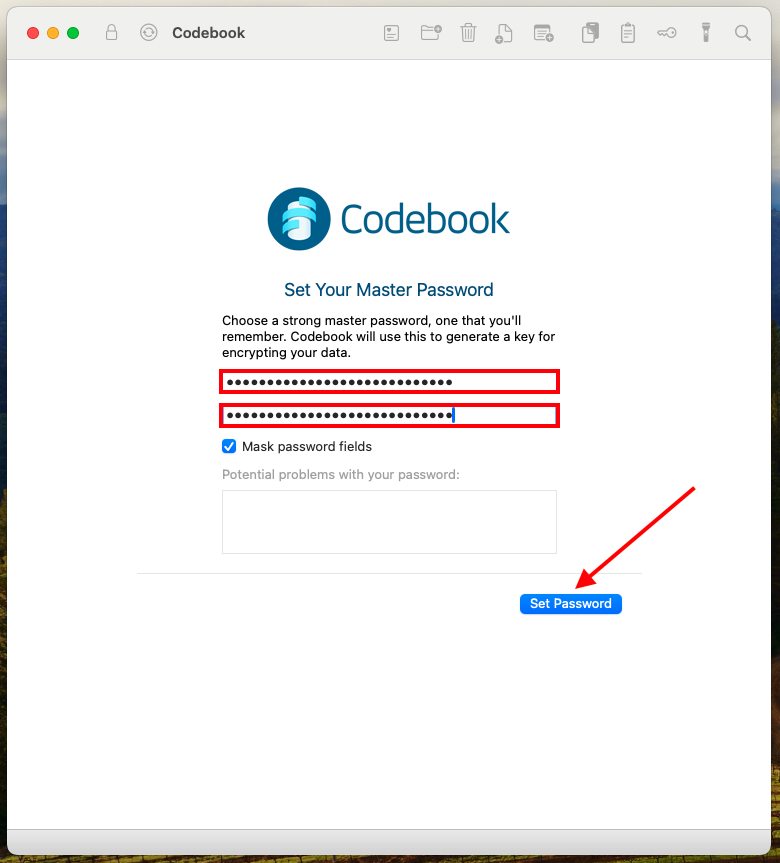
Now that you are done creating your Codebook Cloud account, you need to configure the Codebook application itself, including establishing the Master Password you will use! Create a Master Password, reenter to confirm. Click on Set Password
After you complete setup, Codebook will display the Main Window. If you setup a Codebook Cloud account, your credentials will be saved in the Codebook Cloud category.

Notice the Show Tutorials button that links to the Getting Started Help pages with step by step instructions for adding your data to Codebook.
Once again, click Setup Codebook Cloud in the invitation email or click the click here link in Step 2. This will launch Codebook so you can create your Codebook Cloud account.

The Sign Up for Codebook Cloud screen will be shown. Your email address will be populated for you. Please enter your first and last name and agree to the Terms of Service. Click Create Account to let Codebook generate your Codebook Cloud Password. If you would like to create your password yourself, uncheck the "Generate a random password" checkbox and enter your desired password. With either option, your password will be stored inside Codebook under the category named Codebook Cloud.

Your Codebook Cloud Account has been created. In addition, a Sync Key was automatically generated for you. You will use the Sync Key later to setup Codebook Cloud on additional devices. More information is available about the Sync Key.
Click on Next to setup Codebook.

Now that you are done creating your Codebook Cloud account, you need to configure the Codebook application itself, including establishing the Master Password you will use! Create a Master Password, reenter to confirm. Click on Next

The next step in settign up Codebook is to configure your preferences. The preferences are for Windows Hello, if it is enabled on your device, locking, sorting labels and lock notifications. More information is available Preferences.

After you complete setup, Codebook will display the Main Window. If you setup a Codebook Cloud account, your credentials will be saved in the Codebook Cloud category.

Notice the link to the Getting started tutorials that links to the Getting Started Help pages with step by step instructions for adding your data to Codebook.
You can also link to Getting Started here.
Enter your Master Password to Sign in to Codebook. Click GO.

The Pending Invitation window will be displayed with the name and email of the person who sent the invitation. Click JOIN ACCOUNT.

The Sign Up for Codebook Cloud screen will be shown. The email address from the invitation will be populated for you. Please enter your first and last name. You can allow Codebook to create your Codebook Cloud Password by tapping the Generate Password button (recommended) which will be displayed when your cursor is in the Create Password field or create your own Codebook Cloud Password. With either option, your password will be stored inside Codebook under the category named Codebook Cloud.
Tap CREATE ACCOUNT.

Your Codebook Cloud Account has been created.
Tap CONTINUE.

The Sync screen will be displayed.

Your Codebook Cloud credentials will be saved in the Codebook Cloud category.
Enter your Master Password to Sign in to Codebook. Click Go.

The Pending Invitation window will be displayed with the name and email of the person who sent the invitation. Click Join Account.

The Sign Up for Codebook Cloud screen will be shown. The email address from the invitation will be populated for you. Please enter your first and last name. You can allow Codebook to create your Codebook Cloud Password by tapping the Generate Password button (recommended) which will be displayed when your cursor is in the Create Password field or create your own Codebook Cloud Password. With either option, your password will be stored inside Codebook under the category named Codebook Cloud.
Tap Create Account.

Your Codebook Cloud Account has been created.
Codebook will perform a "Large Sync" because this is your first sync with Codebook Cloud.
You will be given the following options: Keep Screen Awake or Don't Keep Screen Awake.

Your Codebook Cloud Account has been created. The Sync screen will be displayed.

The Pending Invitation window will be displayed with the name and email of the person who sent the invitation. Click Join Account.

The Sign Up for Codebook Cloud screen will be shown. The email address from the invitation will be populated for you. Please enter your first and last name and agree to the Terms of Service. Click Create Account to let Codebook generate your Codebook Cloud Password. If you would like to create your password yourself, uncheck the "Generate a random password" checkbox and enter your desired password. With either option, your password will be stored inside Codebook under the category named Codebook Cloud.

Your Codebook Cloud Account has been created.
Click on Close Window to return to Codebook.

The Codebook Cloud Invitation window will be displayed with the name and email of the person who sent the invitation. Click Join Account.

The Sign Up for Codebook Cloud screen will be shown. Your email address will be populated for you. Please enter your first and last name and agree to the Terms of Service. Click Create Account to let Codebook generate your Codebook Cloud Password. If you would like to create your password yourself, uncheck the "Generate a random password" checkbox and enter your desired password. With either option, your password will be stored inside Codebook under the category named Codebook Cloud.
Your Codebook Cloud Account has been created.
Click on Dismiss to return to Codebook.

