Using a Passkey Stored in Codebook to Sign In
You have your passkey stored in Codebook, so how do you use it to sign in to a service, website or application?
The steps to sign in with a passkey differ by service, but the steps within Codebook are the same.
On android
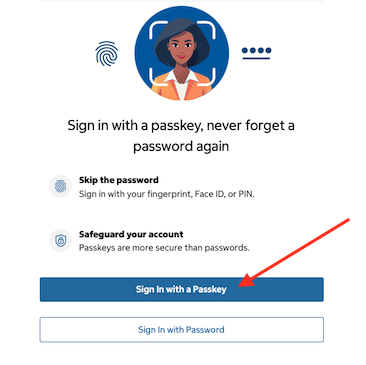
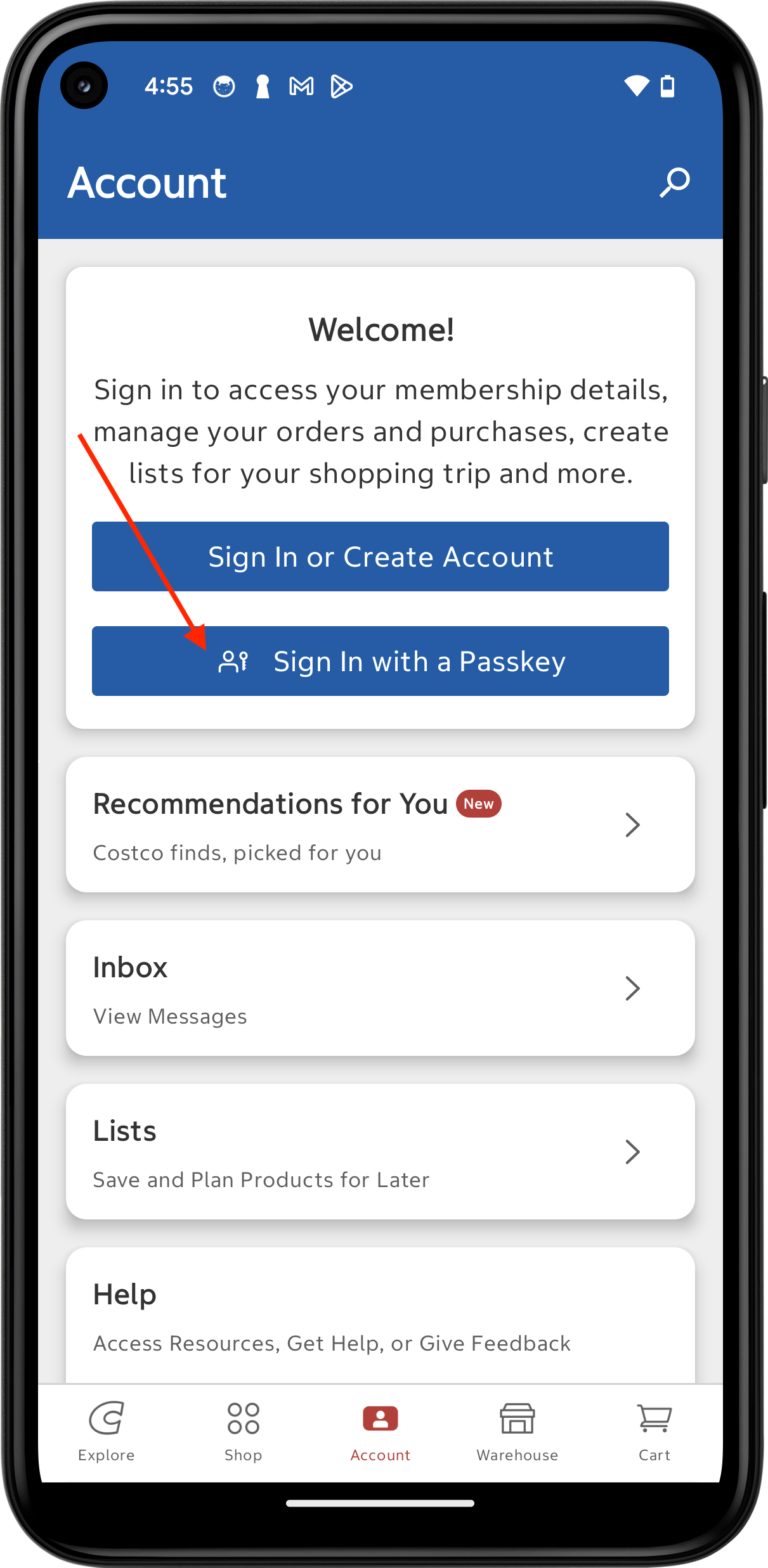
- Open the application you want to sign in to. If it supports passkeys, it will an option to sign in
with a Passkey. This will vary by website, application or service. The service will send a request to the passkey
credential provider you have enabled on your device.
For detailed instructions for Enabling Passkeys in Codebook, tap here.
-
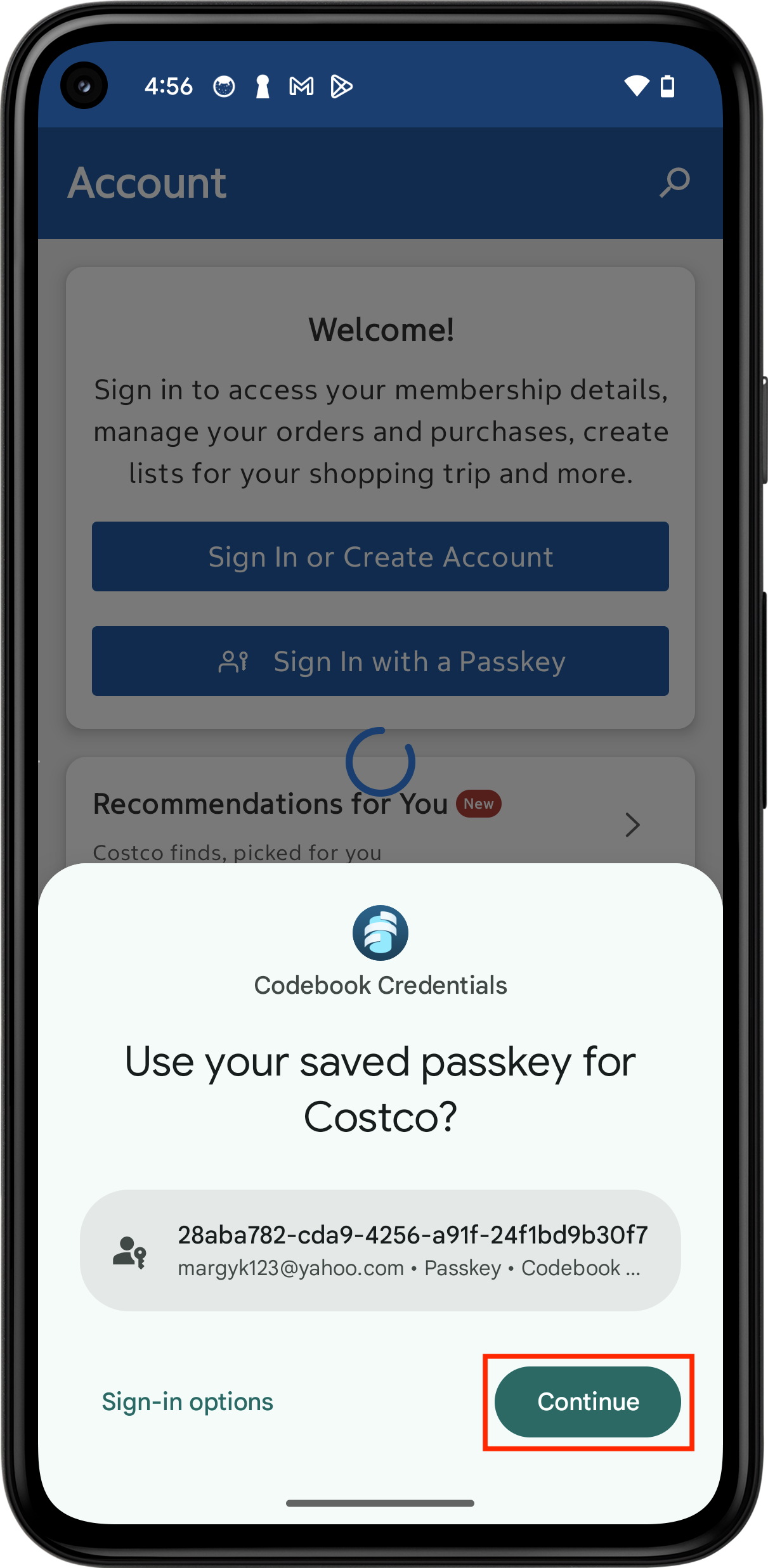
When Codebook receives the request for your passkey. The Codebook Credentials screen will be displayed
identifying the passkey from Codebook that will be used to sign in. Tap
Continue
-
Authenticate to unlock Codebook, if prompted.
On ios
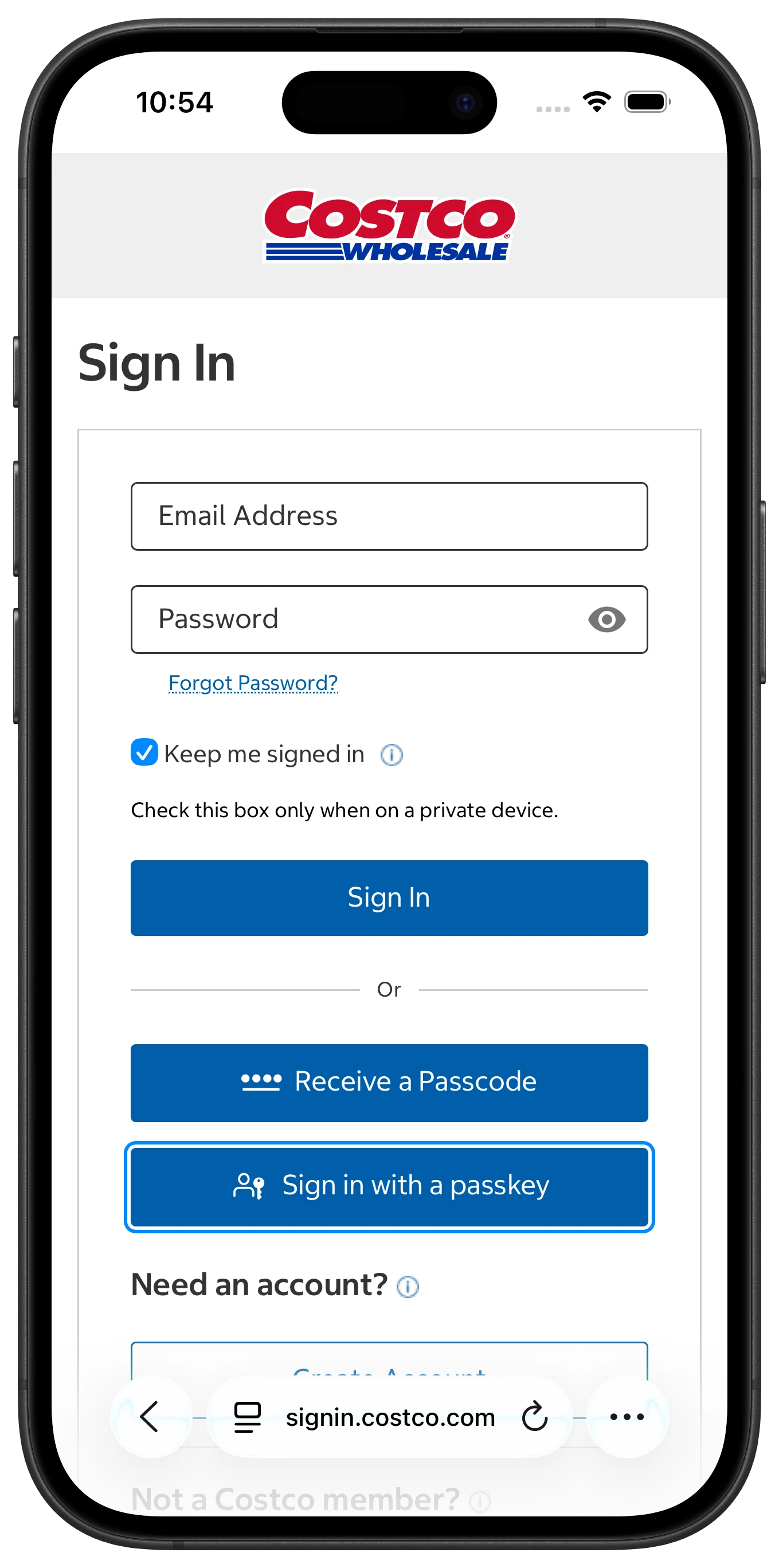
- Open the application you want to sign in to. If it supports passkeys, there will an option to sign in
with a Passkey. This will vary by website, application or service. The service will send a request to the passkey
credential provider you have enabled on your device.
For detailed instructions for Enabling Passkeys in Codebook, tap here.
-
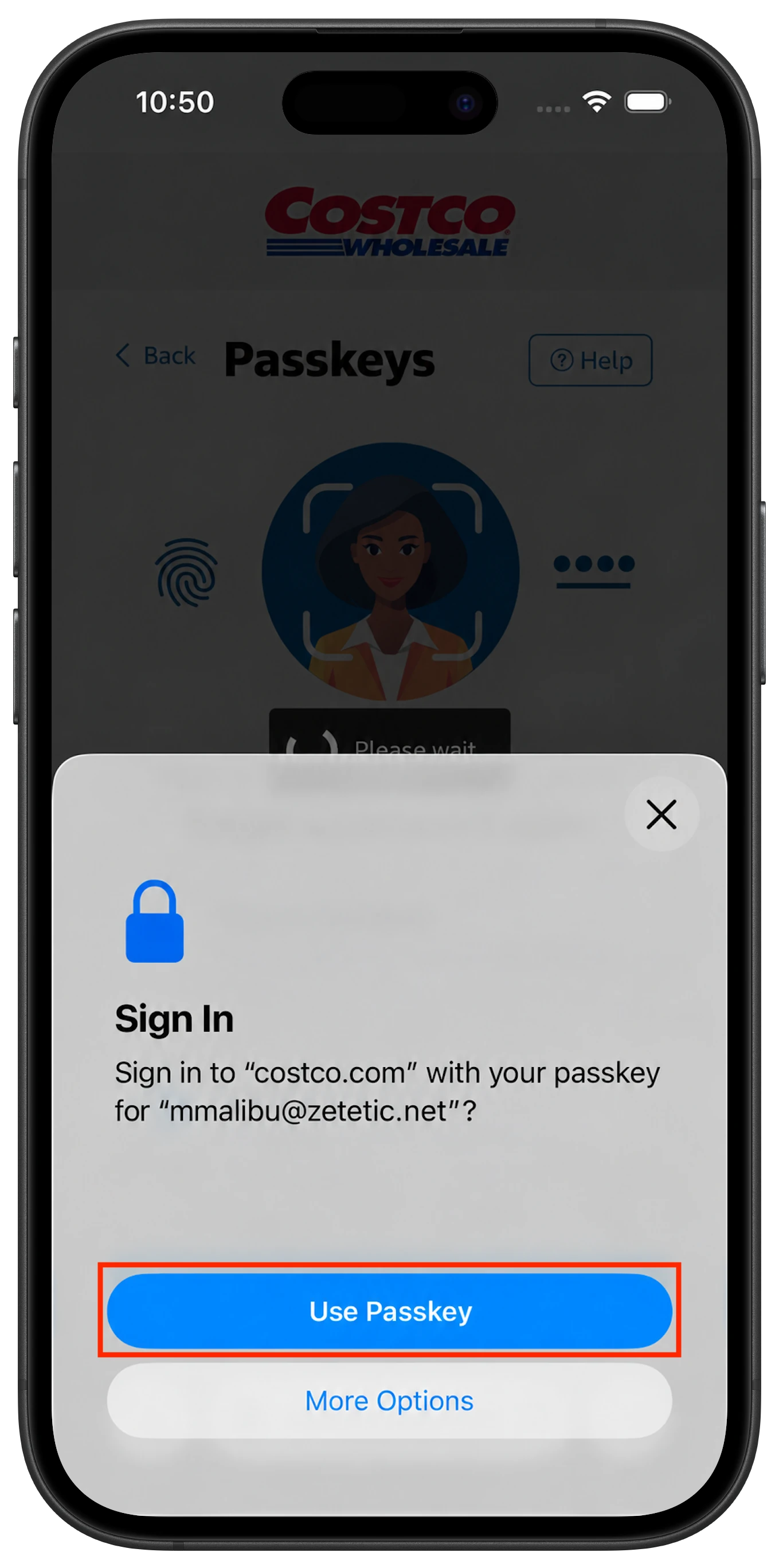
The Sign In screen will be displayed identifying the passkey from Codebook that will be used to sign in. Tap
Use Passkey
-
Authenticate to unlock Codebook, if prompted.
On macos
- Open the application you want to sign in to. If it supports passkeys, there will an option to sign in
with a Passkey. This will vary by website, application or service. The service will send a request to the passkey
credential provider you have enabled on your device.
For detailed instructions for Enabling Passkeys in Codebook click here.
-
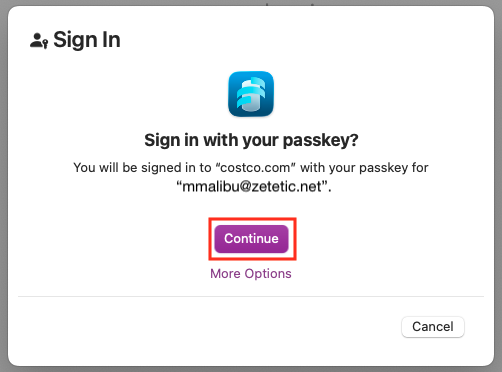
The Sign In screen will be displayed identifying the passkey from Codebook that will be used to sign in. Click
Continue.
-
Authenticate to unlock Codebook.
On windows
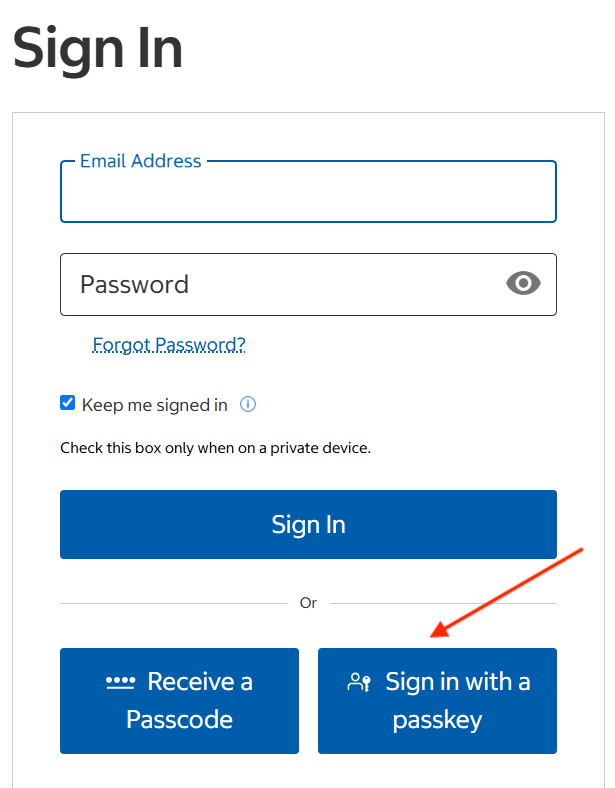
- Open the application you want to sign in to. If it supports passkeys, there will an option to sign in
with a Passkey. This will vary by website, application or service. The service will send a request to the passkey
credential provider you have enabled on your device.
For detailed instructions for Enabling Passkeys in Codebook click here.
-
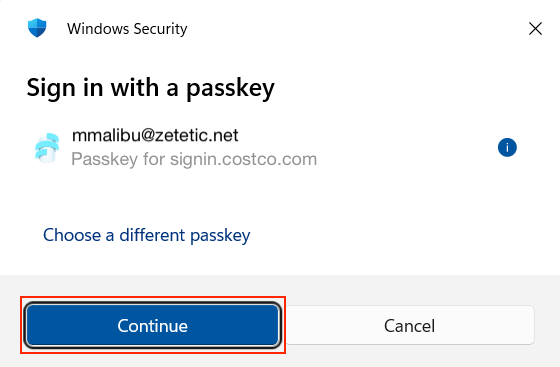
The Sign in with a passkey screen will be displayed identifying the passkey from Codebook that will be used to sign in. Click
Continue.
-
Authenticate to unlock Codebook, if necessary.
At a high level, Codebook will send the passkey to the website for verification which will then allow access.
For a more detailed explanation, click here.