Enable Passkeys in Codebook
Passkeys are a new type of login credential that allow you to login to sites and services without having to
enter a password. There are settings that are required to allow you to create and use passkeys in Codebook.
NOTE: Codebook's passkey functionality has been tested with the following browsers: Safari, Chrome, Edge and Firefox. Using passkeys for other credential providers is not widely supported in other browsers.
For a high level explanation of passkeys, click here.
There is no mechanism to migrate existing passkeys to Codebook. You'll need to create a new passkey for each
website/application in order to save your passkey in Codebook.
Use these settings to authorize Codebook as your passkey service.
On android
Android support for passkeys using a credential manager began with Android 14
-
Install Codebook 5.4 or higher
-
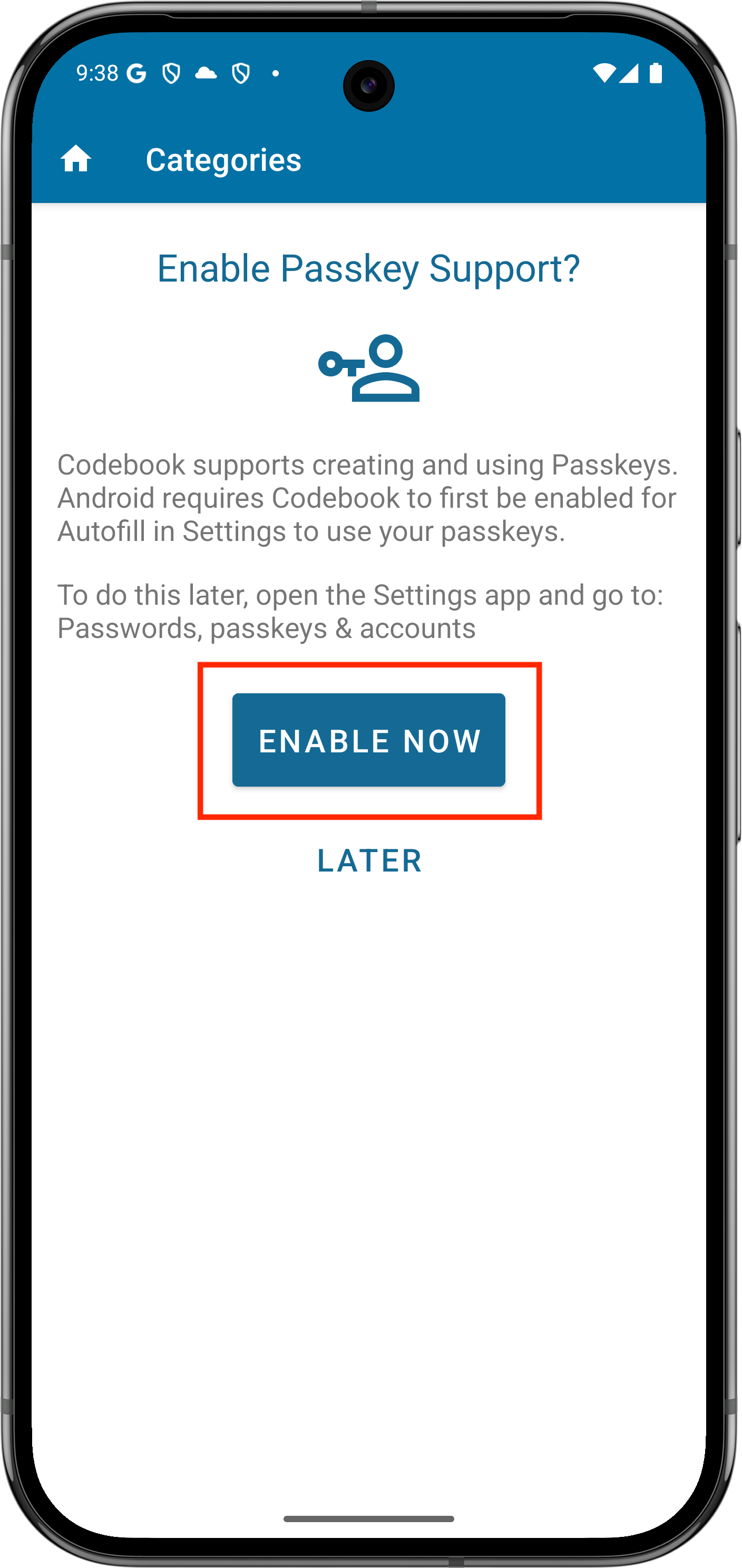
You will be prompted to set various permissions. When prompted toEnable Passkey
Support? tap Enable
Now
-
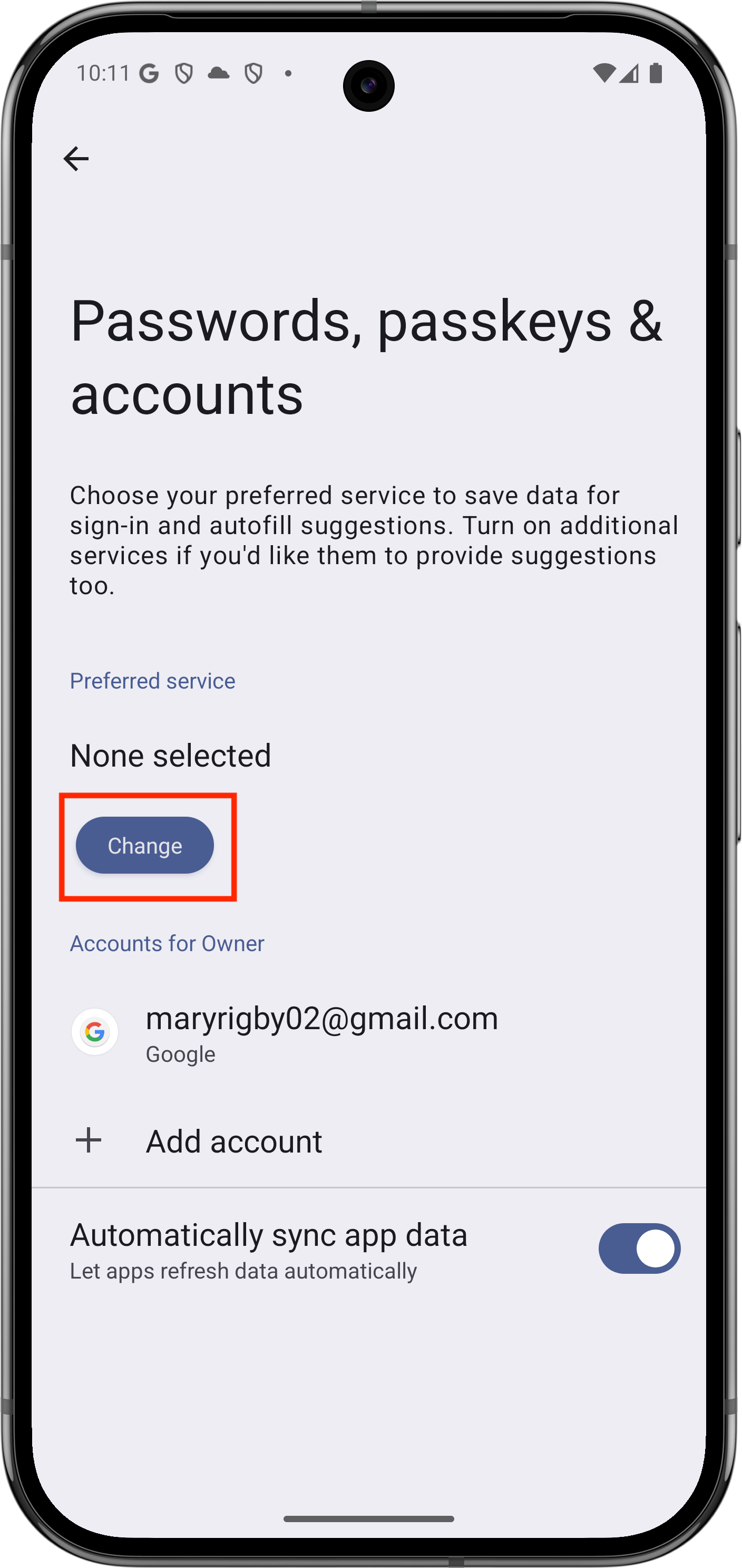
The Passwords, passkeys & accounts screen in Settings will be
displayed. Tap Change under Preferred Service
-
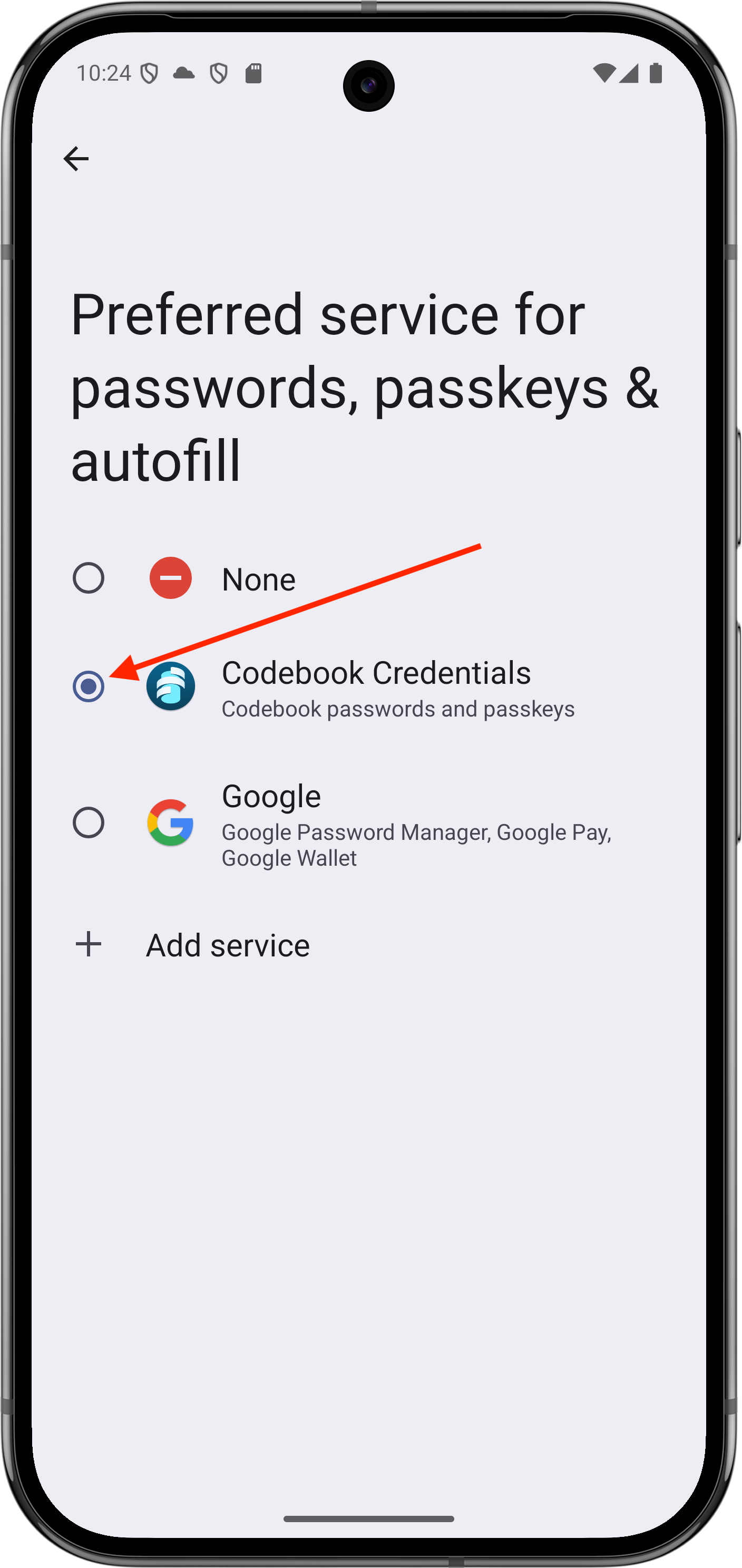
The Preferred service for passwords, passkeys and autofill screen will be
displayed. Tap Codebook Credentials
-
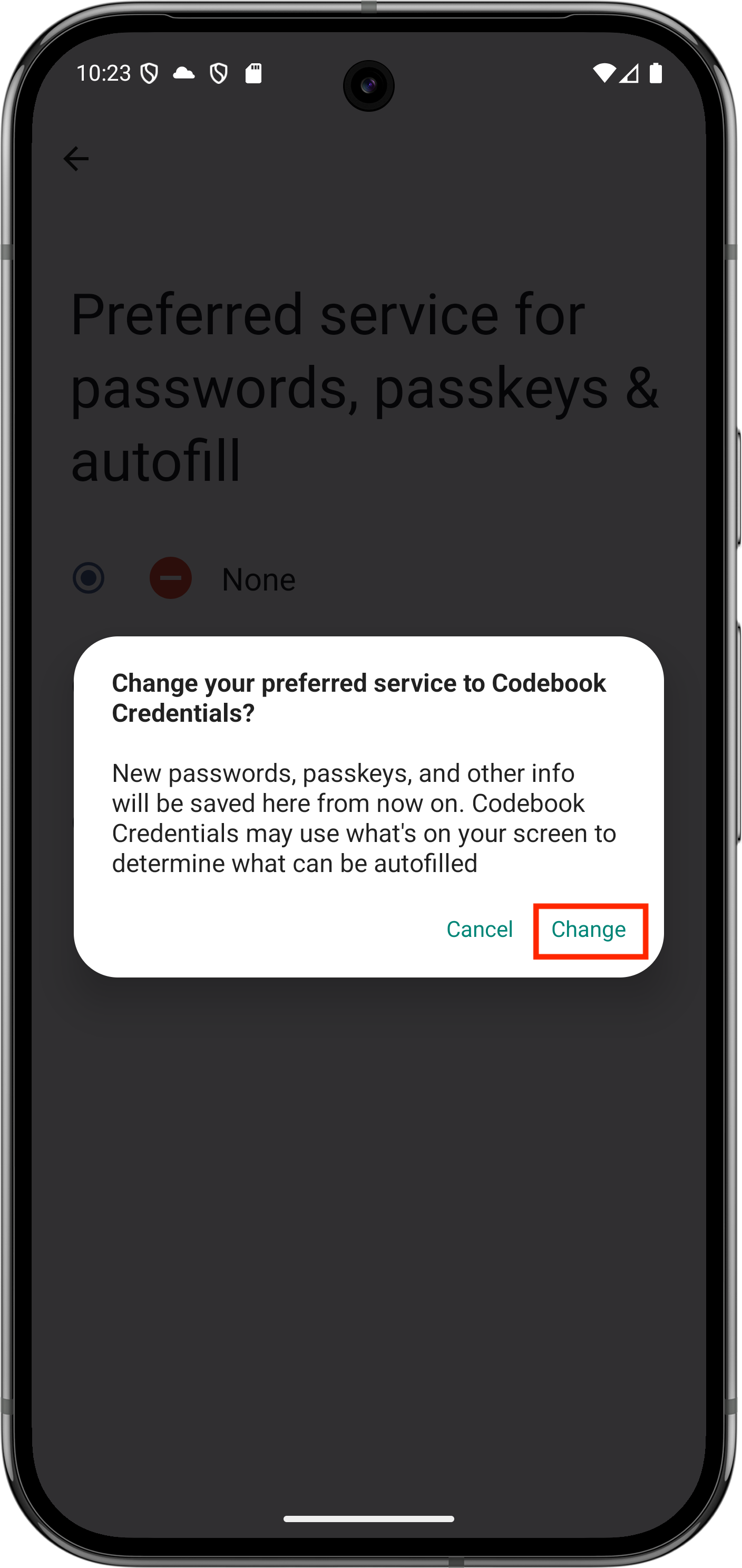
You will need to confirm your selection. Tap Change
-
Exit Settings and log back into Codebook
-
Install Codebook 5.4 or higher
-
You will be prompted to set various permissions. When prompted toEnable Passkey
Support? tap Enable
Now
-
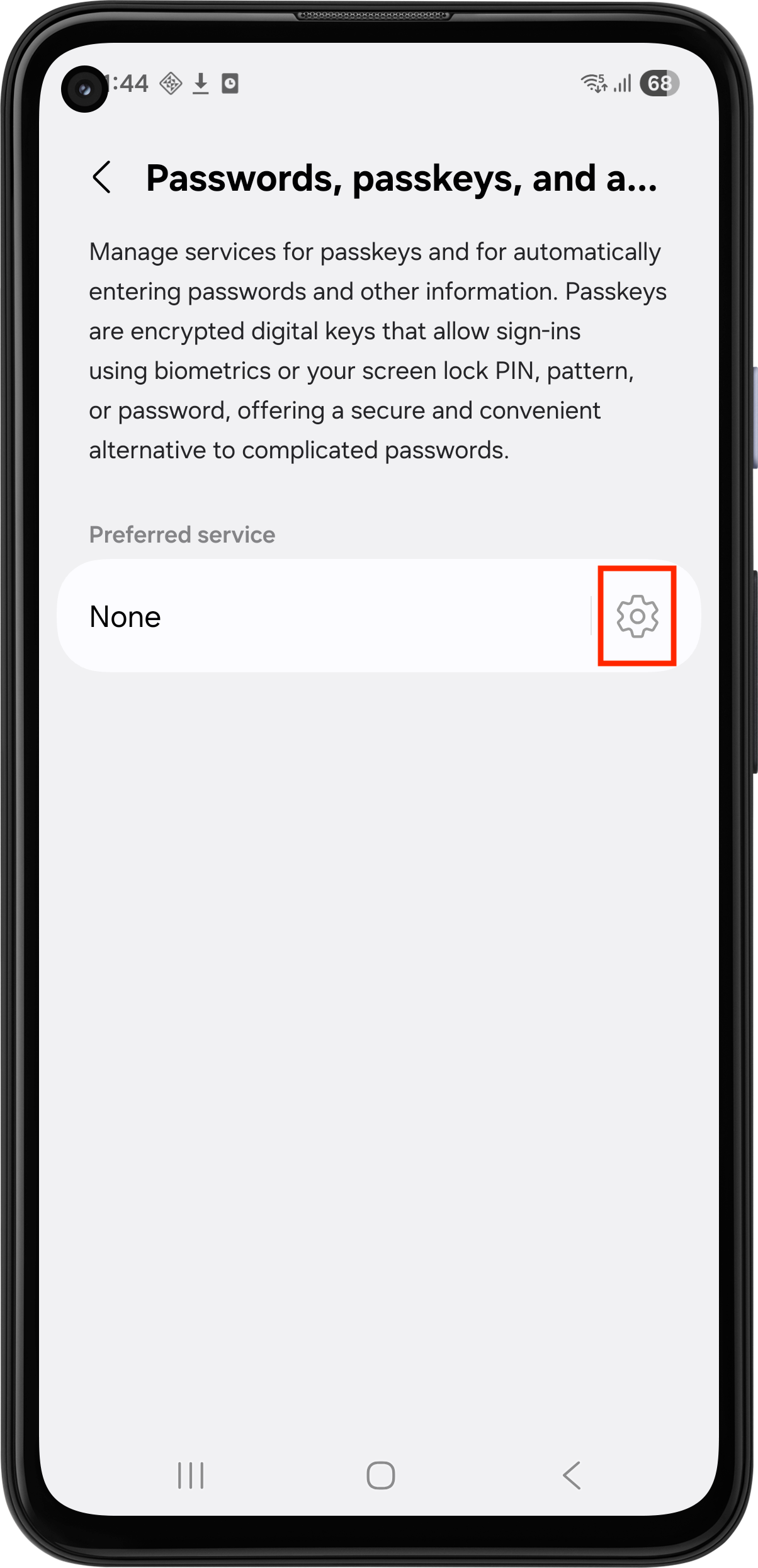
The Passwords, passkeys, and & autofill screen in Settings will be
displayed. Tap the settings icon under Preferred service
-
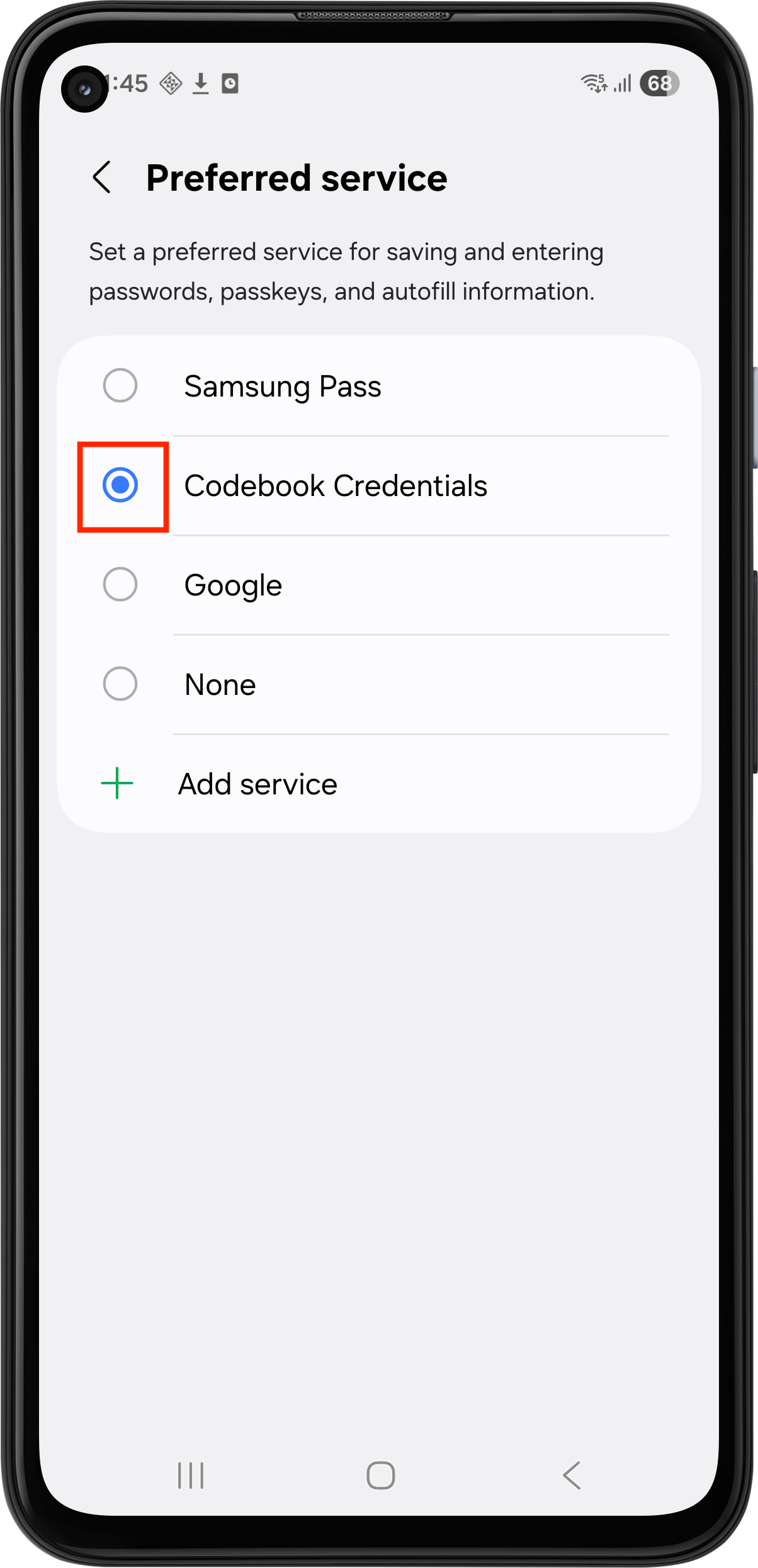
The Preferred service screen will be
displayed. Tap Codebook Credentials. The selection indicator (the blue dot) will not change until confirmation.
-
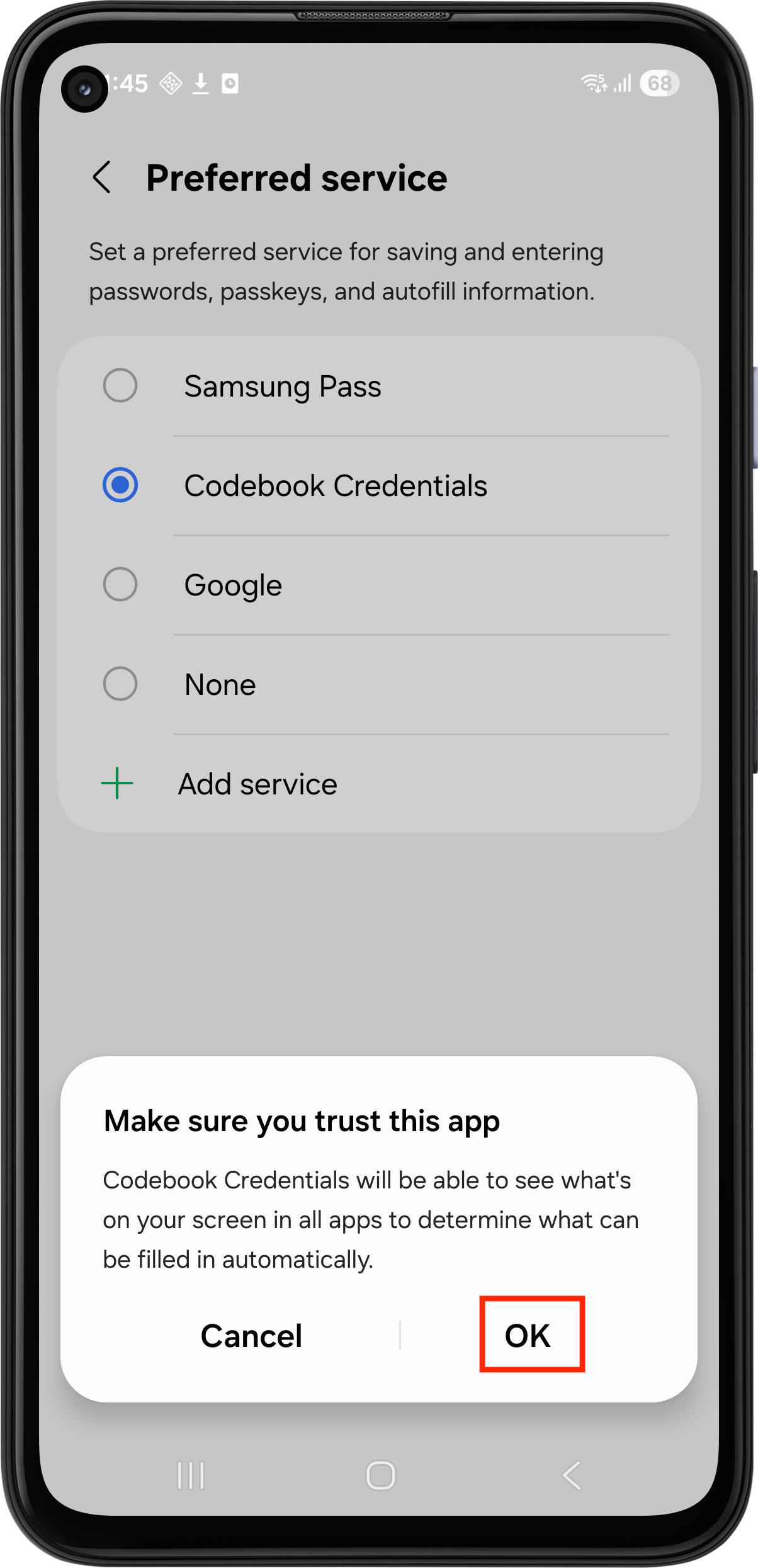
You will need to confirm that you trust Codebook. Tap OK
-
Exit Settings and log back into Codebook
-
Launch Codebook 5.4 or higher
-
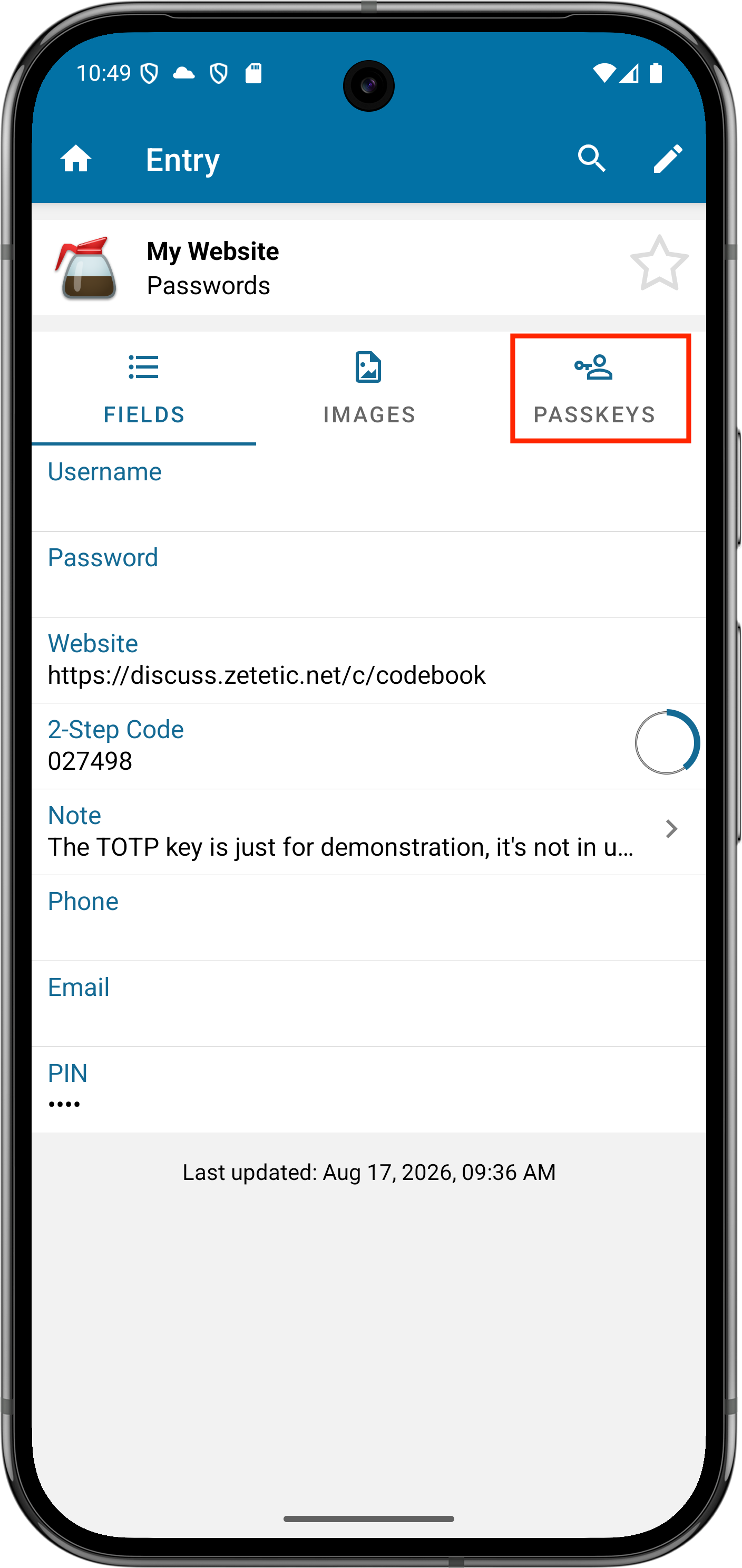
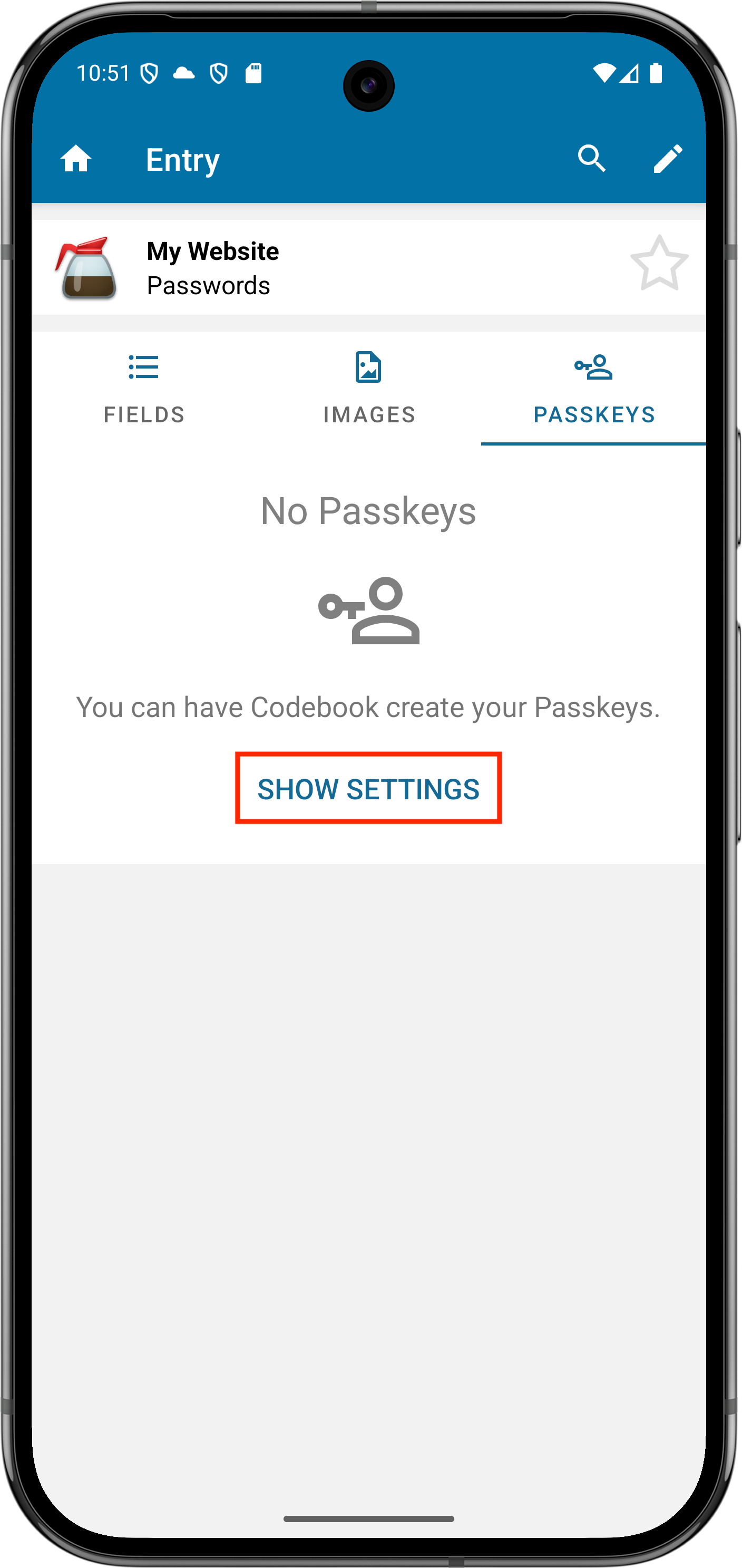
Select an entry and click on Passkeys
-
Tap Show Settings
-
The Passwords, passkeys & accounts screen under the Settings app will be
displayed. Tap Change under Preferred Service
-
The Preferred service for passwords, passkeys and autofill screen will be
displayed. Tap Codebook Credentials
-
You will need to confirm your selection. Tap Change
-
Exit Settings and log back into Codebook
-
Launch Codebook 5.4 or higher
-
Select an entry and click on Passkeys
-
Tap Show Settings
-
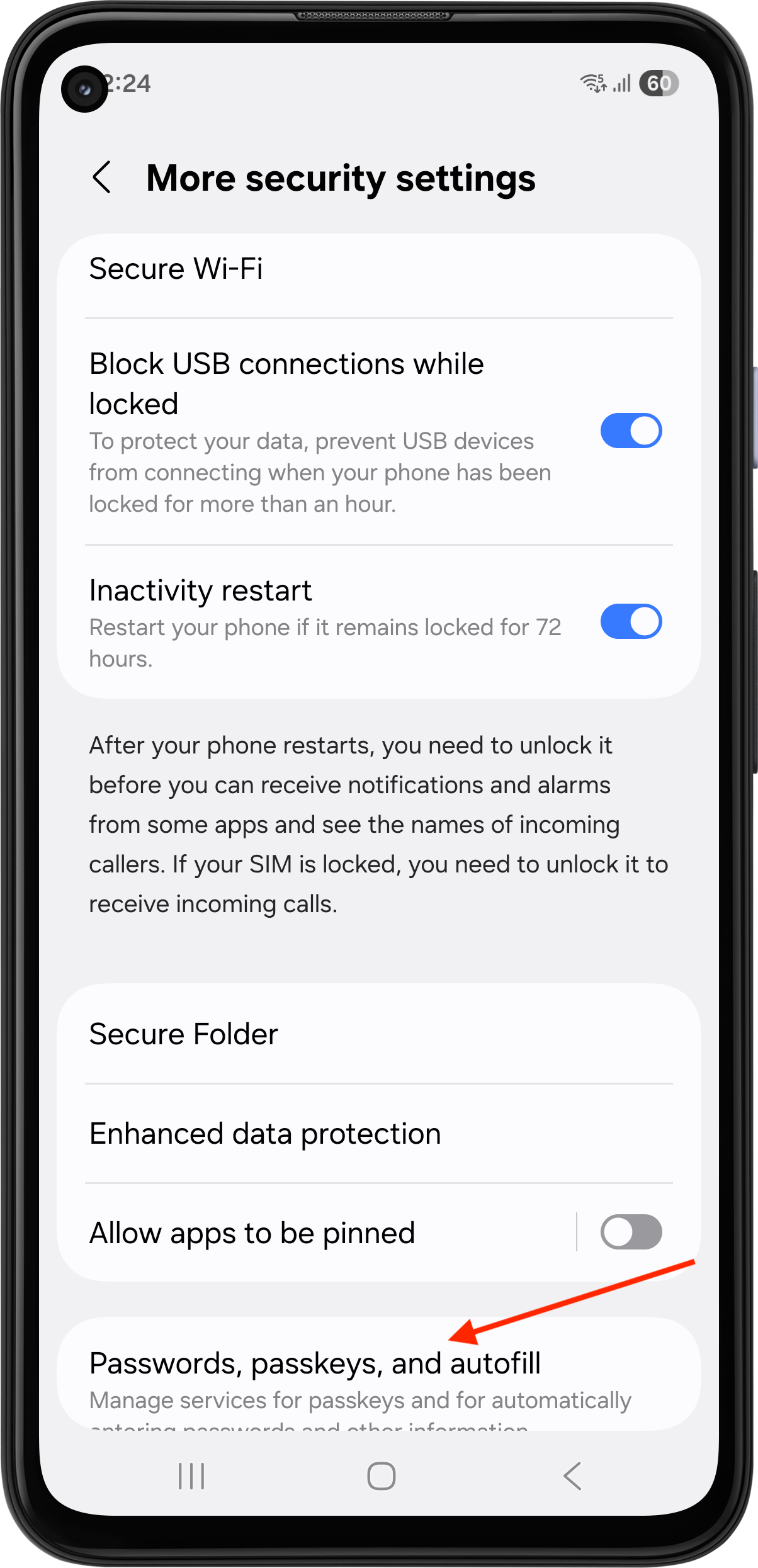
Navigate to Security and privacy -> More security settings -> Passwords, passkeys, and autofill
-
The Passwords, passkeys, and autofill screen in Settings will be
displayed. Tap the settings icon under Preferred service
-
The Preferred service screen will be
displayed. Tap Codebook Credentials. The selection indicator (the blue dot) will not change until confirmation.
-
You will need to confirm that you trust Codebook. Tap OK to indicate that you trust the Codebook app.
-
Exit Settings and log back into Codebook
On ios
iOS support for passkeys with third-party credential providers began with iOS 17
During Installation:
-
Launch Codebook 5.4 or higher
-
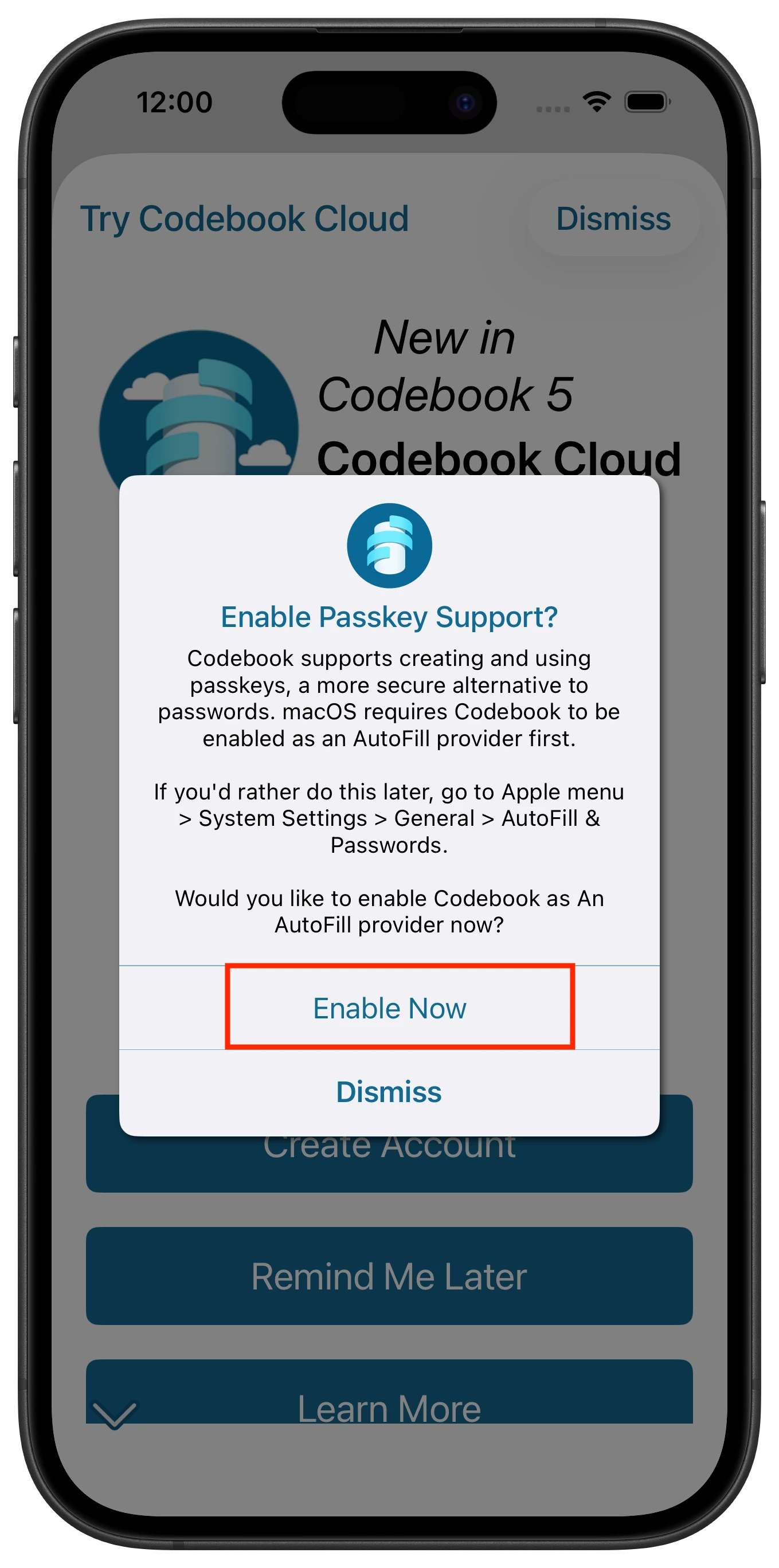
You will be prompted to set various permissions during the installation/setup process. The Enable Passkey Support? screen will be displayed, tap Enable
Now
-
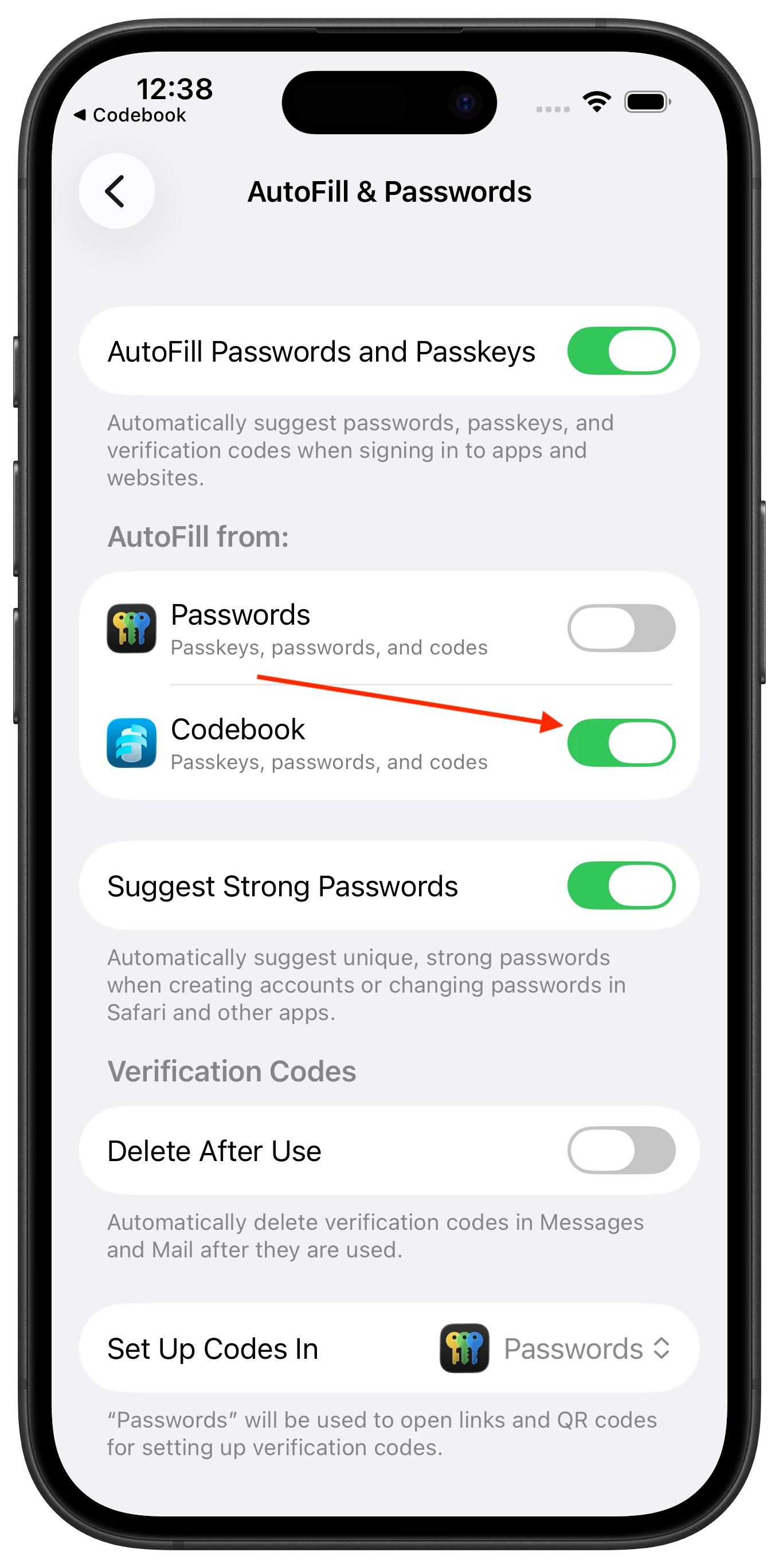
The AutoFill & Passwords system settings page with be displayed. Under AutoFill from: slide the toggle for Codebook
to On.
-
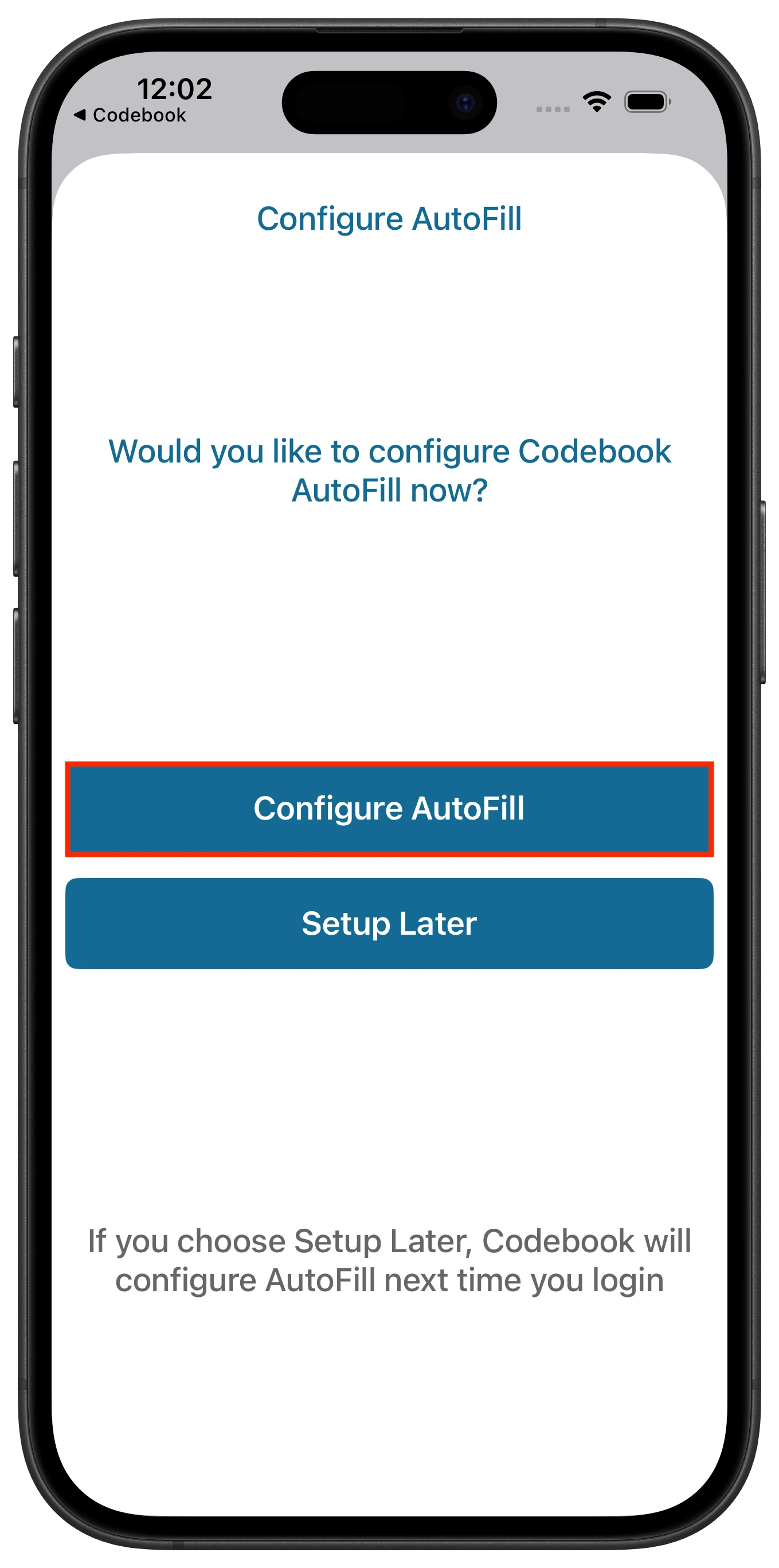
The Configure AutoFill screen will appear. Tap Configure AutoFill
-
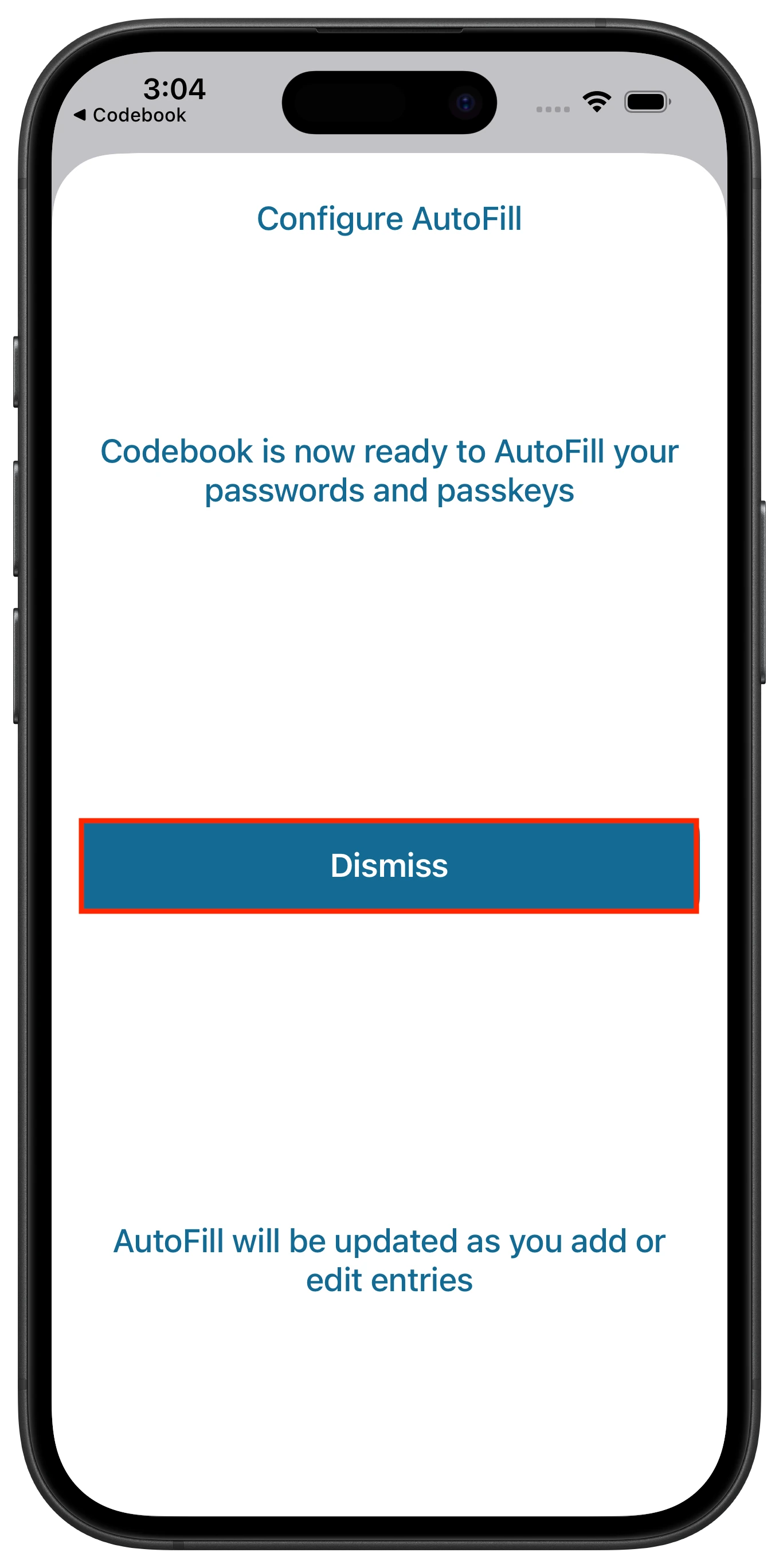
You will receive a confirmation that Codebook is now ready to Autofill your passwords and passkeys. Tap Dismiss to return to Codebook.
Already using Codebook:
-
Launch Codebook 5.4 or higher
-
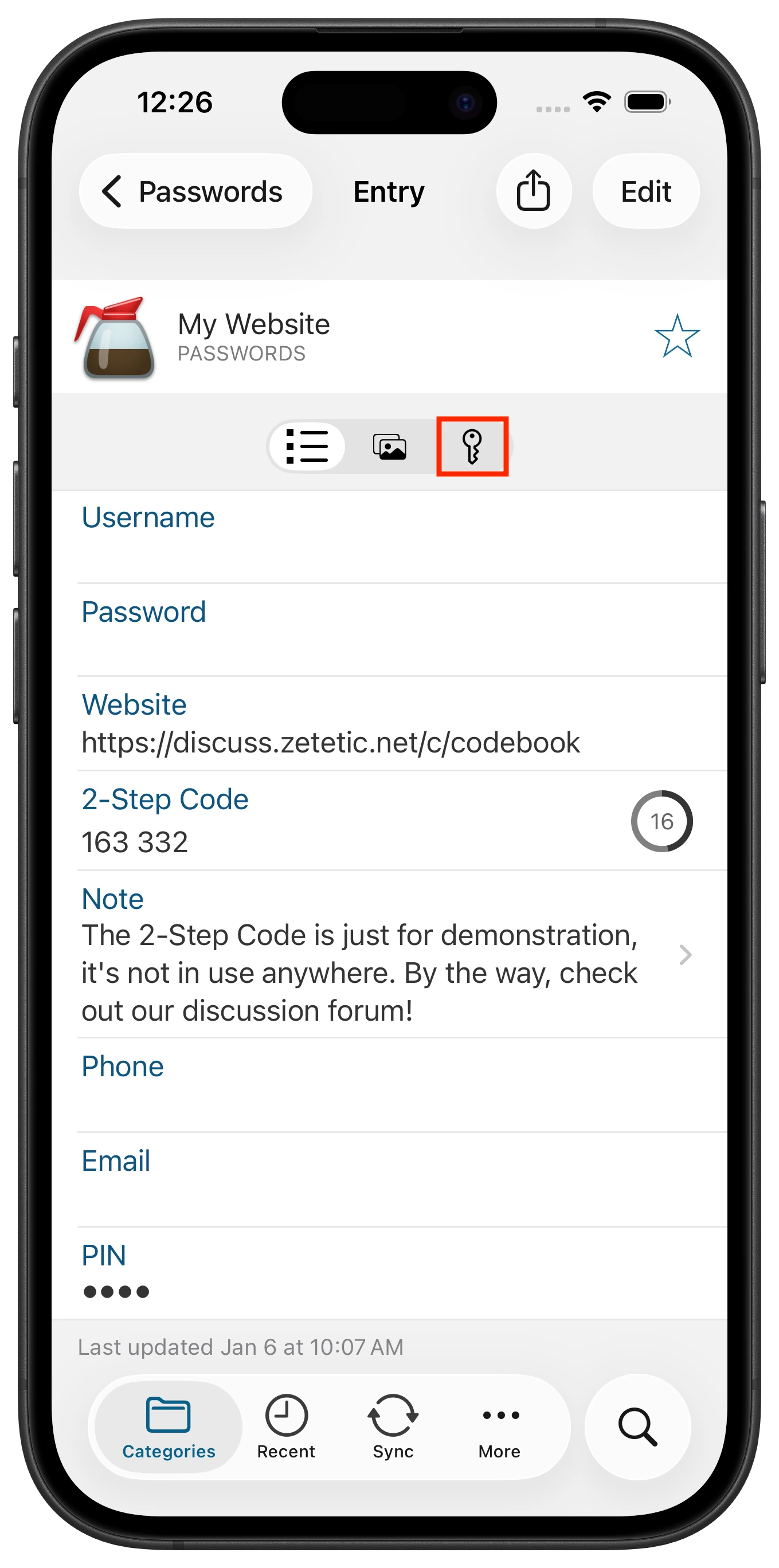
Navigate to an entry and tap on the Passkeys view
-
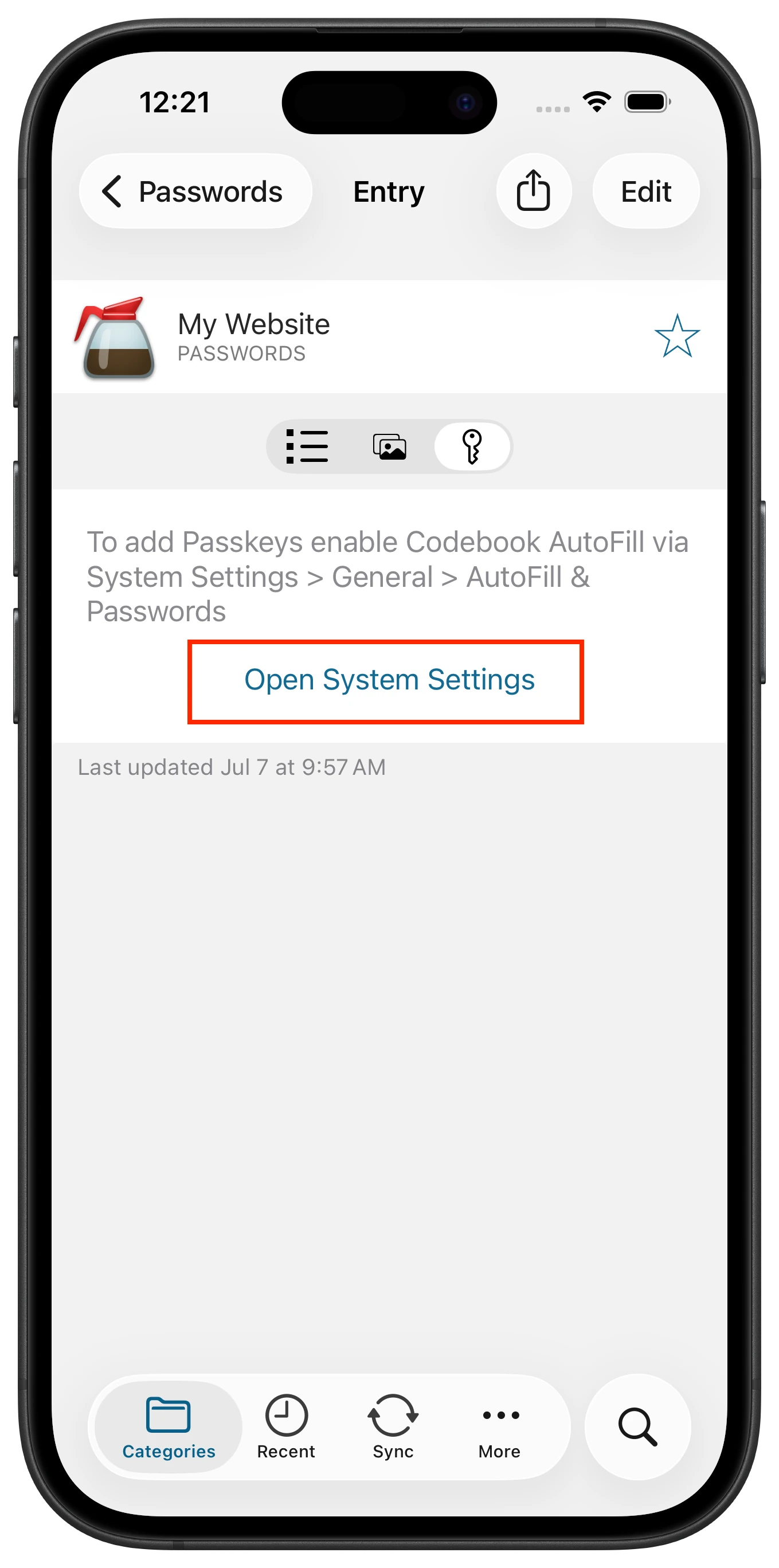
Tap on Open System Settings
-
The AutoFill & Passwords system settings page with be displayed. Under AutoFill from: slide the toggle for Codebook
to On.
-
The Configure AutoFill screen will appear. Tap Configure AutoFill
-
You will receive a confirmation that Codebook is now ready to Autofill your passwords and passkeys. Tap Dismiss to return to Codebook.
On macos
macOS support for passkeys with third-party credential providers began with macOS 14
-
Launch Codebook 5.4 or higher
-
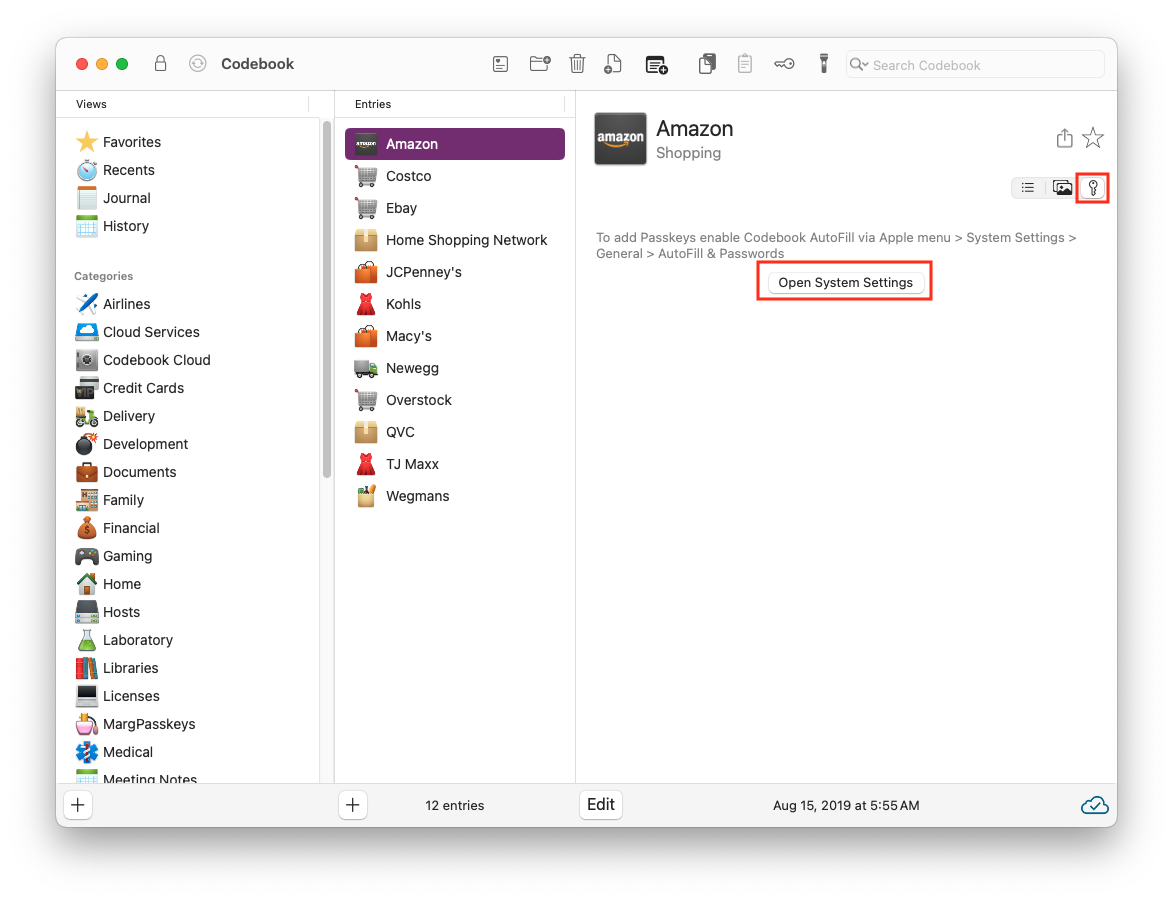
Select an entry and click on the Passkeys view
-
Click on Open System Settings
-
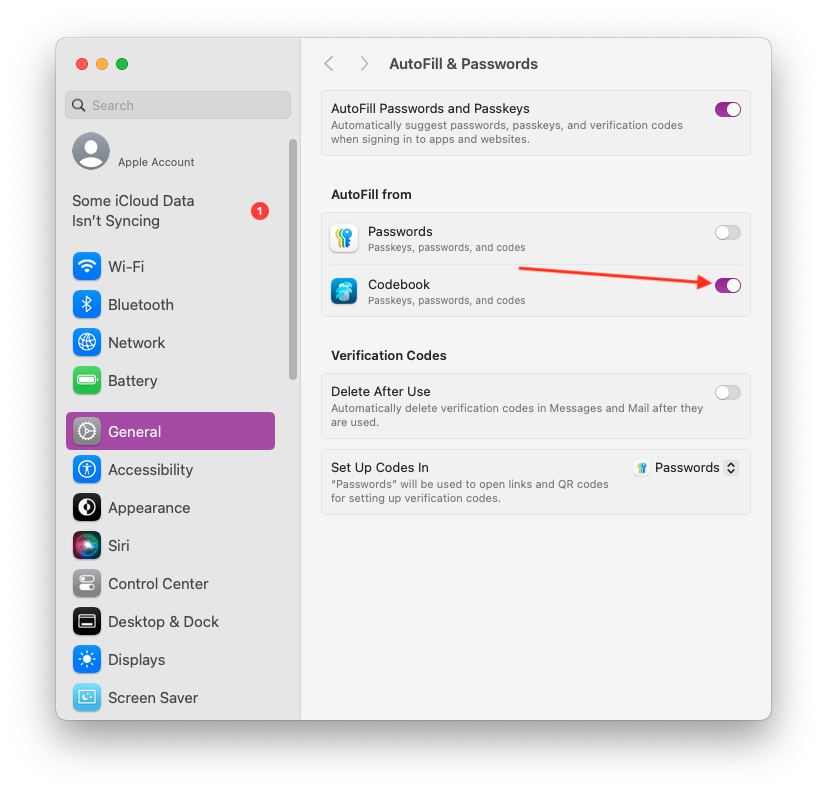
System Settings > AutoFill &
Passwords will
open. Slide the toggle for Codebook to On.
-
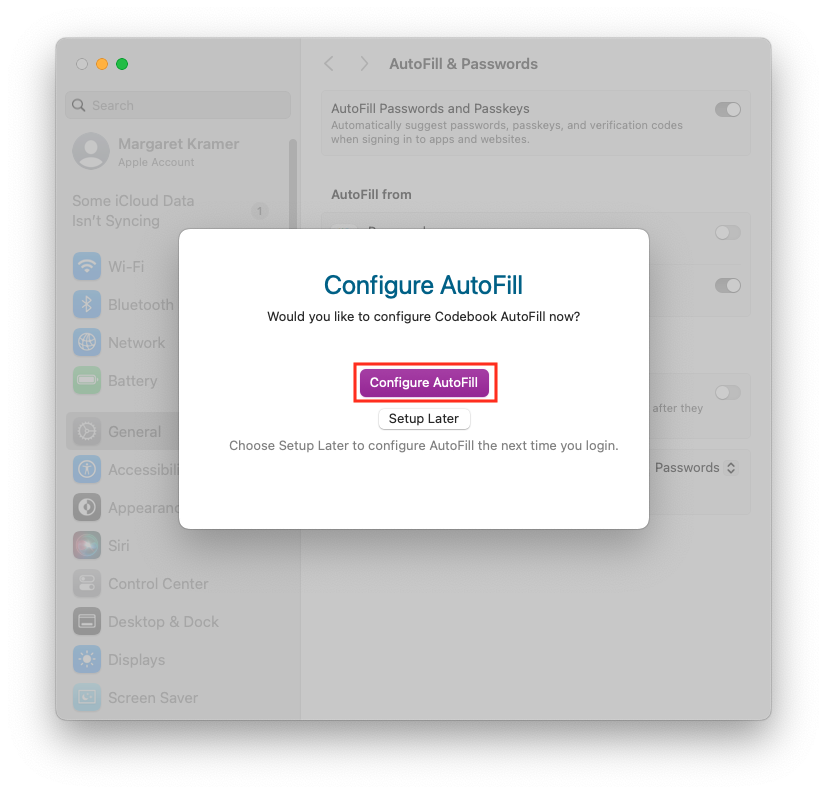
The Configure AutoFill window will appear. Click Configure AutoFill
-
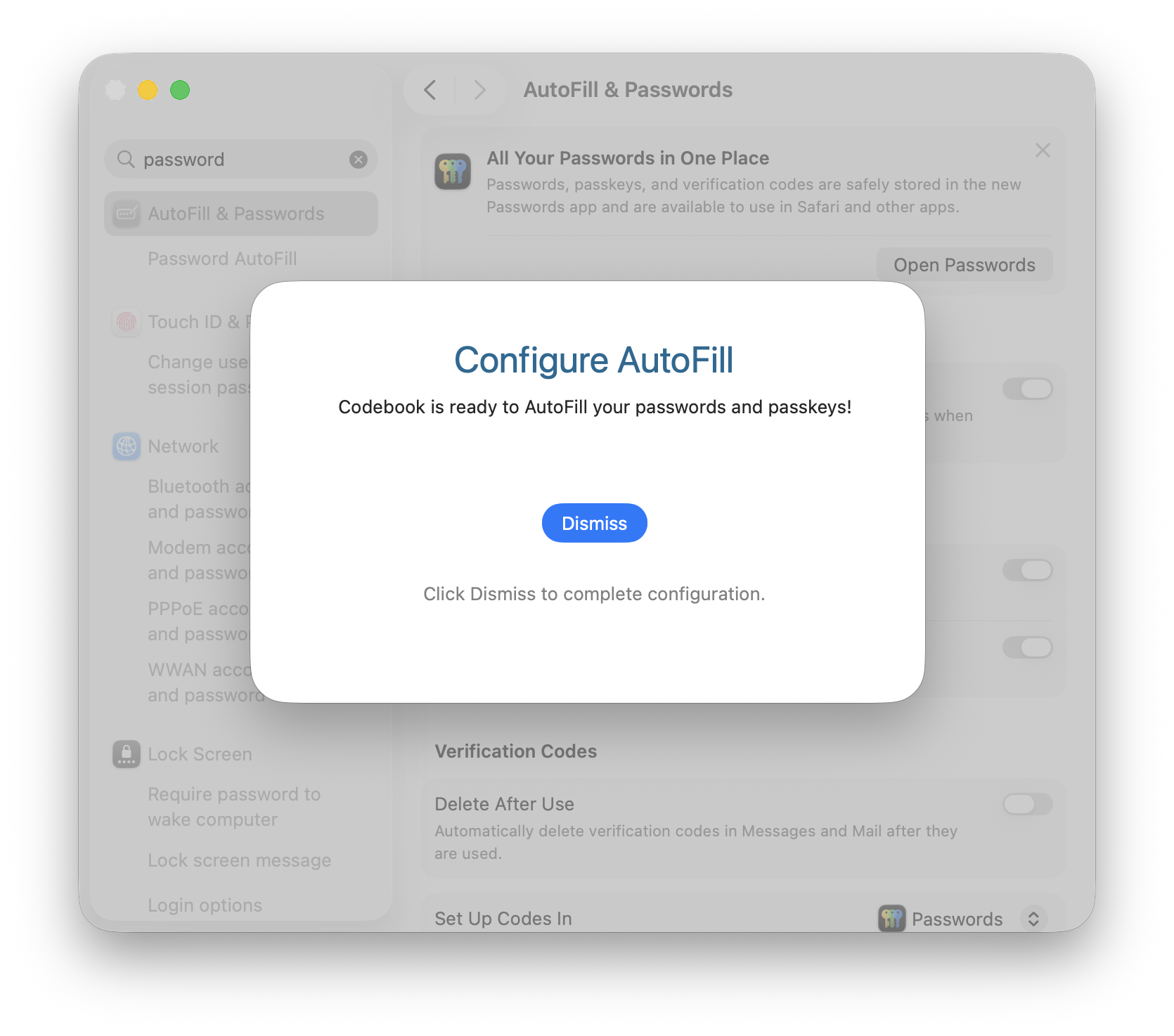
You will receive a confirmation that Codebook is ready to AutoFill you passwords and passkeys. Click Dismiss
On windows
Windows support for passkeys began with Windows 11 version 24h2. Codebook on Linux does not support passkeys.
-
Launch Codebook 5.4 or higher
-
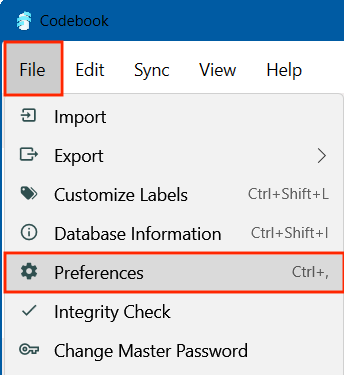
Open Codebook Preferences. File > Preferences
-
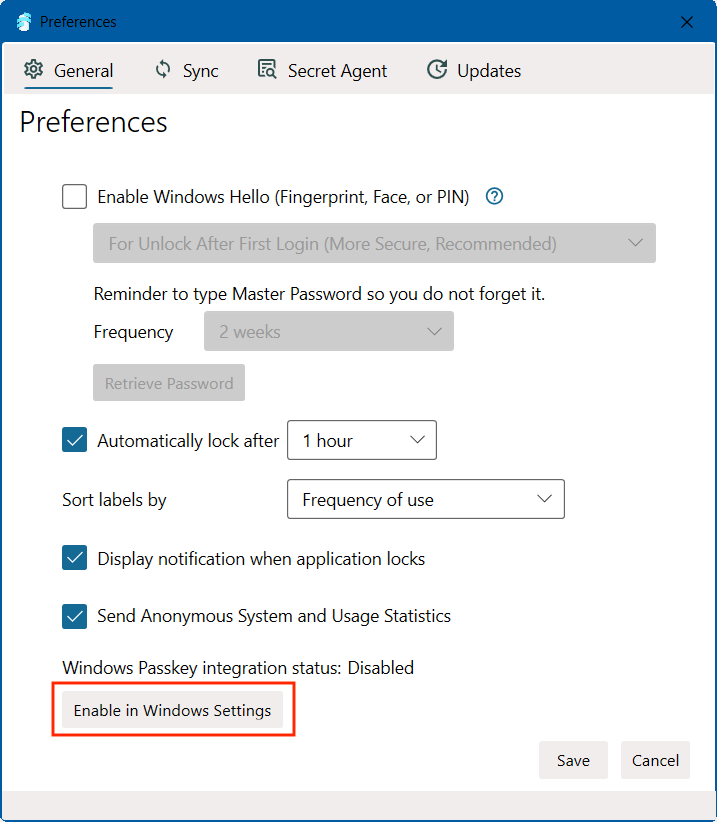
Click on Enable in Windows Settings.
-
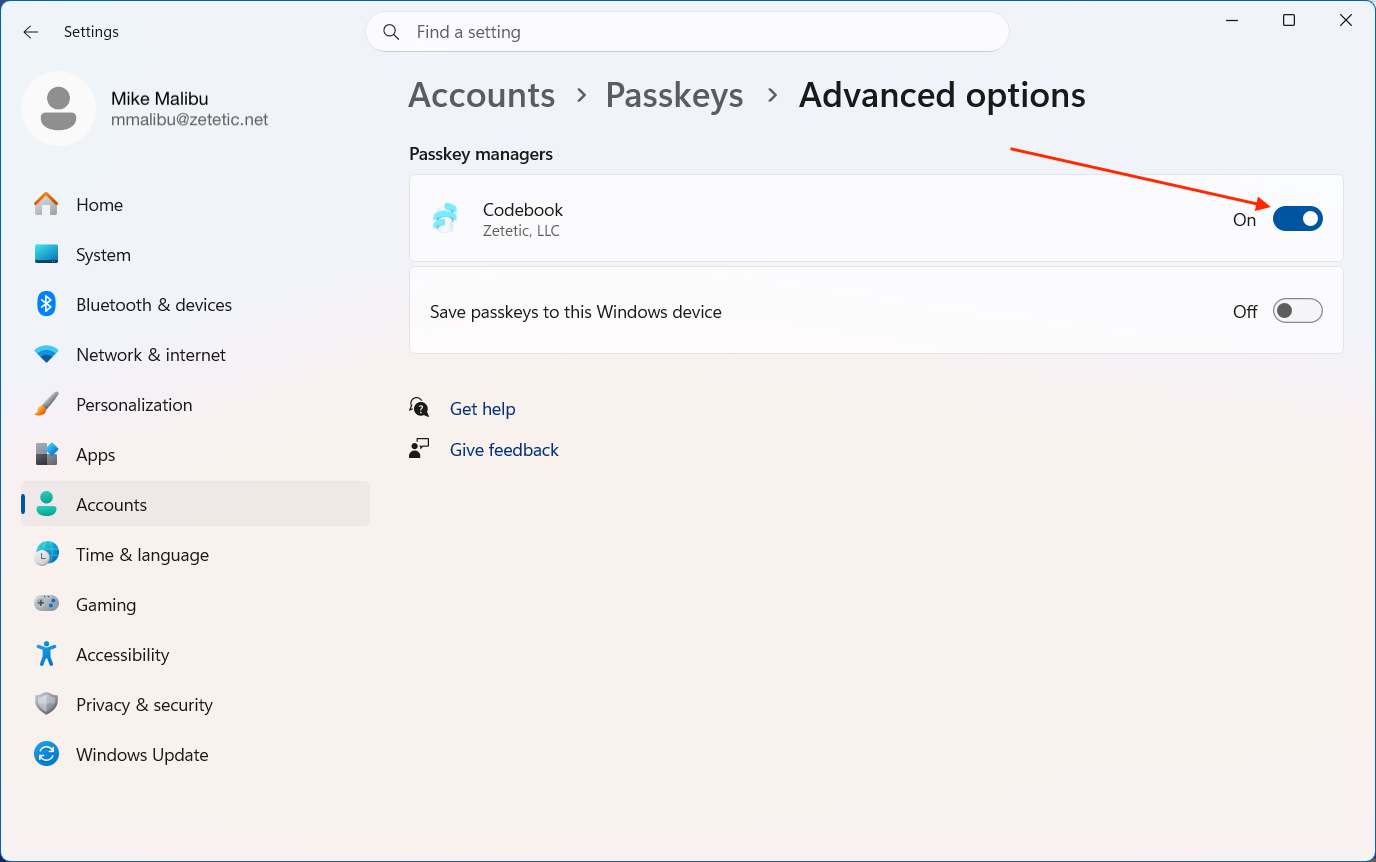
The Settings App will open. Enable Codebook under
Accounts > Passkeys > Advanced options. Slide the toggle On
-
You will be required to authenticate to Windows Hello
