• Android
  • iOS
  • macOS
  • Windows

🚧 This is beta documentation for Codebook version 5.3.0, which has not yet been publicly released.

Remove a Sharing Contact

The Codebook Cloud Secure Sharing feature allows you to securely share data with another Codebook Cloud user. There may be circumstances when you want to remove the trust you had establish with an external contact.

If your Codebook Cloud account is part of a Family Plan subscription all members of the plan are automatically trusted contacts and cannot be removed/untrusted.

  1. Login in your Codebook Cloud account at Codebook Cloud Login. Enter your email and password. This is your Codebook Cloud password. It maybe stored in Codebook in the Codebook Cloud entry in Codebook catergory. Click Sign In.

    Codebook Cloud Sign In

  2. Click View Contacts.

    Codebook Cloud Dashboard - View Contacts

  3. Your existing contacts will be displayed. Click Remove to remove a contact.

    Codebook Cloud Dashboard - View Contacts

On android

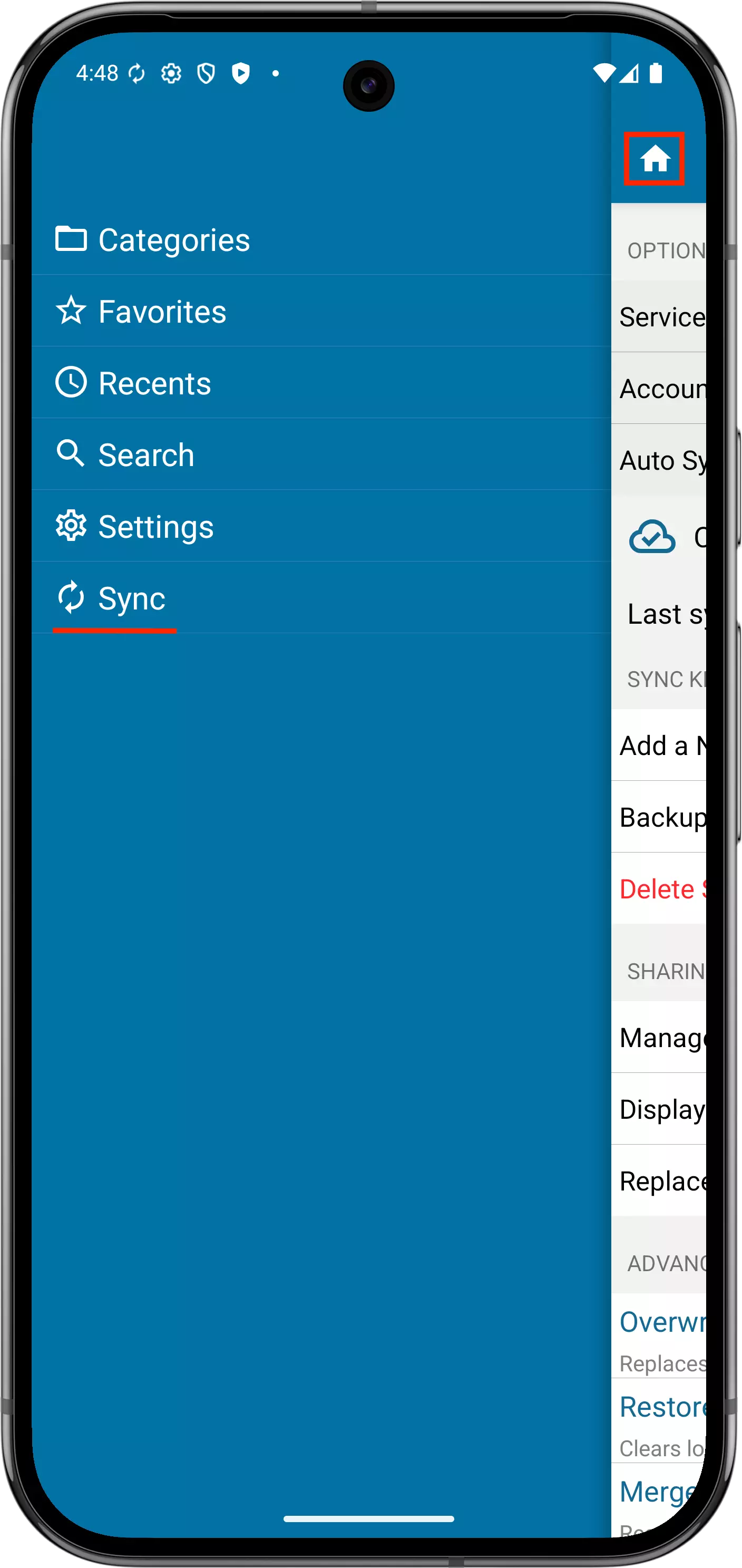
  1. Tap on Home > Sync
  2. On the Sync screen, tap Manage Contacts.

    Sync Sharing Menu - Home menu to display sync option Sync Sharing Menu - Manage Contacts option

  3. Long Tap on the contact you want to remove.

    Sync Sharing Contacts Screen

  4. Click Remove Contact.

    Sync Sharing - Manage Contacts - Remove Contact Option

  5. A confirmation will be displayed, click Remove Contact if you want to remove the selected contact.

    Sync Sharing - Manage Contacts - Confirm Remove Contact

On ios

  1. Access the Contacts screen to see your Contacts.

    From the Sync Menu, select Sharing -> Manage Contacts.

    Navigation to Sync Sharing Manage Contacts Screen

    From this point, there are two ways to remove a Contact.

    • OPTION 1:
      1. Tap on the three dots ellipsis in circle icon to display the available options for that contact.

        Sync Sharing Manage Contacts Screen - options

      2. Tap Remove Contact

        Sync Sharing - Manage Contacts - Remove Contact Option

      3. A confirmation will be displayed, tap Remove Contact if you want to remove the contact.

        Sync Sharing - Manage Contacts - Confirm Remove Contact

    • OPTION 2:
      1. Tap on the contact to display the details the contact.

        Sync Sharing Contacts Details Screen

      2. The users name and email will be displayed. Tap Remove Contact.

        Sync Sharing Contact Remove Contact

      3. A confirmation will be displayed, tap Remove Contact if you want to remove the contact.

        Sync Sharing - Manage Contacts - Confirm Remove Contact

On macos

  1. Access the Contacts screen to see your Contacts.

    From the Sync Menu, select Sharing -> Manage Contacts.

    Navigation to Sync Sharing Manage Contacts Screen

    From this point, there are two ways to remove a Contact.

    • OPTION 1:
      1. Click on the three dots ellipsis in circle icon to display the available options for that contact.

        Sync Sharing Manage Contacts Screen - options

      2. Click Remove Contact

        Sync Sharing - Manage Contacts - Remove Contact Option

      3. A confirmation will be displayed, click Remove Contact if you want to remove the contact.

        Sync Sharing - Manage Contacts - Confirm Remove Contact

    • OPTION 2:
      1. Click on the contact to display the available options for the contact.

        Sync Sharing Contacts Details Screen

      2. The users name and email will be displayed. Click Remove Contact.

        Sync Sharing Contact Remove Contact

      3. A confirmation will be displayed, click Remove Contact if you want to remove the contact.

        Sync Sharing - Manage Contacts - Confirm Remove Contact

On windows

  1. Access the Contacts screen to see your Contacts.

    From the Sync Menu, select Sharing -> Manage Contacts.

    Navigation to Sync Sharing Manage Contacts Screen

  2. Click Manage to view the available options.

    Sync Sharing Manage Contacts Screen - options

  3. Click Remove Contact.

    Sync Sharing - Manage Contacts - Remove Contact Option

  4. A confirmation will be displayed, click Remove if you want to remove the contact.

    Sync Sharing - Manage Contacts - Confirm Remove Contact