Enable Passkeys in Codebook
Passkeys are a new type of login credential that allow you to login to sites and services without having to
enter a password. There are settings that are required to allow you to create and use passkeys in Codebook.
For a high level explanation of passkeys, click here.
There is no mechanism to migrate existing passkeys to Codebook. You'll need to create a new passkey for each website/application in order to save your passkey in Codebook.
Use these settings to authorize Codebook as your passkey service.
On android
Android support for passkeys using a credential manager began with Android 14
During Installation:
-
Install Codebook 5.4 or higher
-
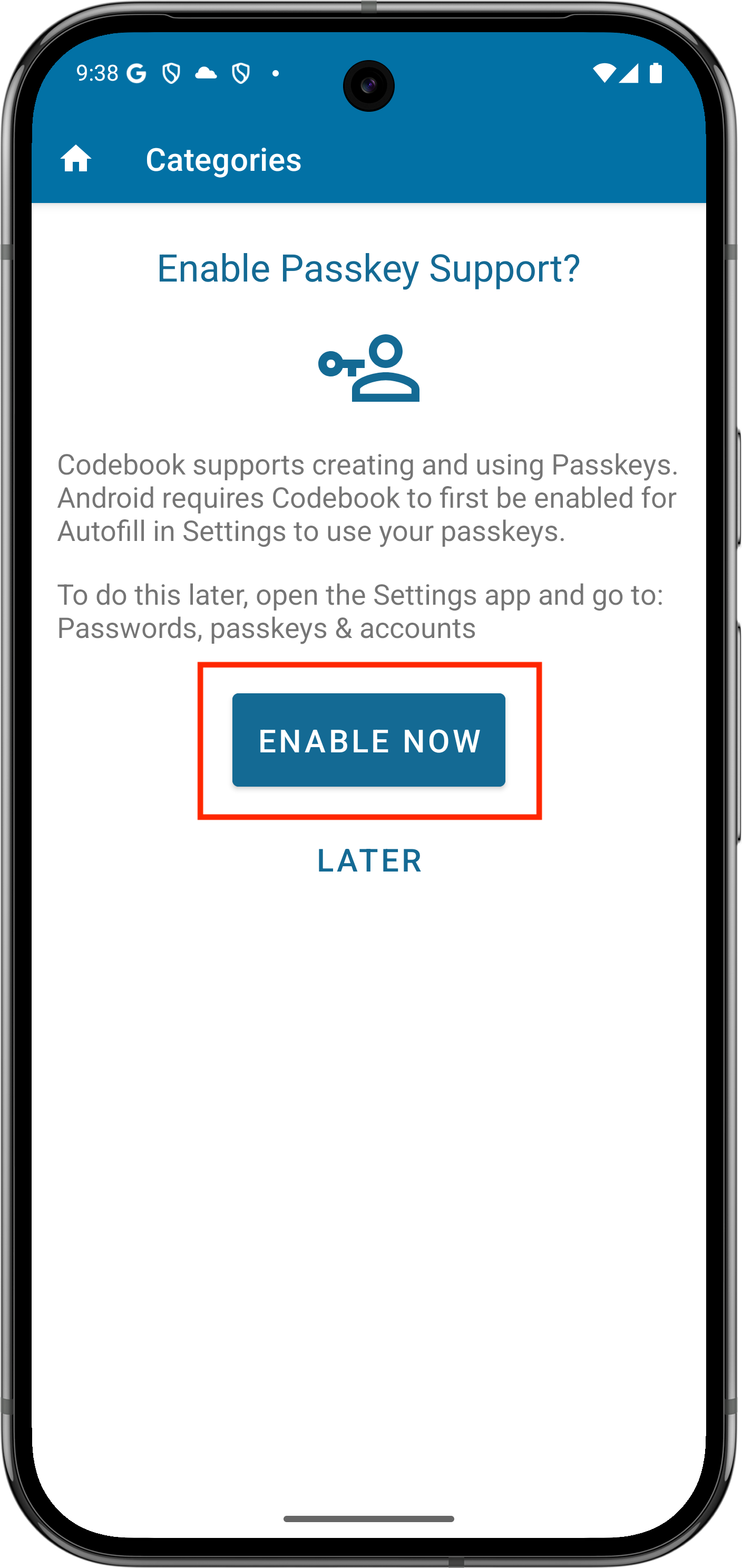
You will be prompted to set various permissions. When prompted toEnable Passkey
Support? tap Enable
Now
-
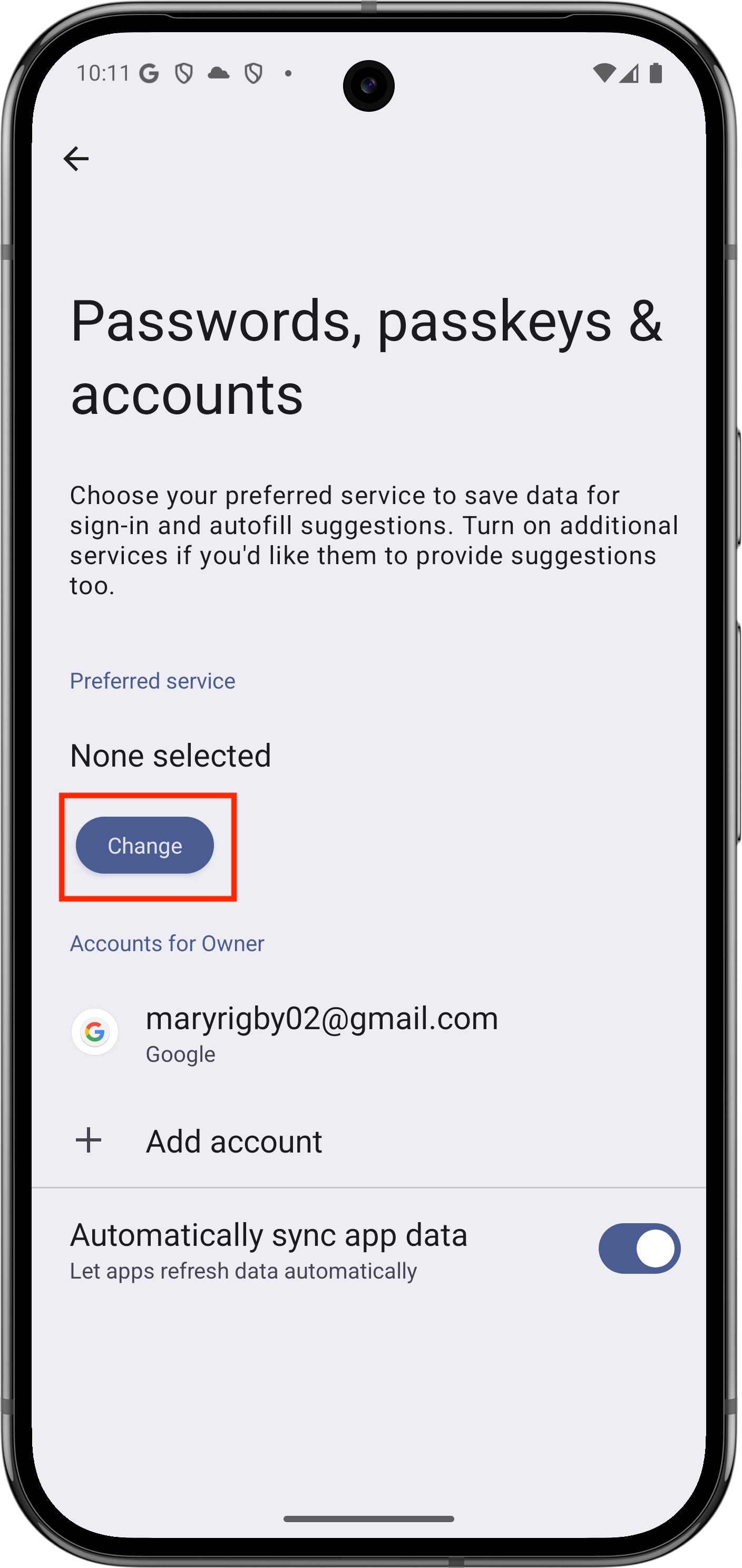
The Passwords, passkeys & accounts screen under the Settings app will be
displayed. Tap Change under Preferred Service
-
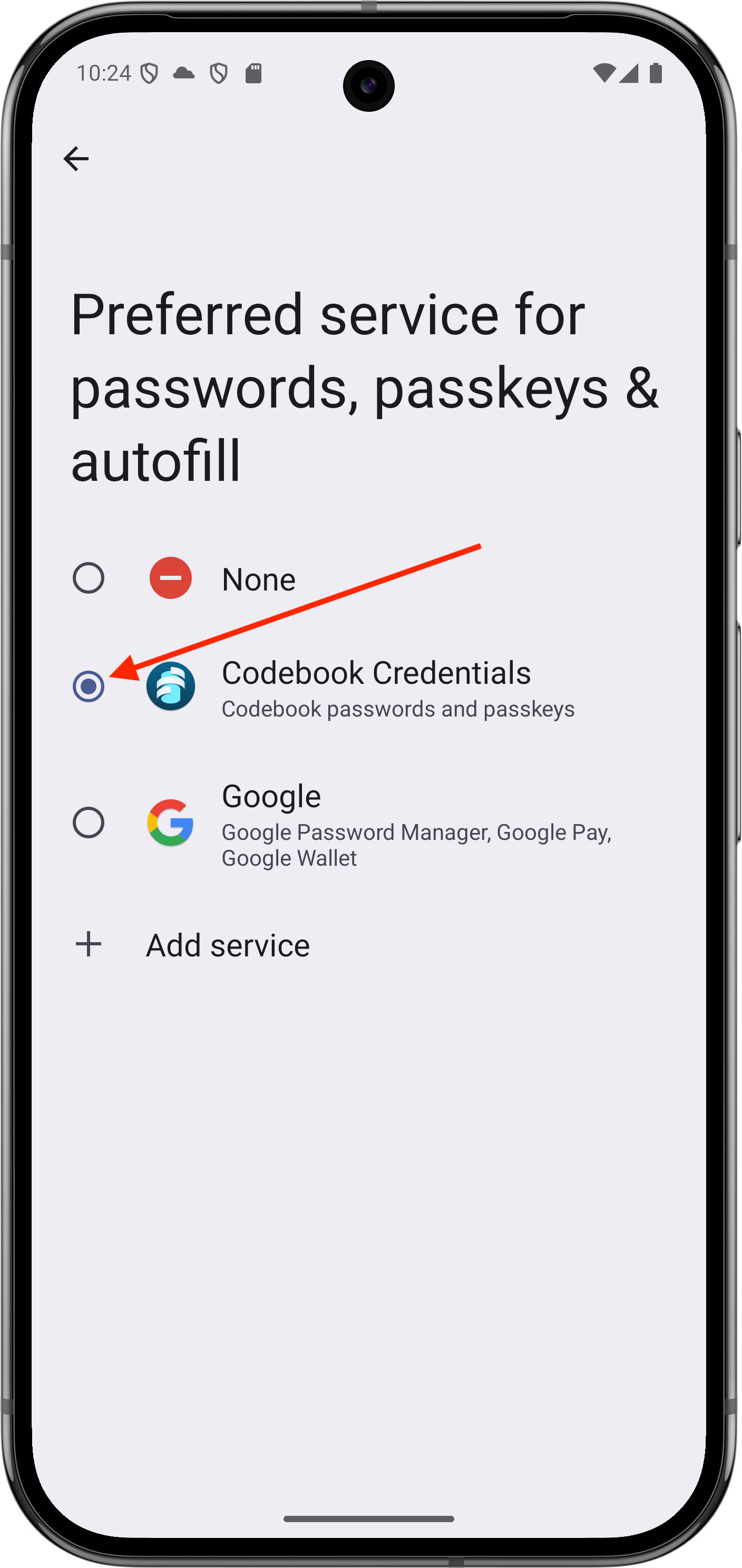
The Preferred service for passwords, passkeys and autofill screen will be
displayed. Tap Codebook Credentials
-
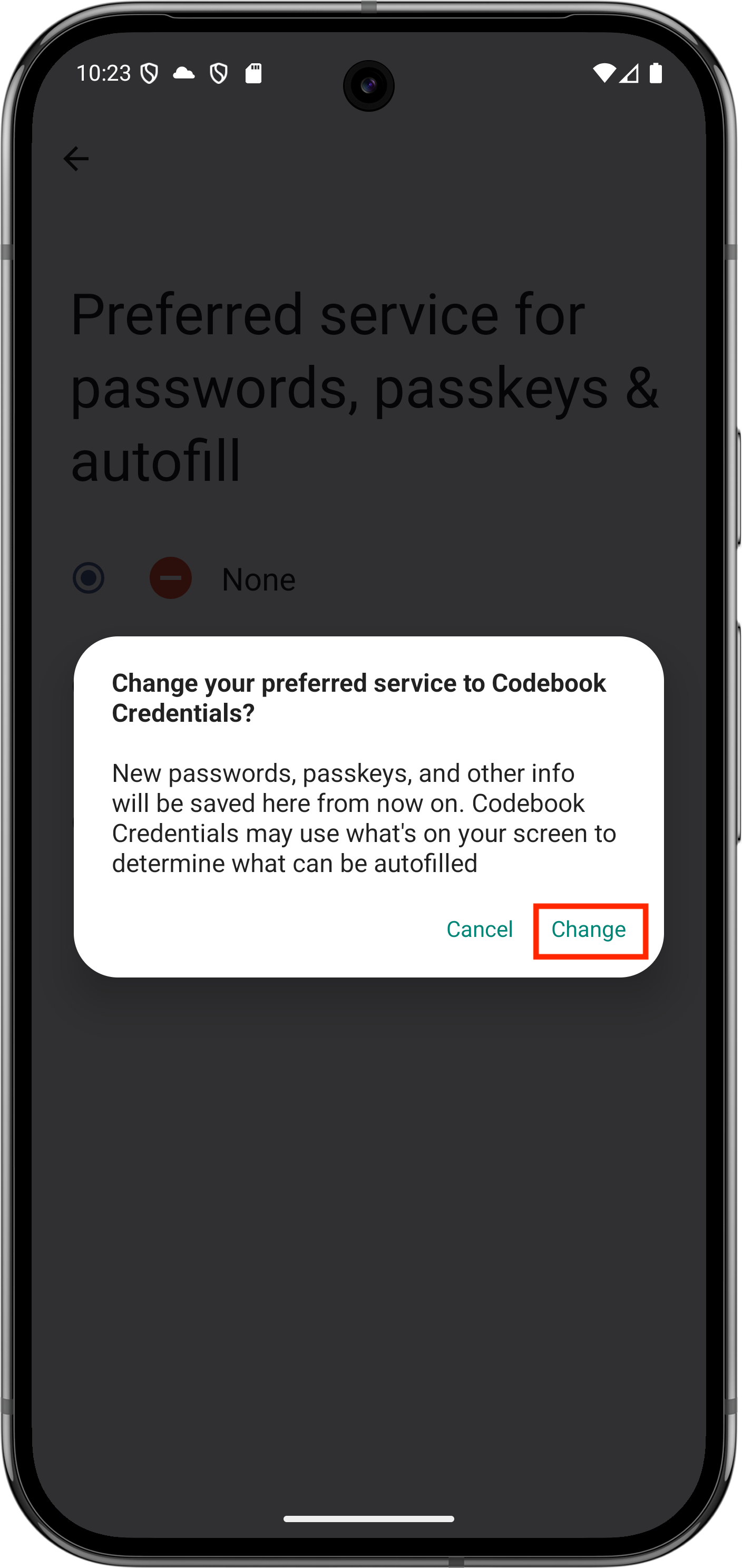
You will need to confirm your selection. Tap Change
-
Exit Settings and log back into Codebook
Already Using Codebook:
-
Launch Codebook 5.4 or higher
-
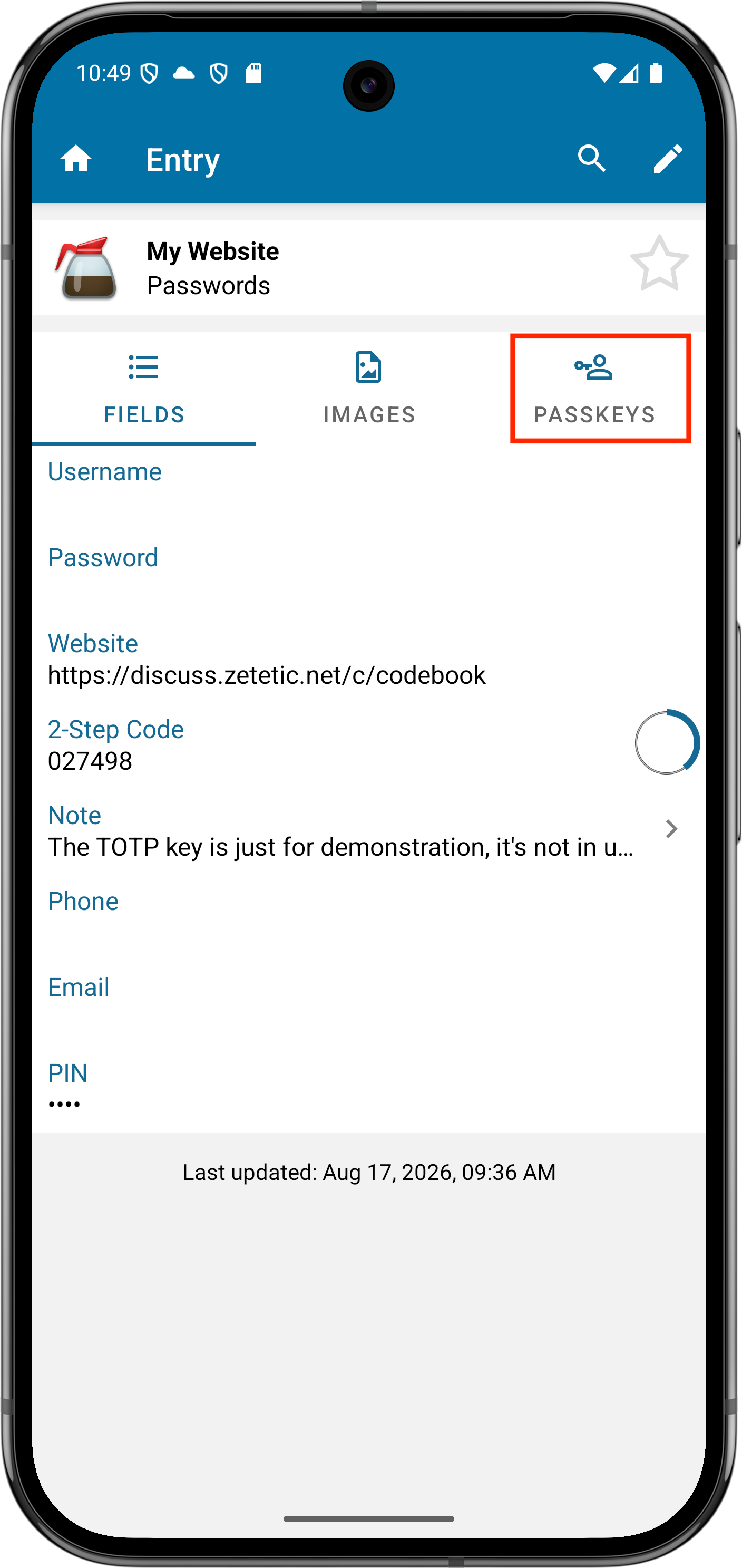
Select an entry and click on Passkeys
-
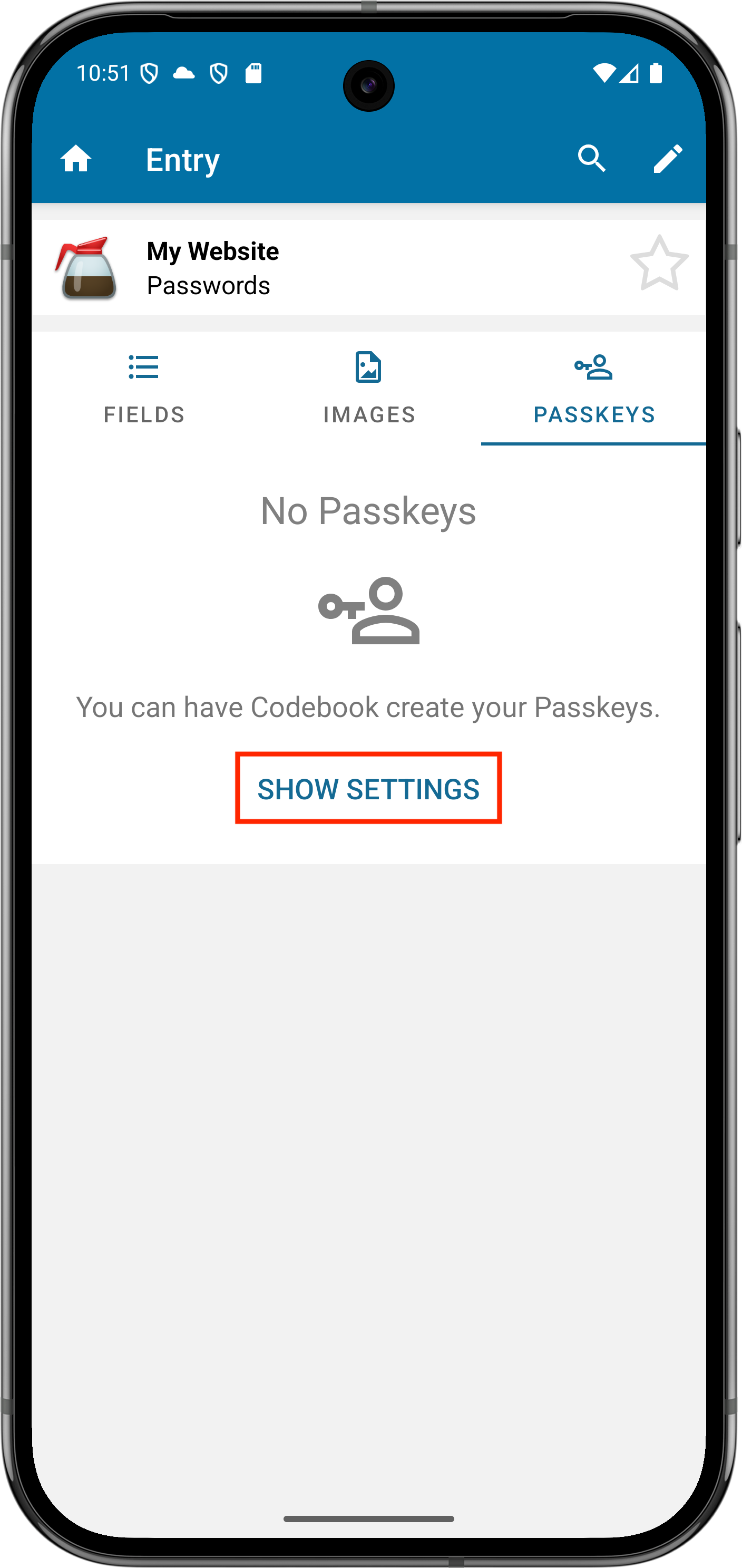
Tap Show Settings
-
The Passwords, passkeys & accounts screen under the Settings app will be
displayed. Tap Change under Preferred Service
-
The Preferred service for passwords, passkeys and autofill screen will be
displayed. Tap Codebook Credentials
-
You will need to confirm your selection. Tap Change
-
Exit Settings and log back into Codebook
On ios
iOS support for passkeys with third-party credential providers began with iOS 17
During Installation:
-
Launch Codebook 5.4 or higher
-
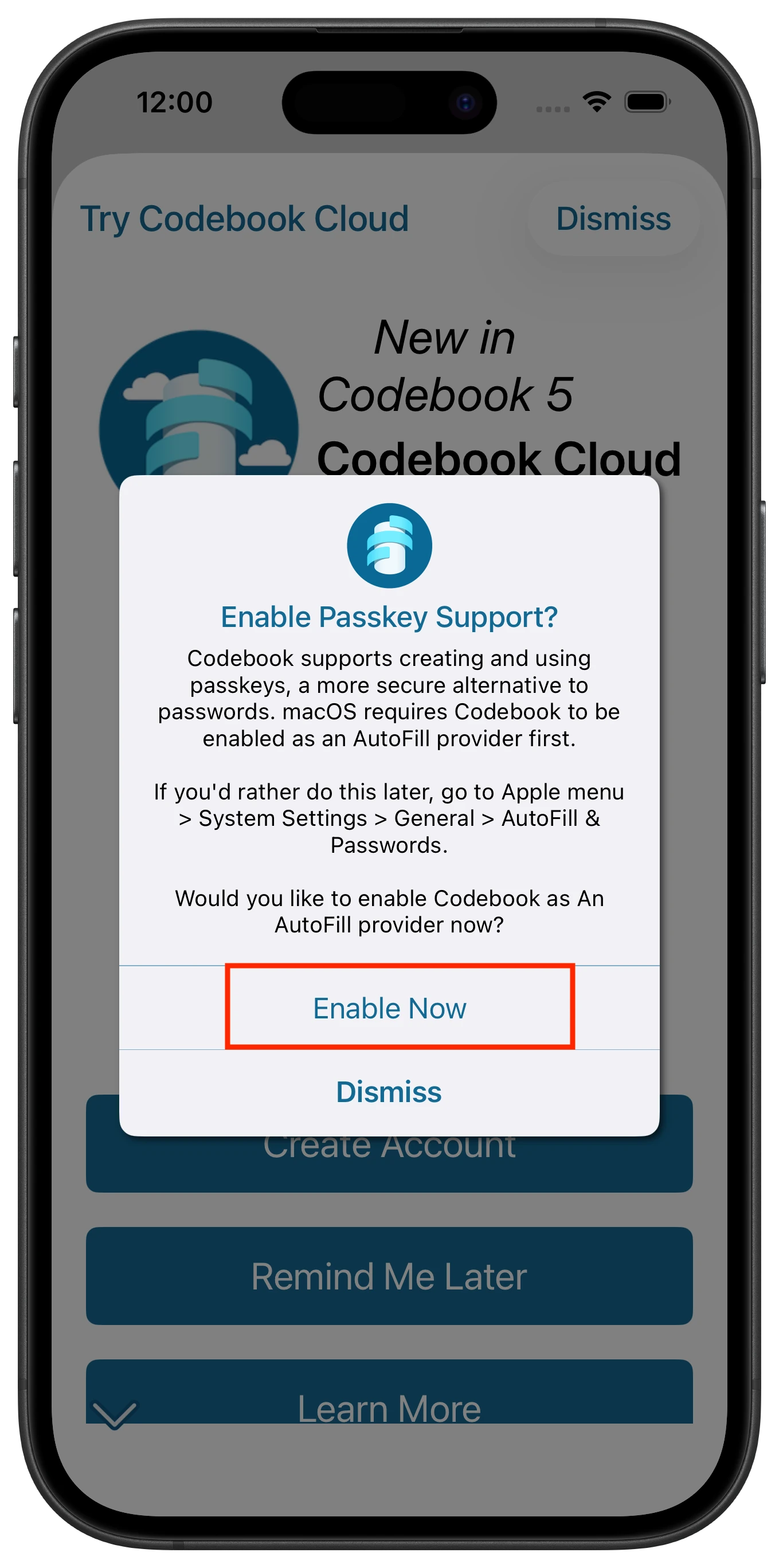
You will be prompted to set various permissions during the installation/setup process. The Enable Passkey Support? screen will be displayed, tap Enable
Now
-
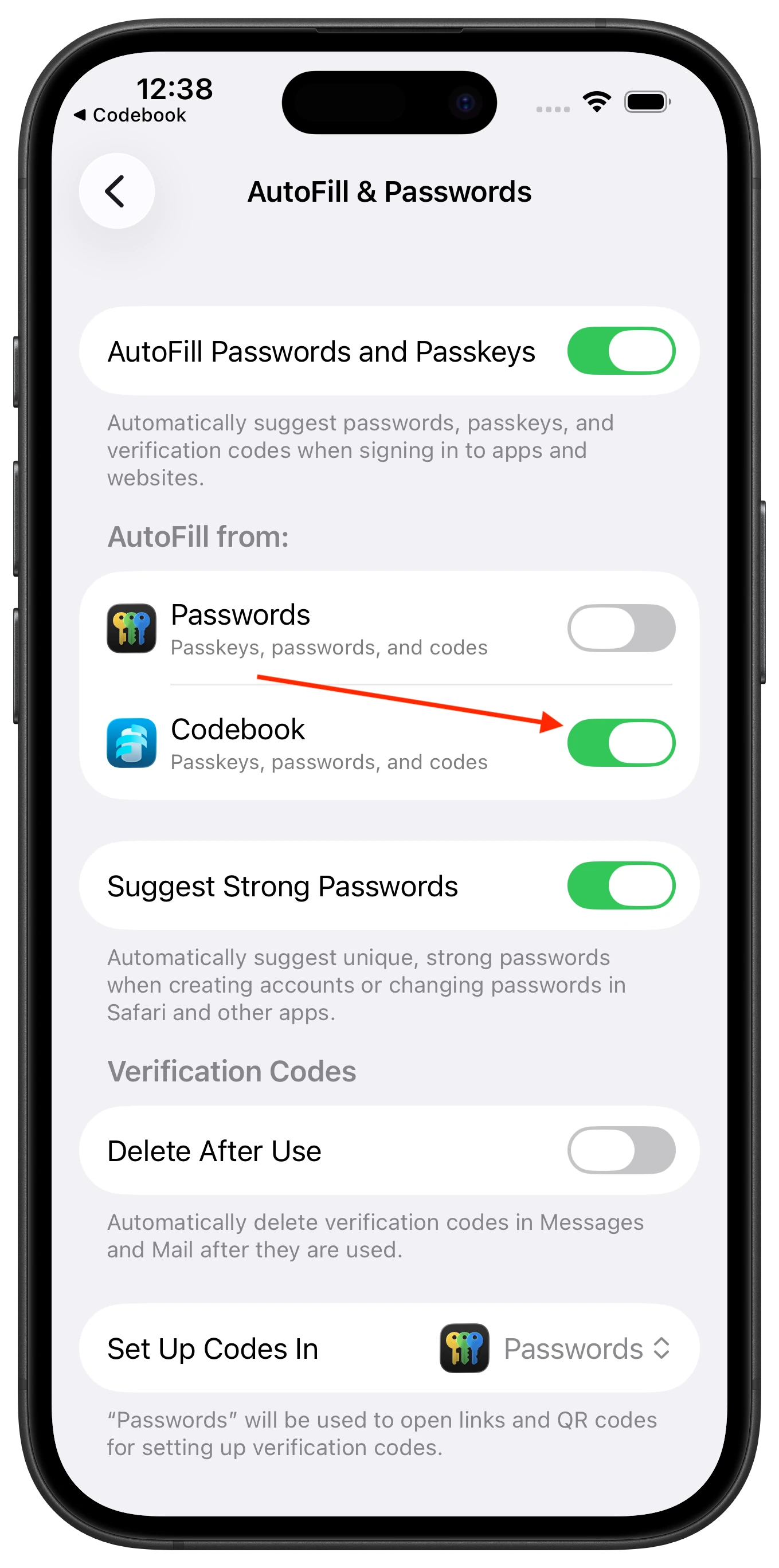
The AutoFill & Passwords system settings page with be displayed. Under AutoFill from: slide the toggle for Codebook
to On.
-
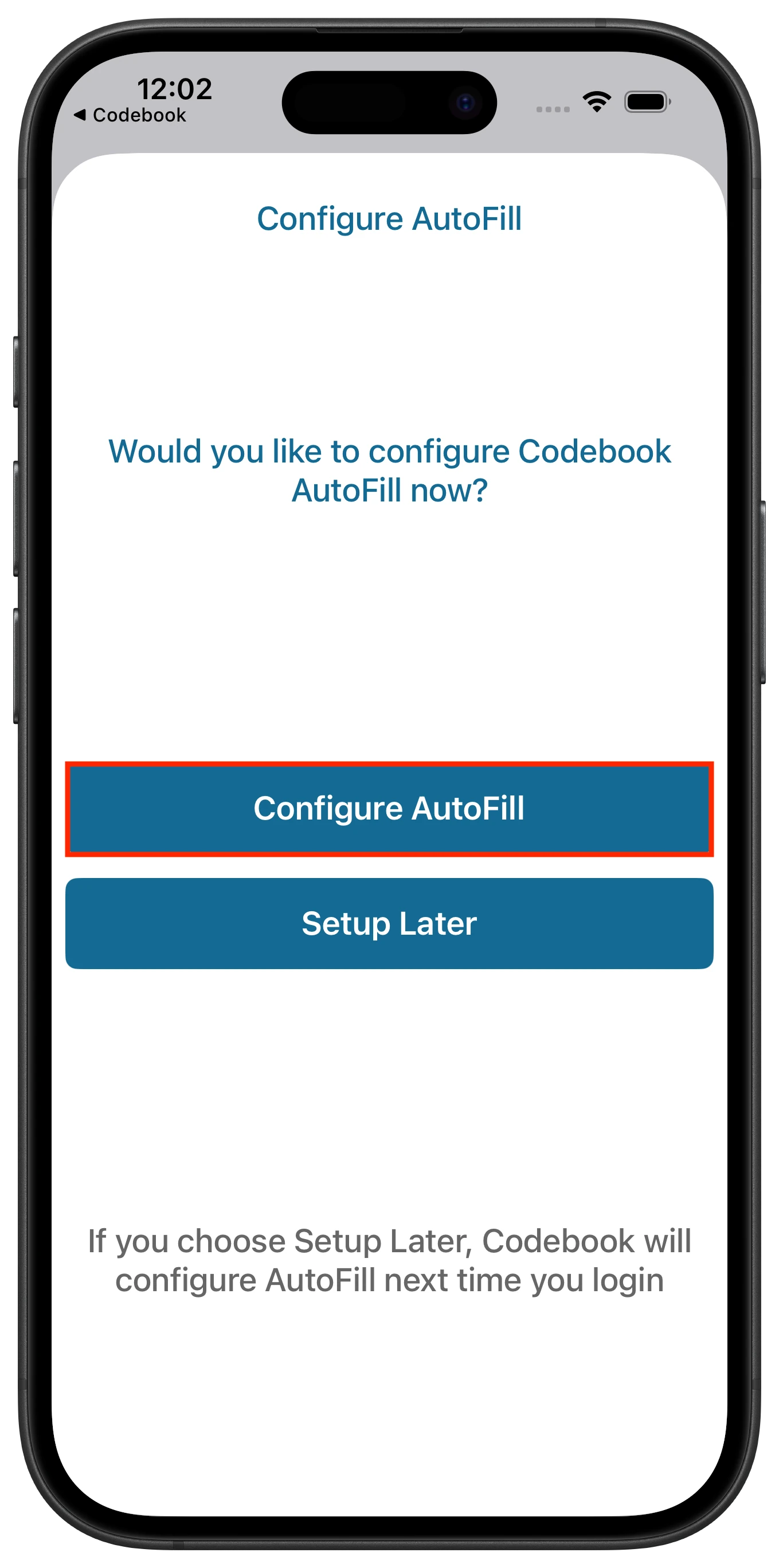
The Configure AutoFill screen will appear. Tap Configure AutoFill
-
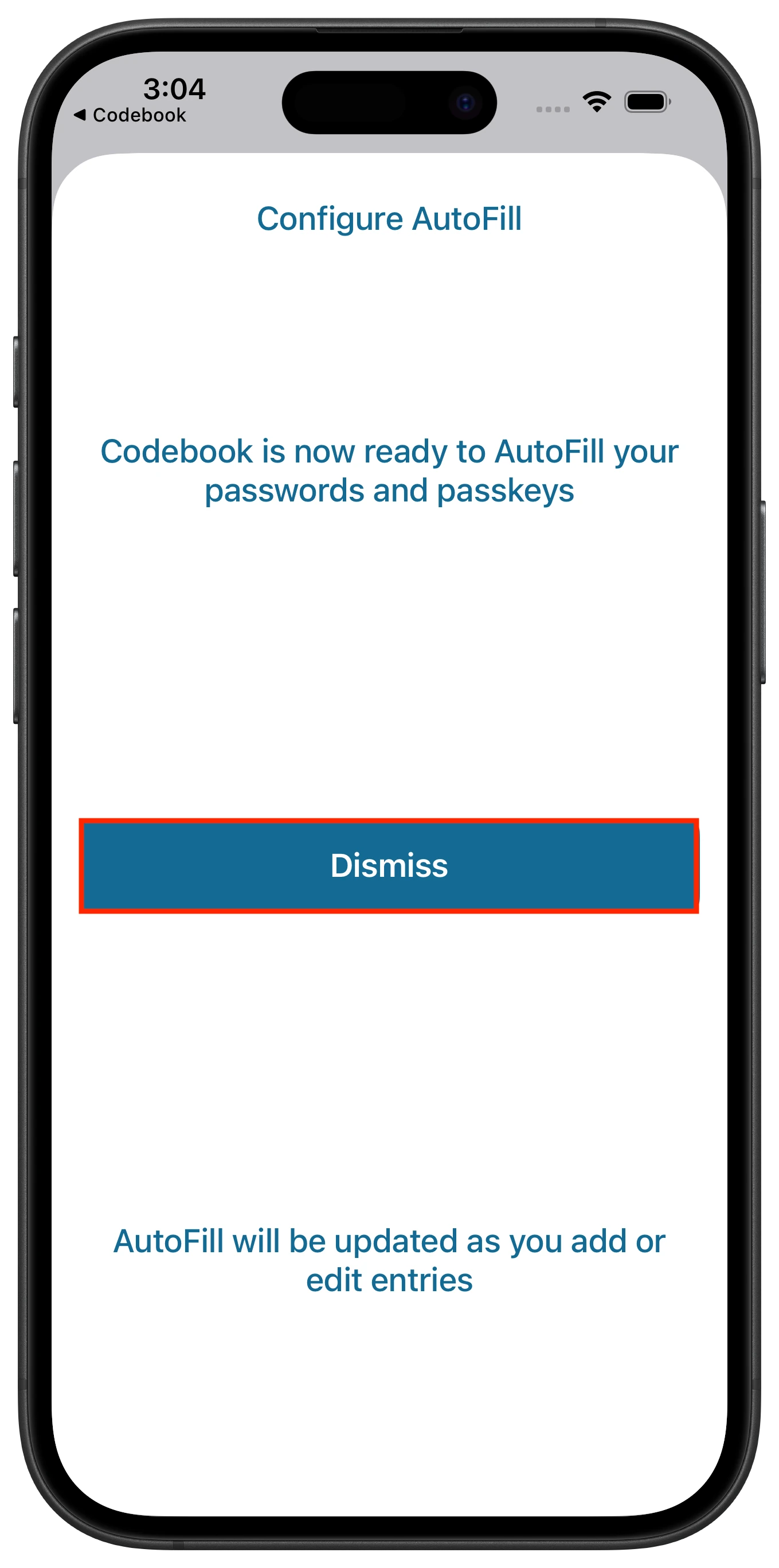
You will receive a confirmation that Codebook is now ready to Autofill your passwords and passkeys. Tap Dismiss to return to Codebook.
Already using Codebook:
-
Launch Codebook 5.4 or higher
-
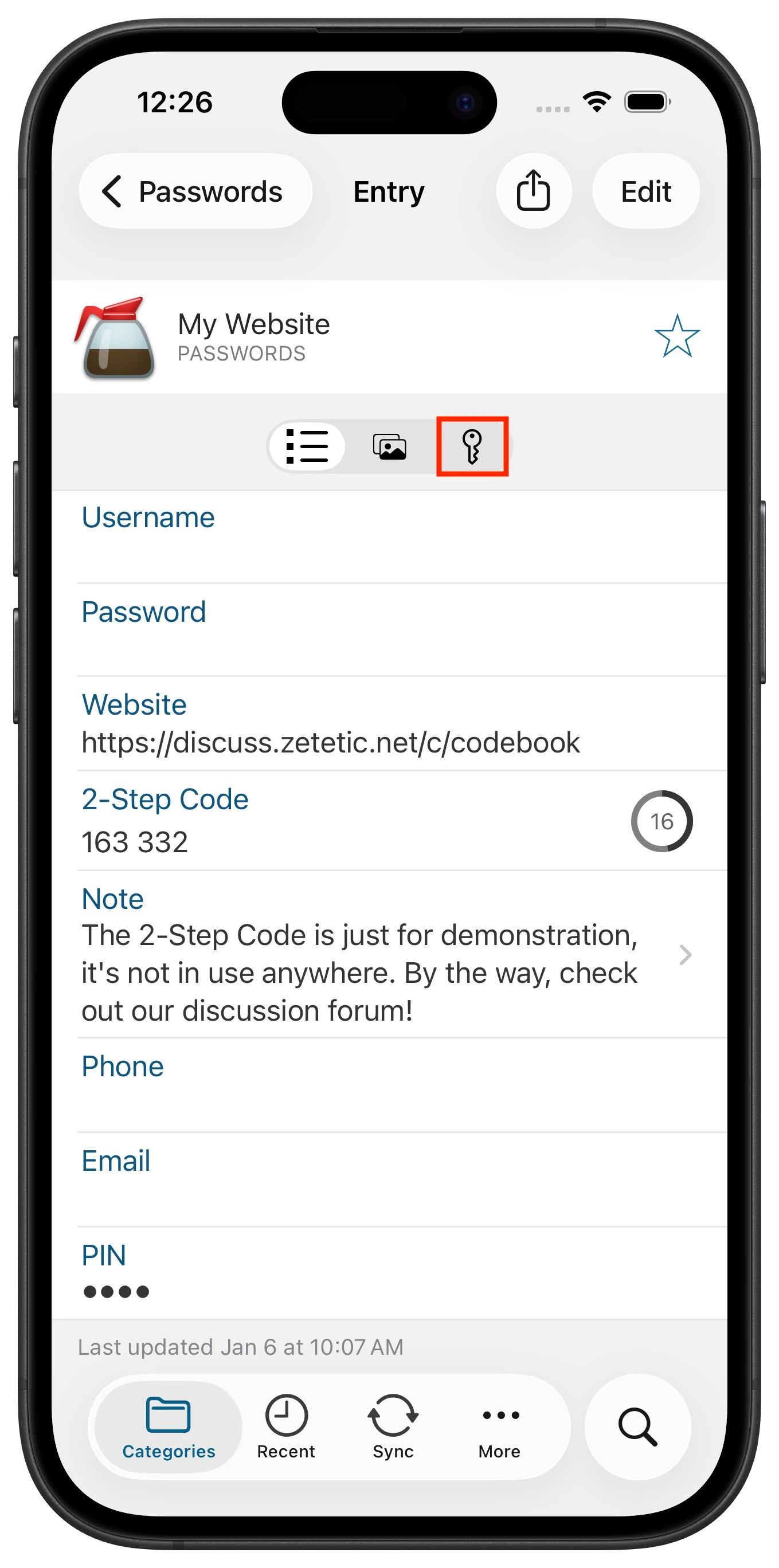
Navigate to an entry and tap on the Passkeys view
-
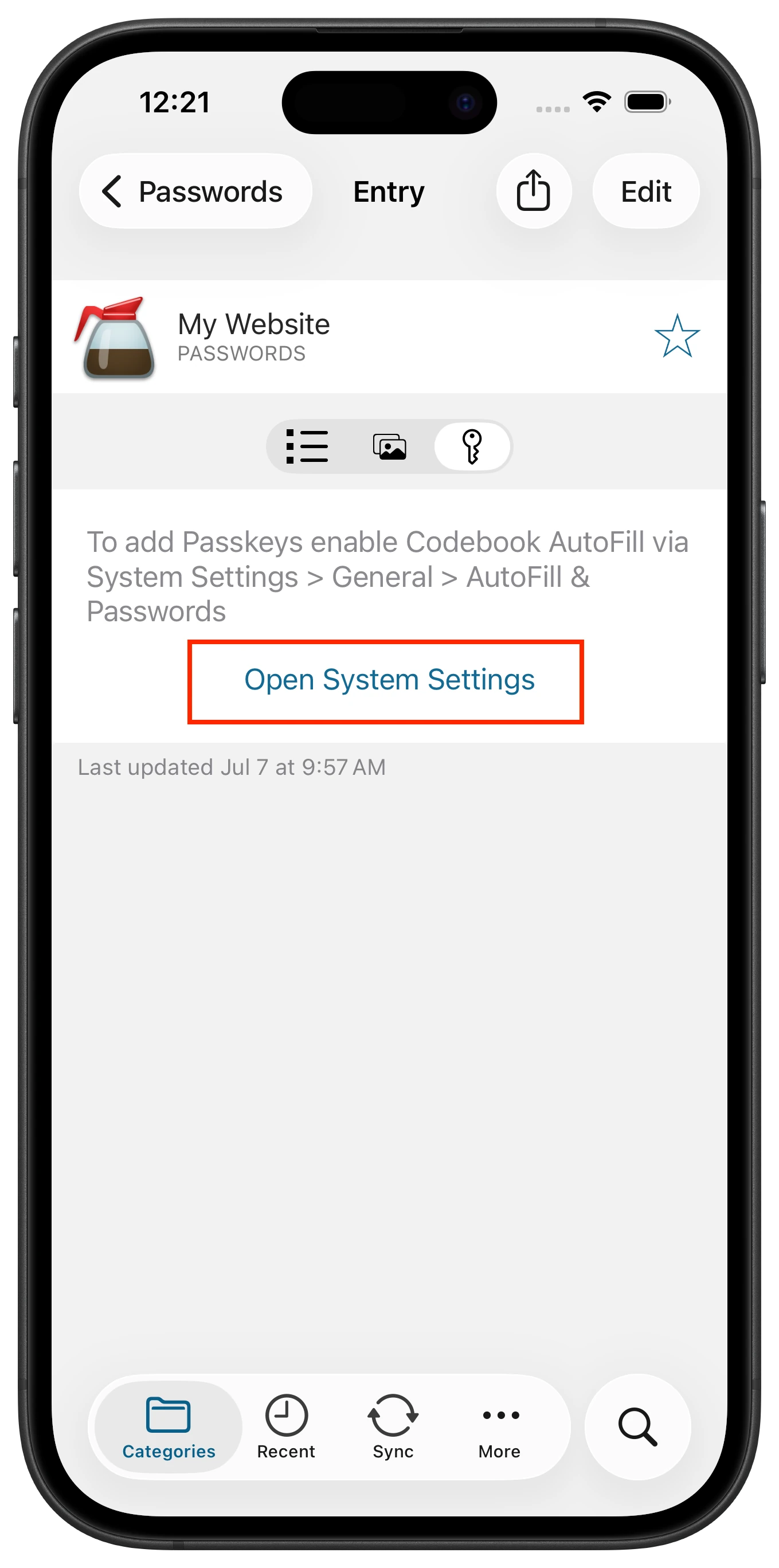
Tap on Open System Settings
-
The AutoFill & Passwords system settings page with be displayed. Under AutoFill from: slide the toggle for Codebook
to On.
-
The Configure AutoFill screen will appear. Tap Configure AutoFill
-
You will receive a confirmation that Codebook is now ready to Autofill your passwords and passkeys. Tap Dismiss to return to Codebook.
On macos
macOS support for passkeys with third-party credential providers began with macOS 14
-
Launch Codebook 5.4 or higher
-
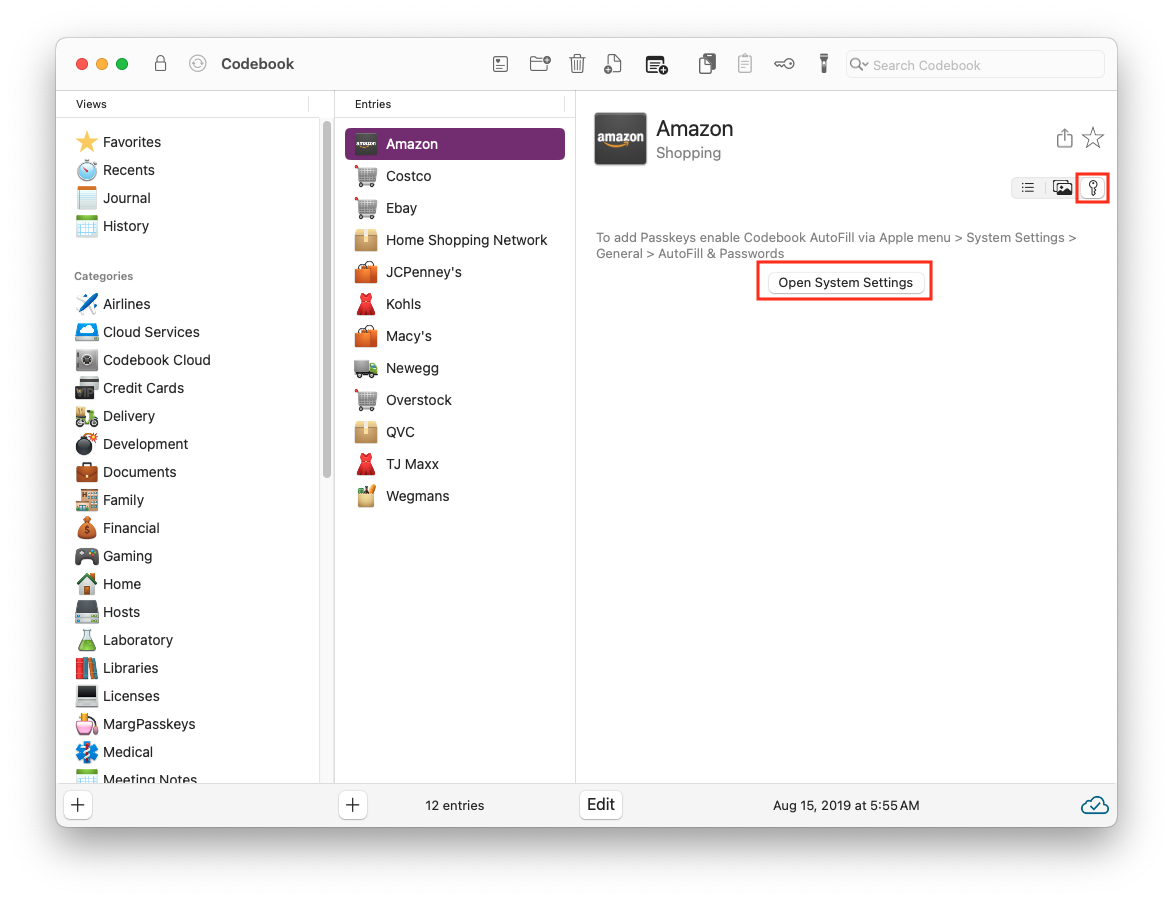
Select an entry and click on the Passkeys view
-
Click on Open System Settings
-
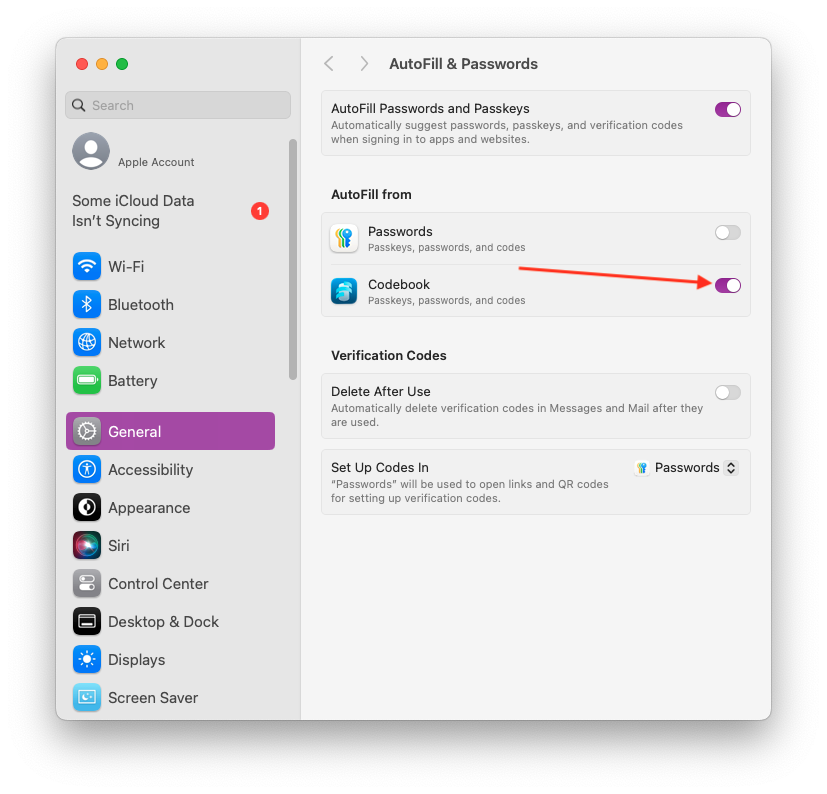
System Settings > AutoFill &
Passwords will
open. Slide the toggle for Codebook to On.
-
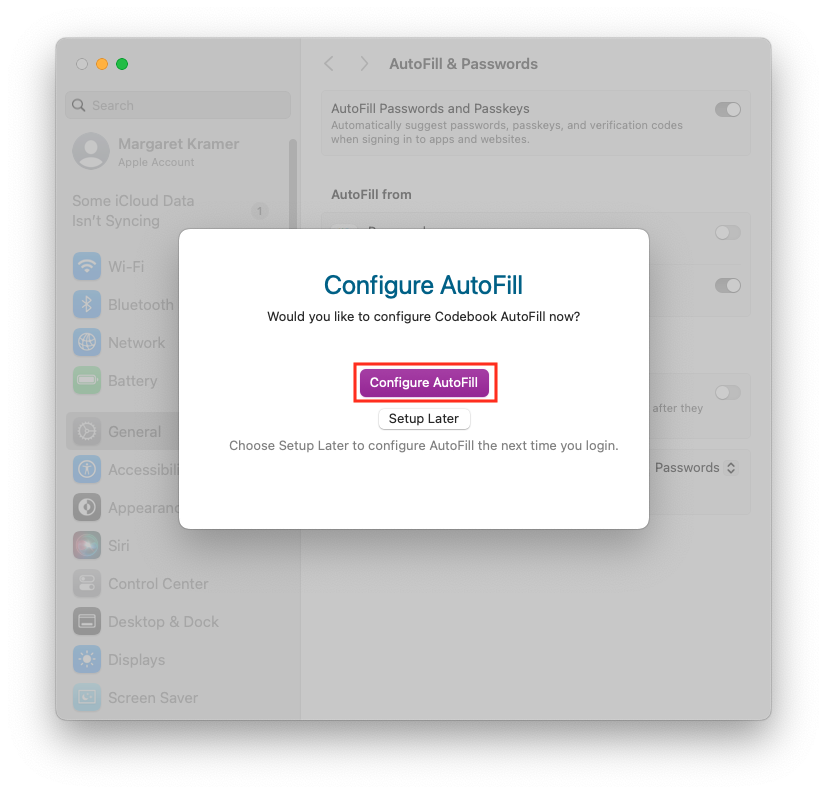
The Configure AutoFill window will appear. Click Configure AutoFill
-
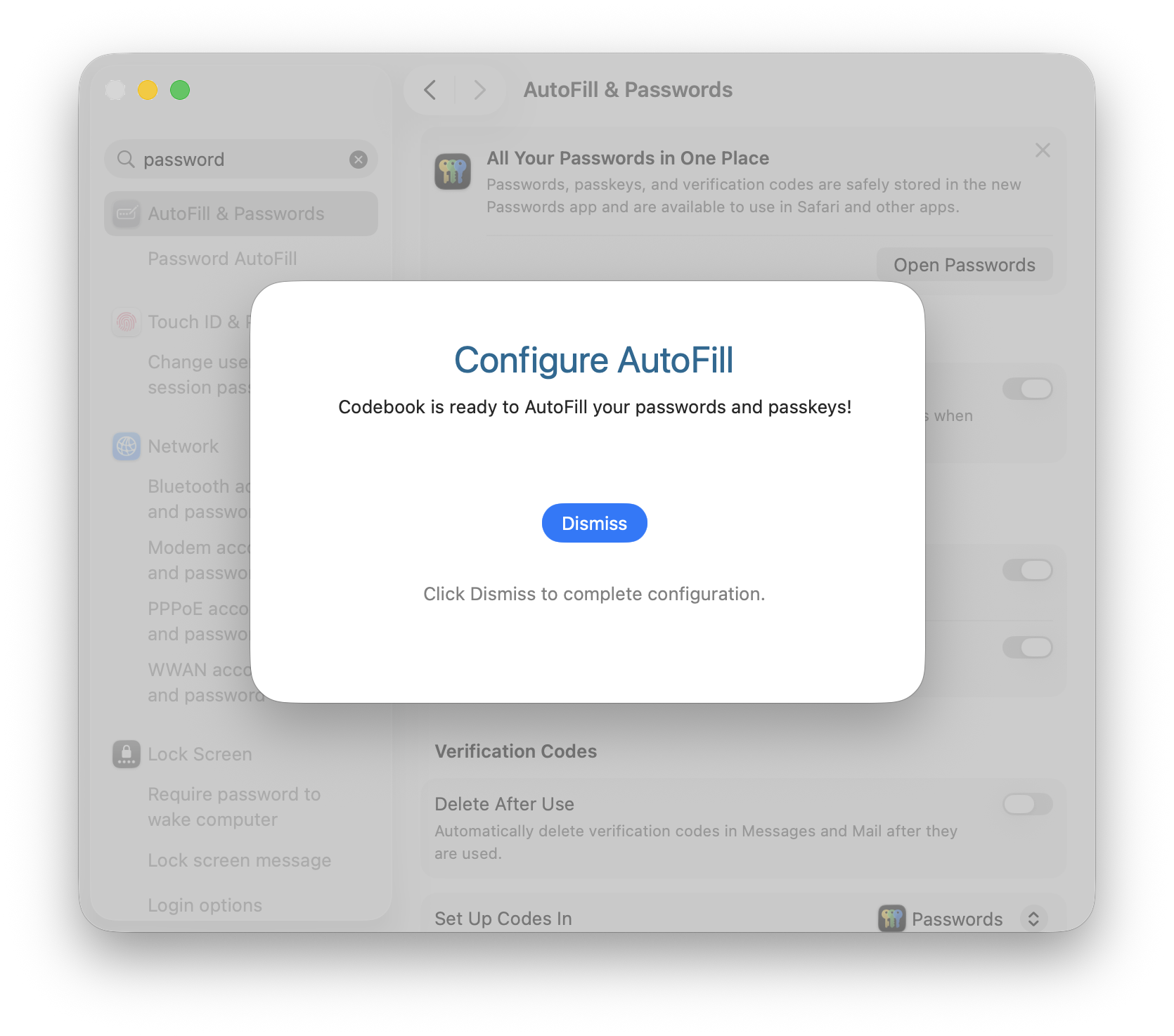
You will receive a confirmation that Codebook is ready to AutoFill you passwords and passkeys. Click Dismiss
On windows
Windows support for passkeys began with Windows 11 version 24h2
-
Launch Codebook 5.4 or higher
-
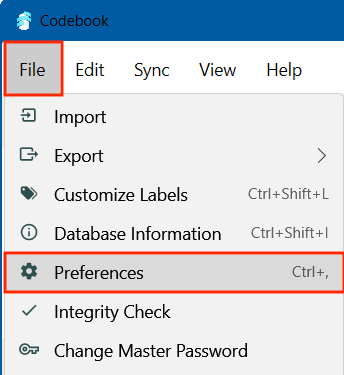
Open Codebook Preferences. File > Preferences
-
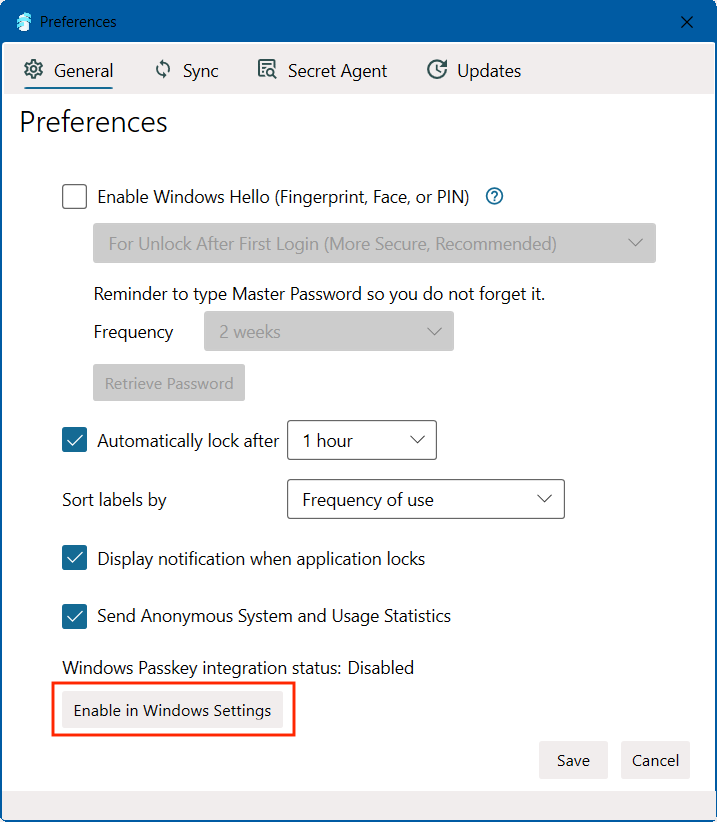
Click on Enable in Windows Settings.
-
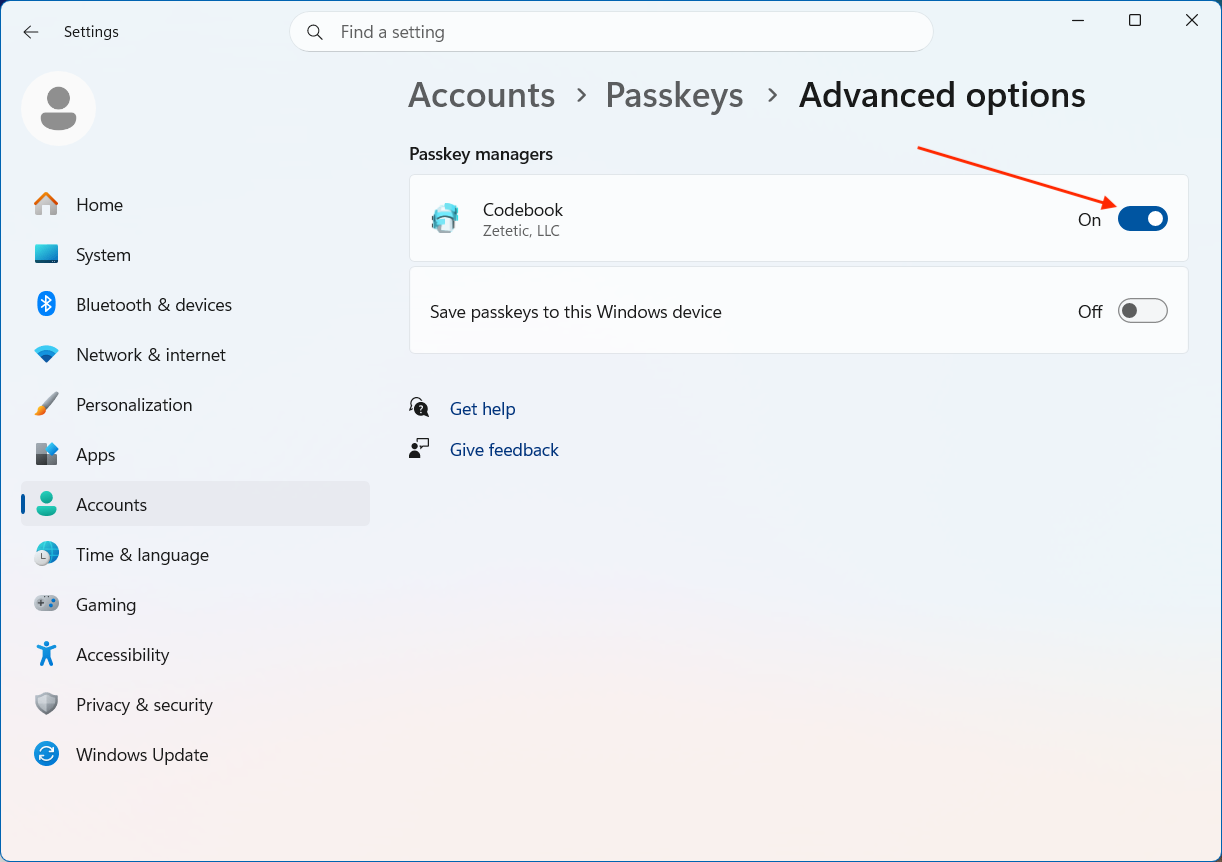
The Settings App will open. Enable Codebook under
Accounts > Passkeys > Advanced options. Slide the toggle On
-
You will be required to authenticate to Windows Hello
