Passkeys are used to sign in to services, websites or applications so you naturally want to store them securely
in Codebook. Passkeys must be saved to Codebook when they are created. The process to save a passkey varies for
each platform so the steps will be shown for each platform.
NOTE: Passkey information cannot be modified. To change a passkey, you must
delete it and create a new one. When you delete a passkey in an application, it is not automatically deleted
from Codebook. You should delete the corresponding passkey from Codebook.
On android
- Open the application you want to sign in to. If it supports passkeys, there will an option to create
one. This will vary by website, application or service.
-
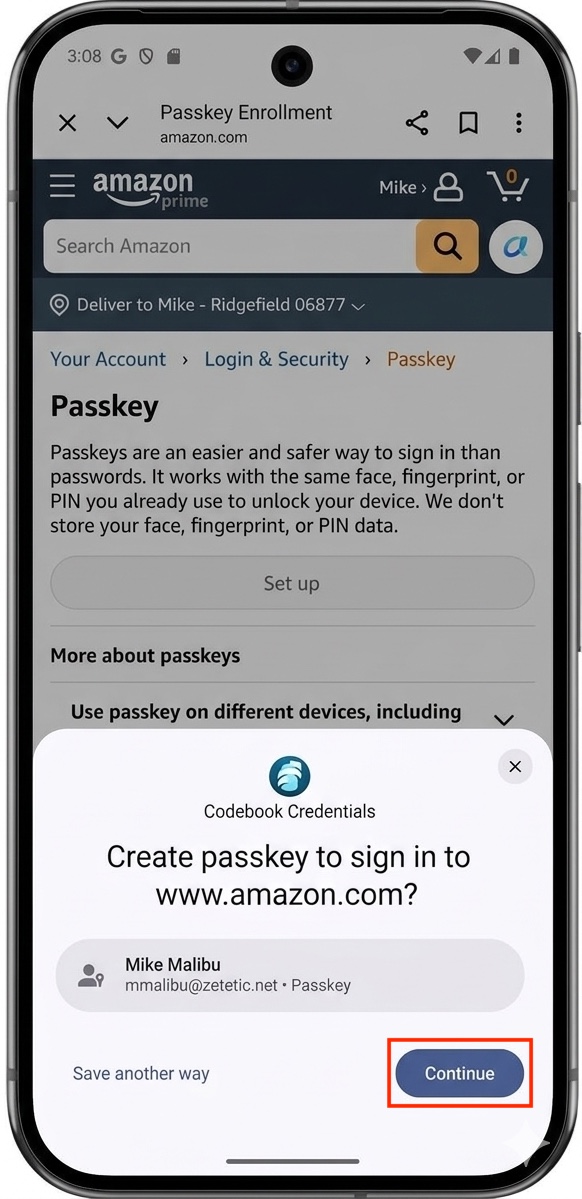
If you choose to create a passkey, the Codebook Credentials popup will be
displayed giving you the option to save the newly
created passkey in Codebook. Tap
Continue.
-
Authenticate to unlock Codebook, if prompted.
-
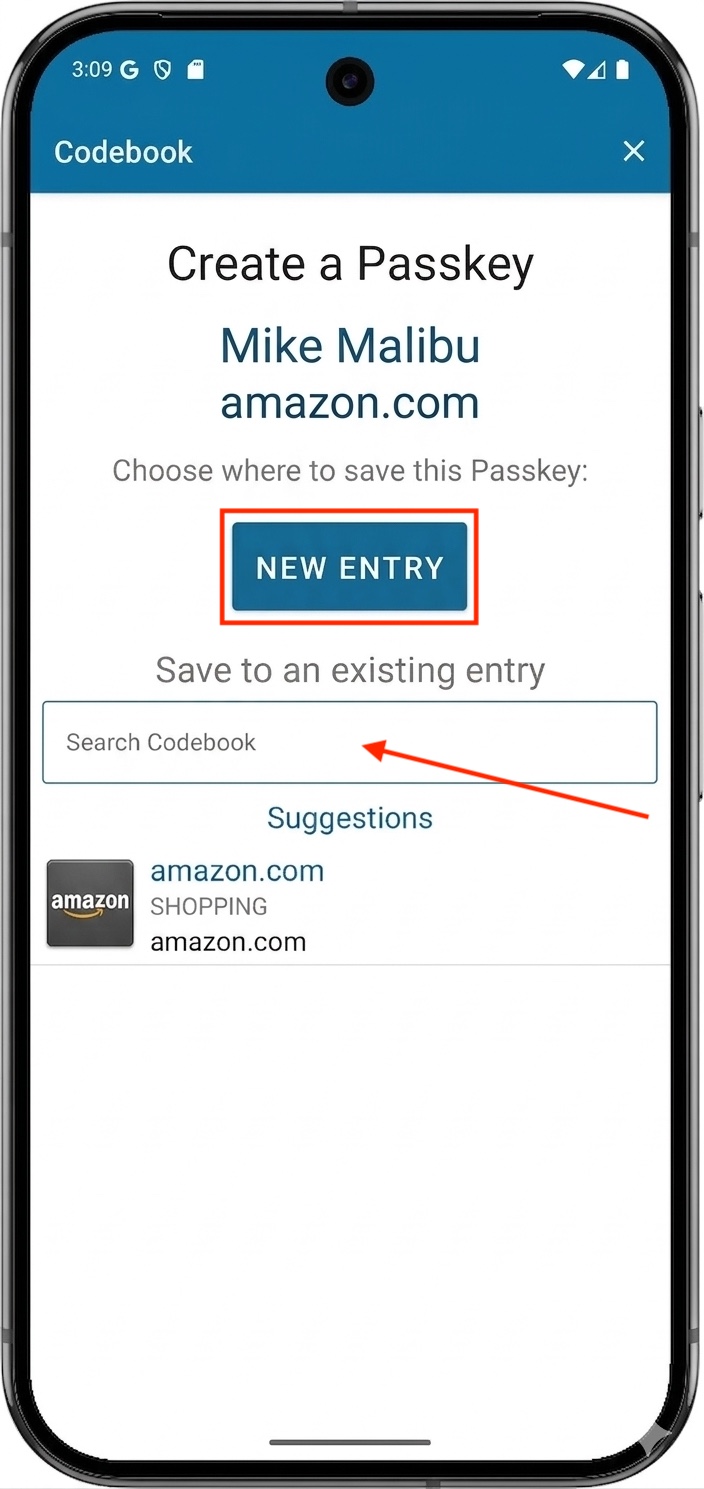
You will given 2 options for saving your passkey:
-
Create New Entry - A new entry will be created and stored in the Passkeys category.
Tap New Entry.
-
Save the passkey in an existing entry - Any entries that you already have that contain the website will be
displayed. You can also enter a search criteria to search Codebook. Tap on the desired entry and your passkey
will be saved in that entry.
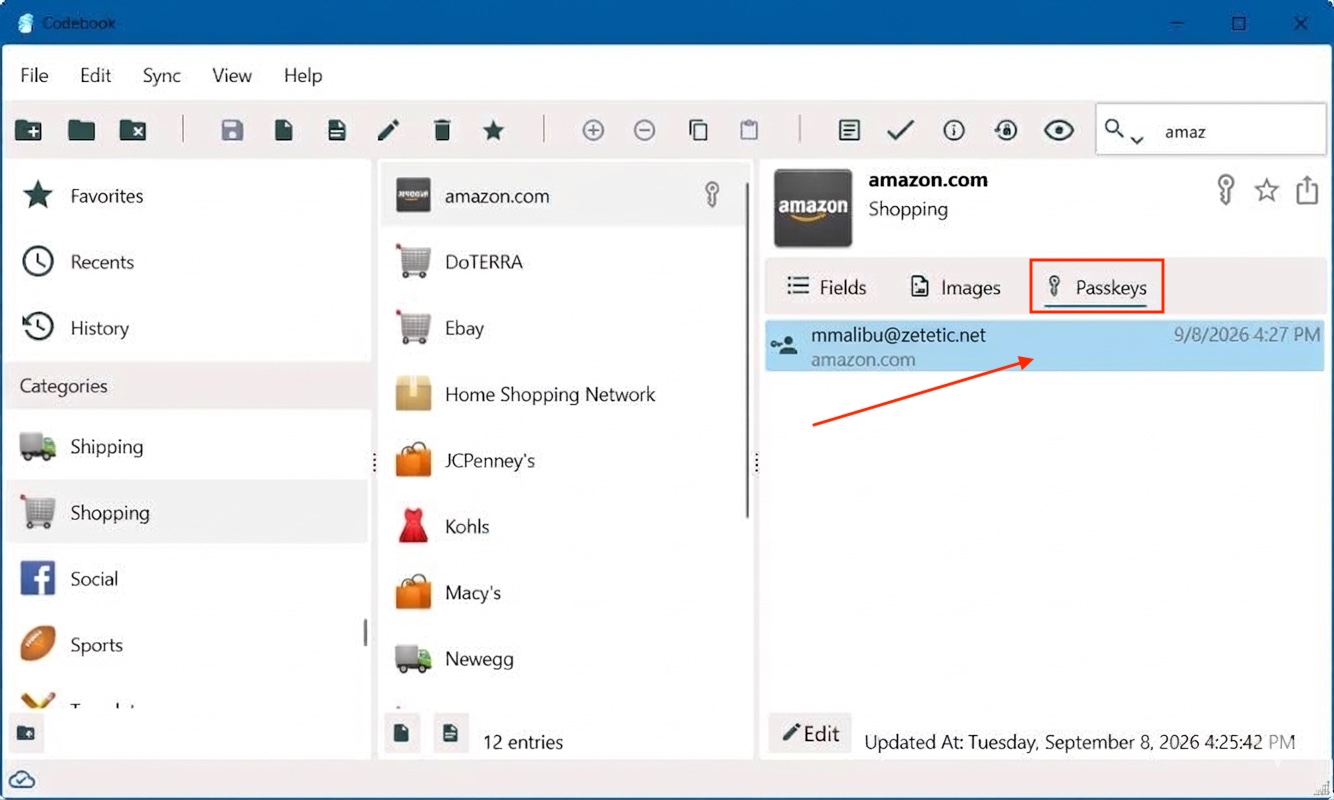
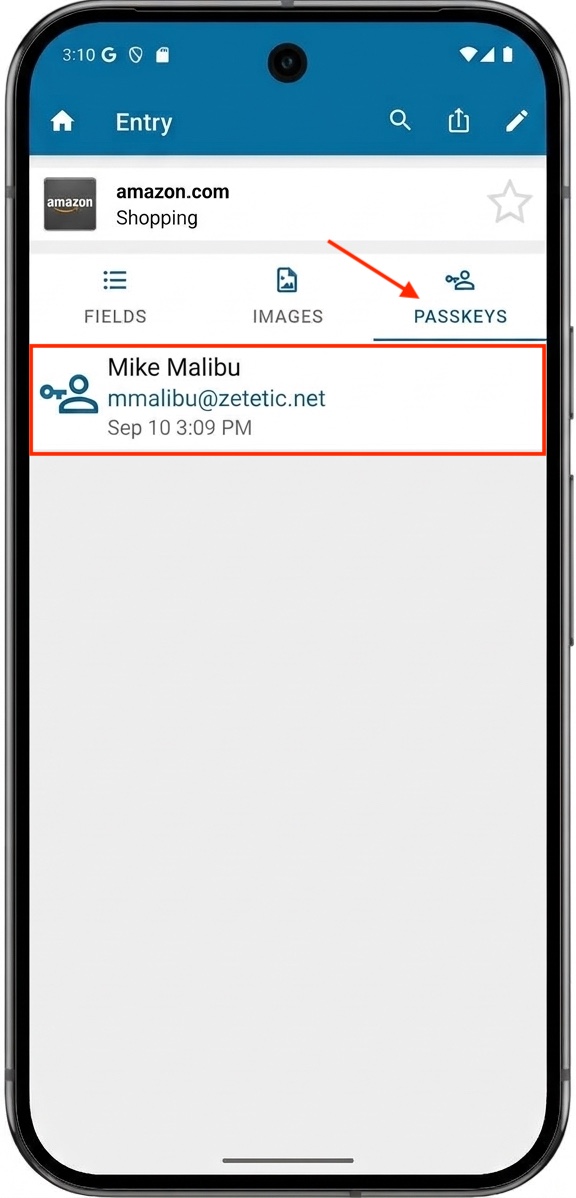
The passkey information is saved to the new or selected entry. The fields tab will contain the email and website and the passkey will be stored in the passkeys tab.
On ios
- Open the application you want to sign in to. If it supports passkeys, there will an option to create
one. This will vary by website, application or service.
-
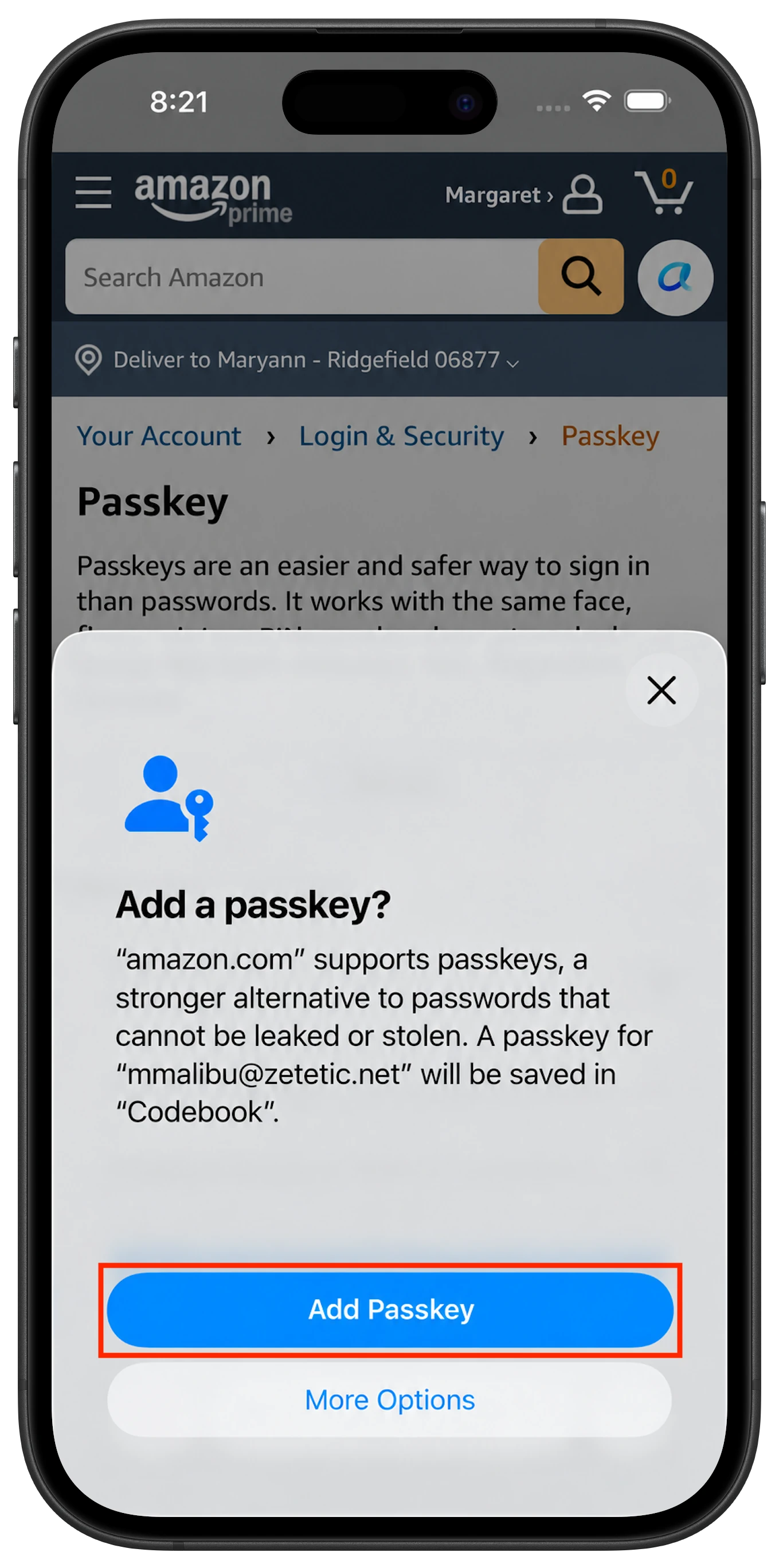
If you choose to create a passkey, the Add a passkey? popup will be displayed
giving you the option to save the newly
created passkey in Codebook. Tap
Add Passkey.
-
Authenticate to unlock Codebook, if prompted.
-
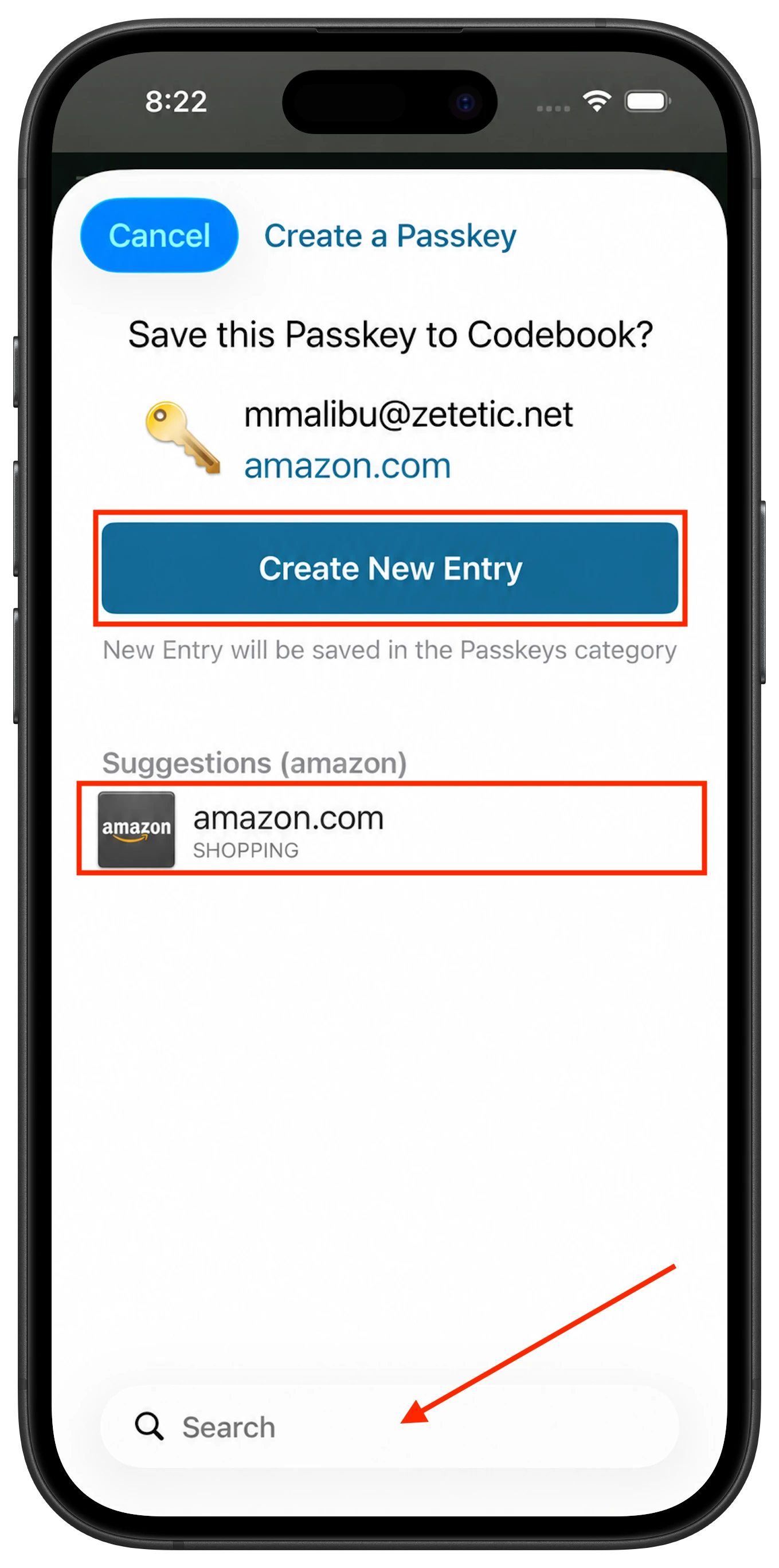
You will given 2 options for saving your passkey:
-
Create New Entry - A new entry will be created and stored in the Passkeys category. Tap New Entry.
-
Save the passkey in an existing entry - Any entries that you already have that contain the website will be
displayed. You can also enter a search criteria to search Codebook. Tap on the desired entry and your passkey
will be saved in that entry.
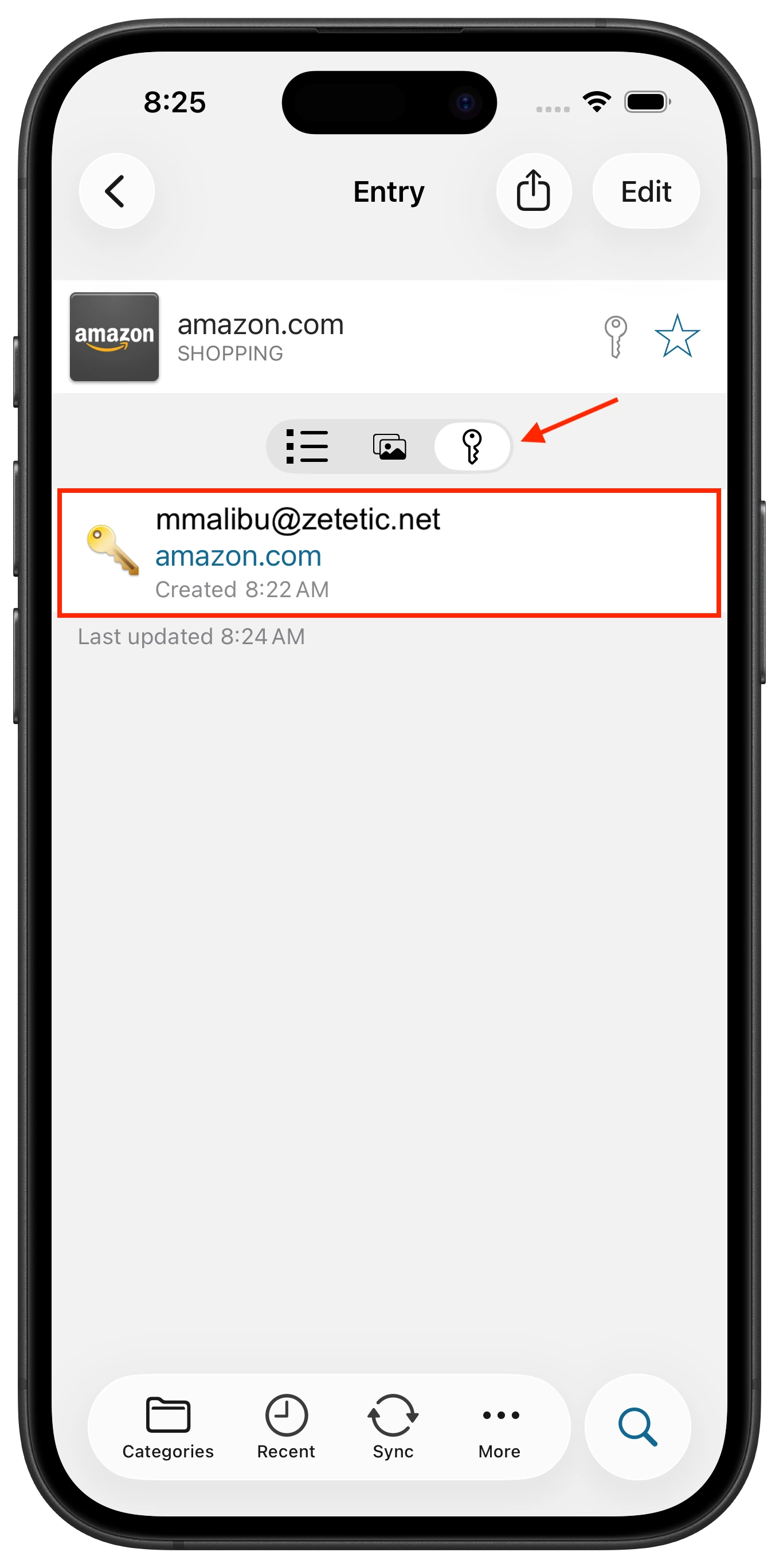
The passkey information is saved to the new or selected entry. The fields tab will contain the email and website
and the passkey will be stored in the passkeys tab.
On macos
- Open the application you want to sign in to. If it supports passkeys, there will an option to create
one. This will vary by website, application or service.
-
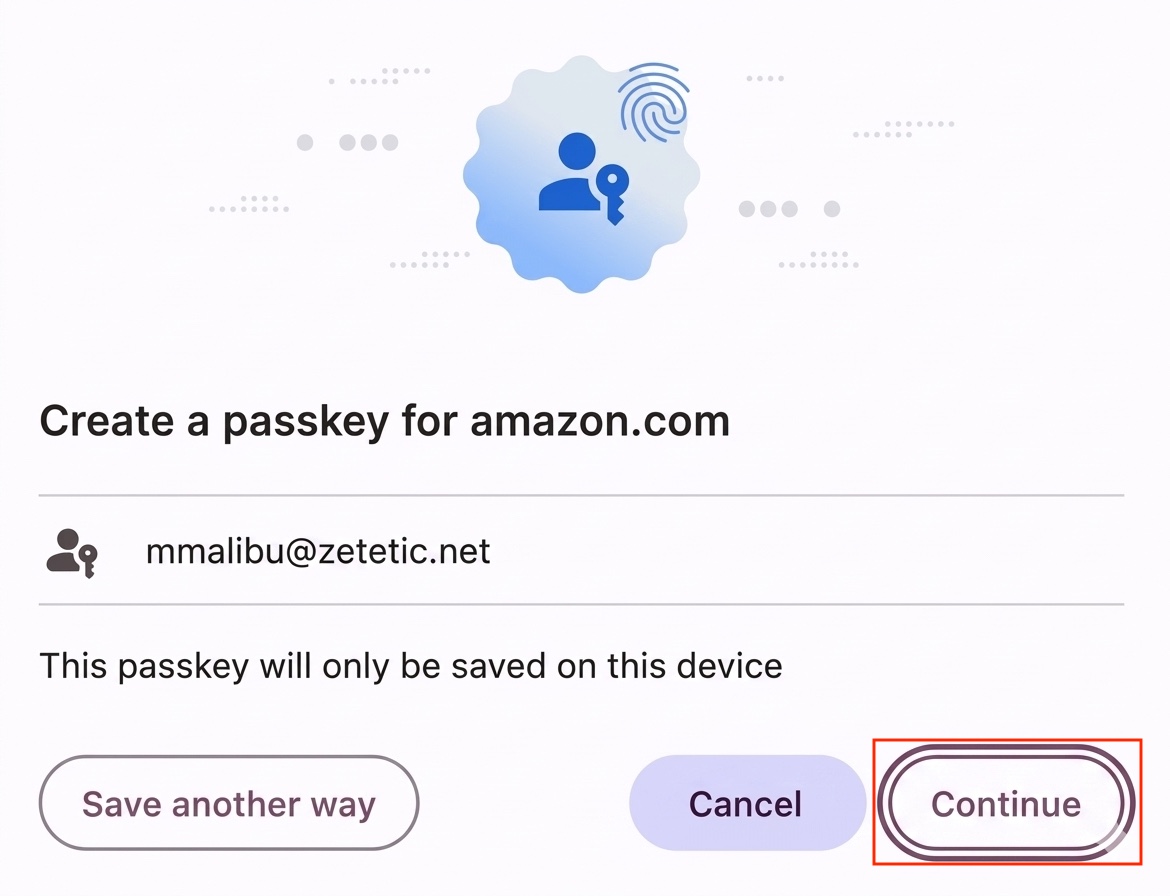
Click Continue.
-
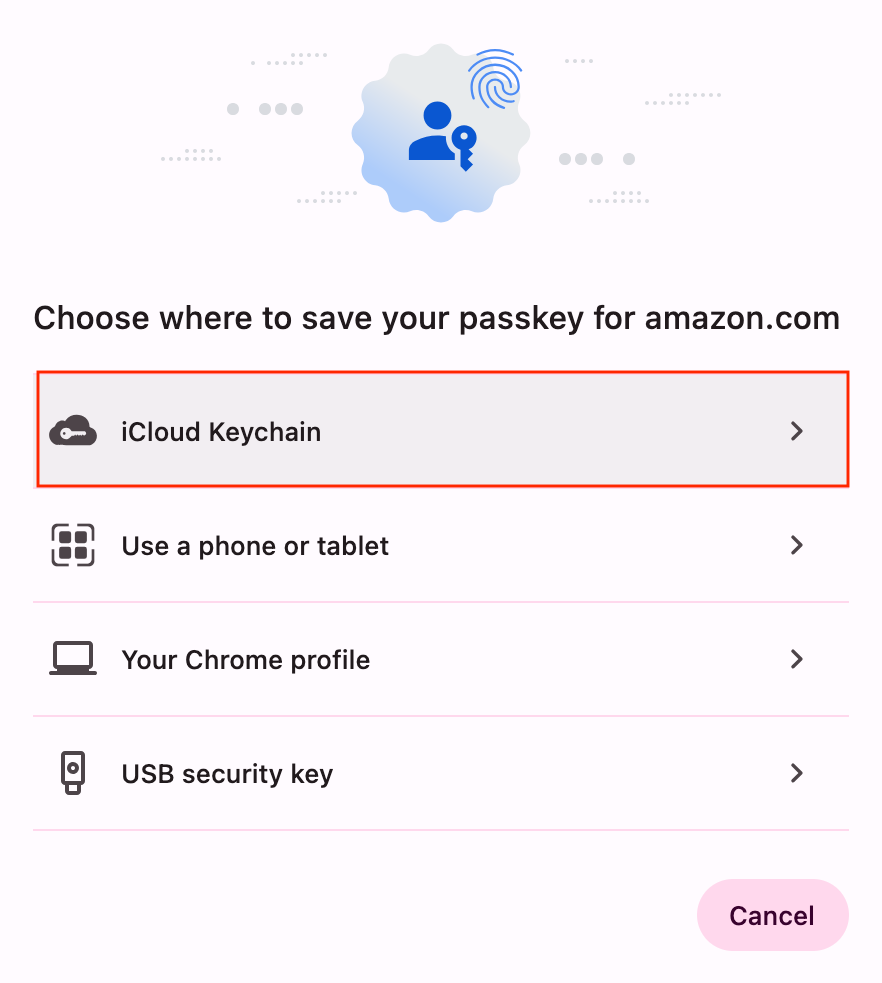
Click iCloud Keychain. If AutoFill from is turned on for Codebook
in
Settings > Autofill & Passwords, the process will continue in Codebook.
For instructions on updating your AutoFill & Passkey settings, click here.
-
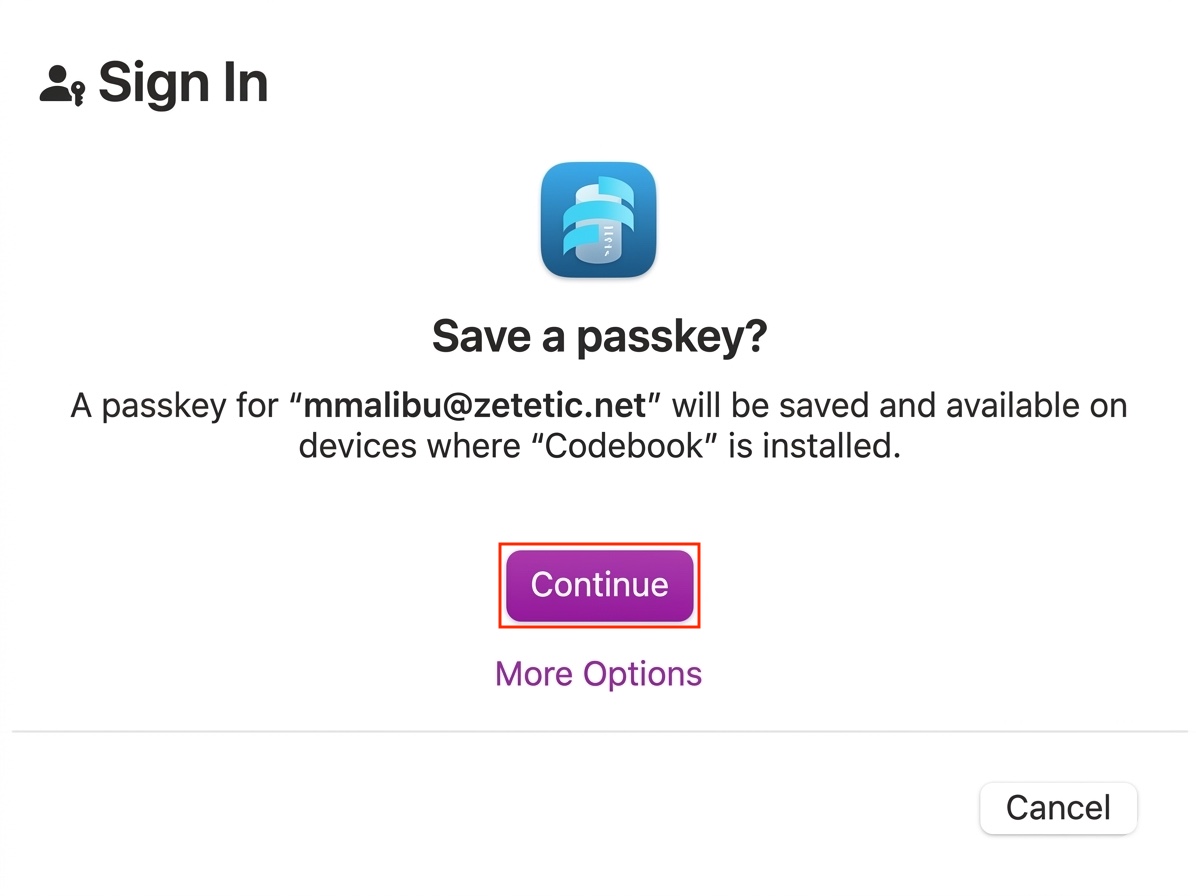
If you choose to create a passkey, the Sign In screen will be displayed giving you the option to save the newly
created passkey in Codebook. Click
Continue.
-
Authenticate to unlock Codebook, if prompted.
-
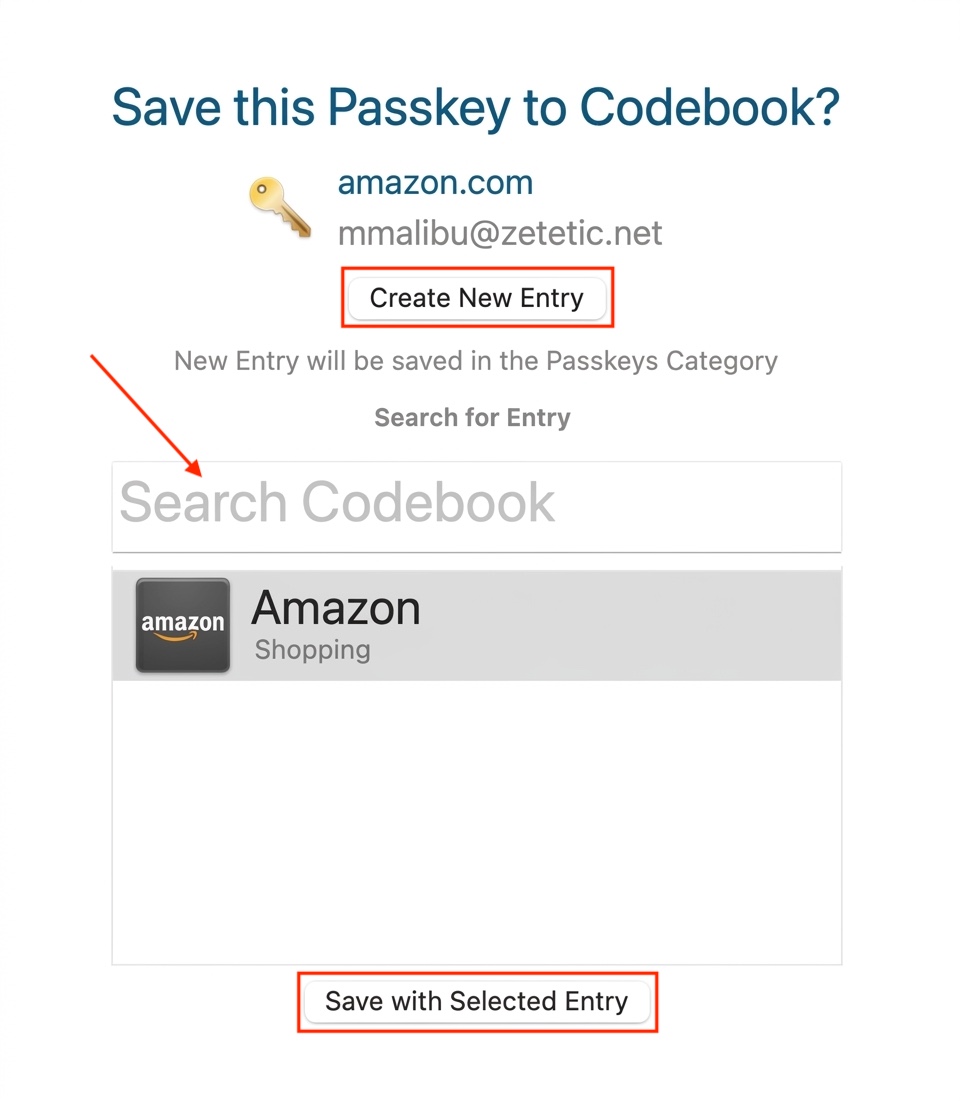
You will given 2 options for saving your passkey:
-
Create a New Entry - A new entry will be created and stored in the Passkeys category.
For this option, click Create New Entry.
-
Save the passkey in an existing entry - Any entries that you already have that contain the website will be
displayed. You can also enter a search criteria to search Codebook. Highlight the desired entry and click Save with Selected Entry.
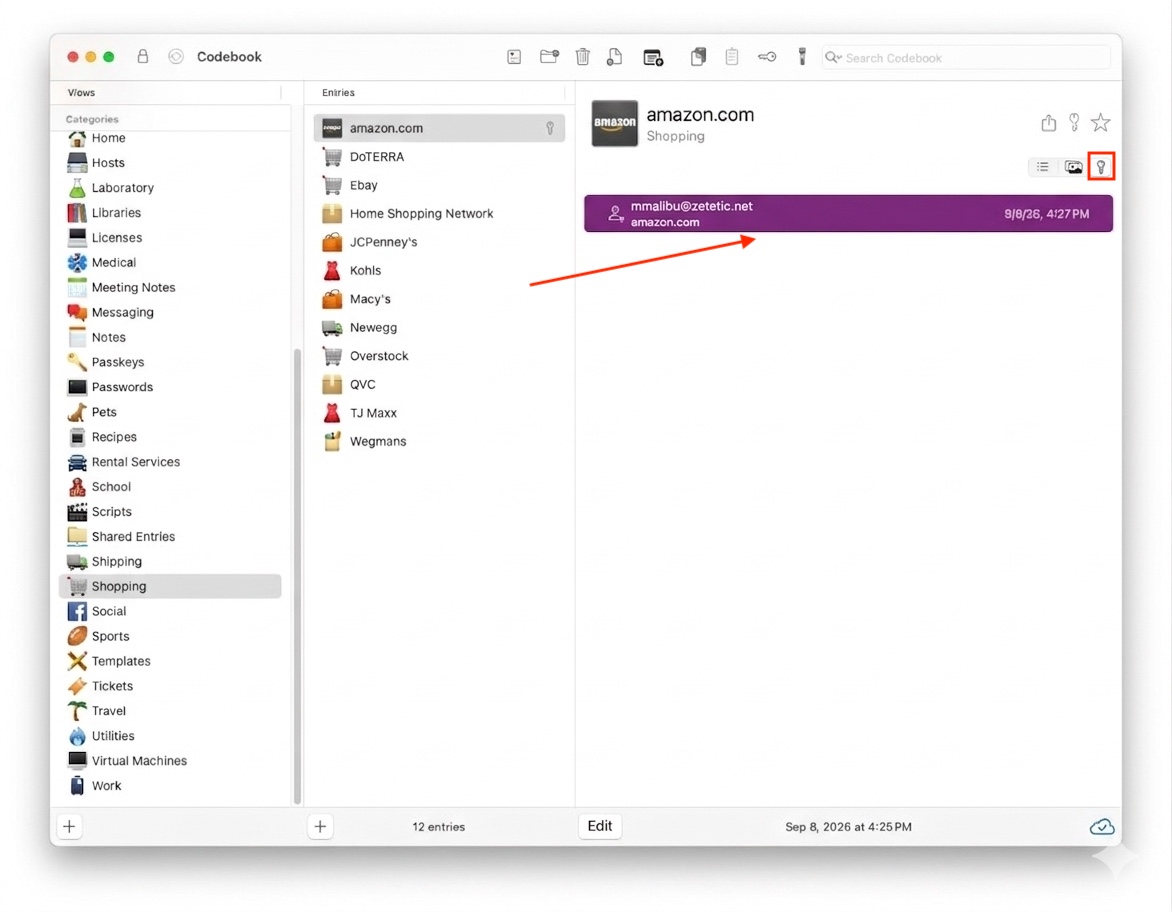
The passkey information is saved to the new or selected entry. The fields tab will contain the email and website
and the passkey will be stored in the passkeys tab.
On windows
- Open the application you want to sign in to. If it supports passkeys, there will an option to create
one. This will vary by website, application or service.
-
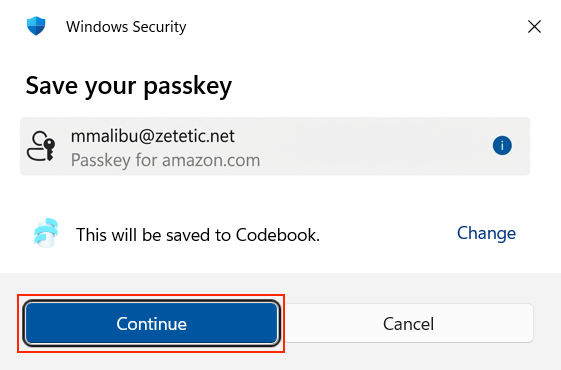
If you choose to create a passkey, the Sign In screen will be displayed giving you the option to save the newly
created passkey in Codebook. Click
Continue.
-
Authenticate to unlock Codebook, if prompted.
-
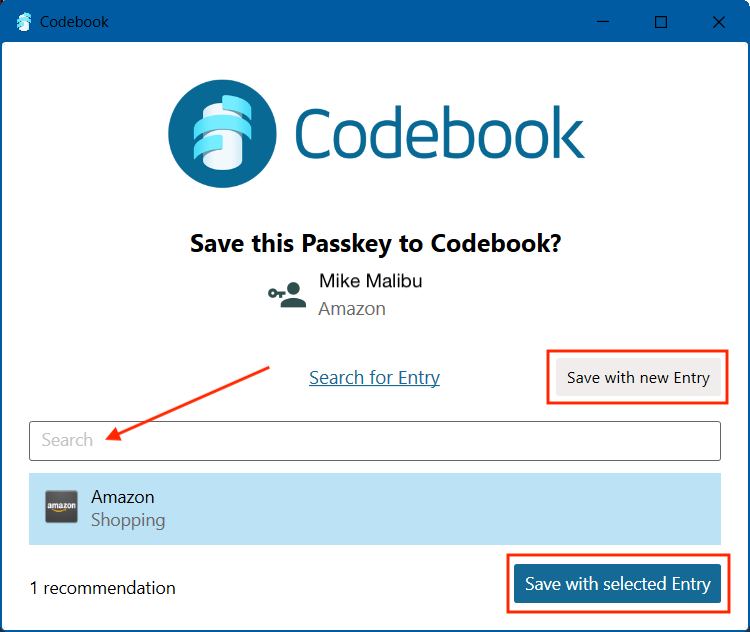
You will given 2 options for saving your passkey:
-
Create a New Entry - A new entry will be created and stored in the Passkeys category. Click Save with New Entry.
-
Save the passkey in an existing entry - Any entries that you already have that contain the website will be
displayed. You can also enter a search criteria to search Codebook. Highlight the desired entry and click Save with Selected Entry.
The passkey information is saved to the new or selected entry. The fields tab will contain the email and website
and the passkey will be stored in the passkeys tab.