Subscription Status
From the Subscription Status page account owners can see their Codebook Cloud subscription information.
NOTE: This detailed information is only displayed on the account owner's Dashboard. Only the
subscription status will be displayed for users on an account.
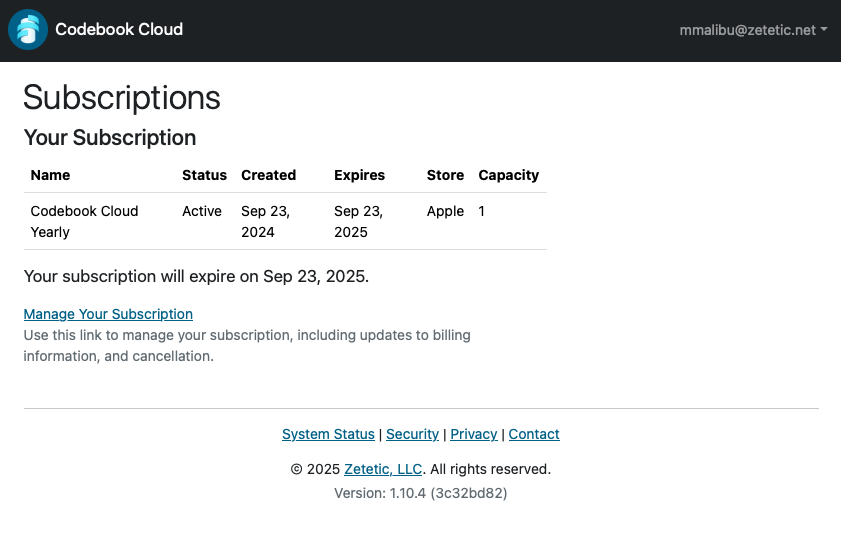
Codebook Cloud subscriptions are purchased from different "stores" based on the type of device you are using
when you subscribe. Updates to your billing information or canceling your subscription are performed in the
subscribing store. The "Manage Your Subsciption" link will bring you to the correct store where you can update
your billing information or cancel your subscription.
- Sign in to Codebook Cloud - Codebook Cloud Sign In. Your Codebook
Cloud account password was saved in Codebook in the Codebook Cloud category/Codebook Cloud entry when you
created your account.
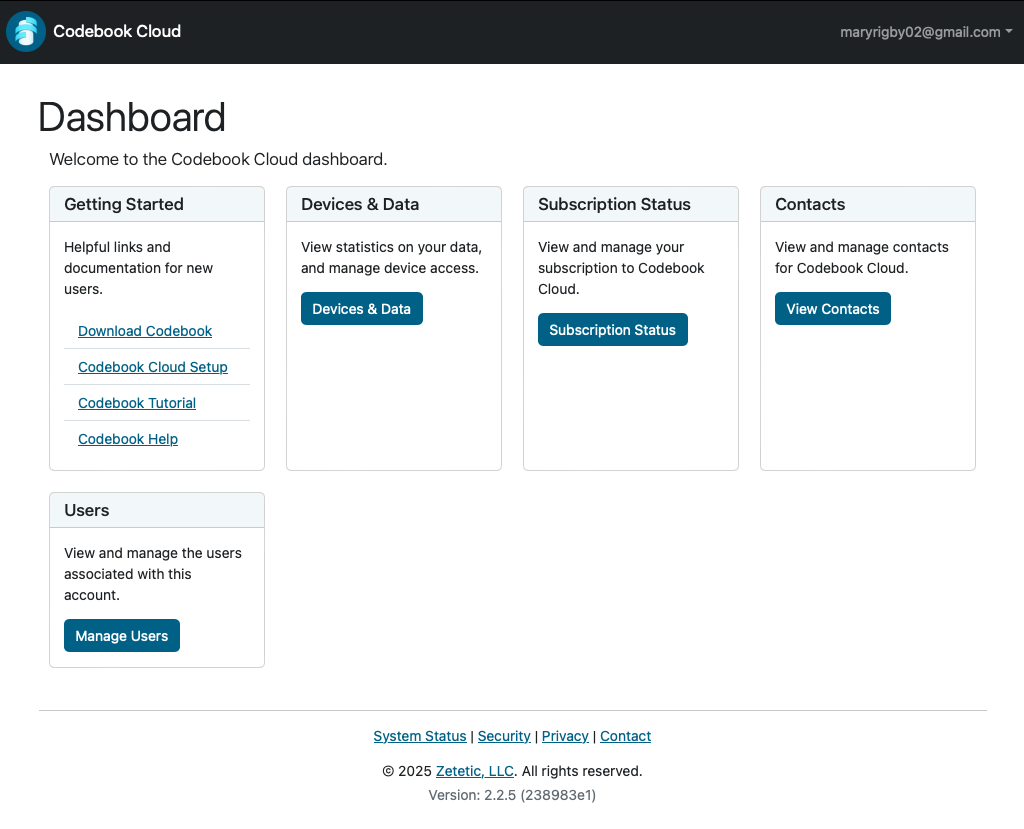
- From the Dashboard - Click the Subscription Status button.
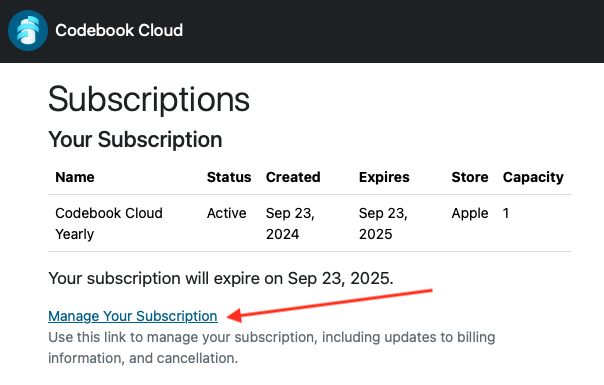
- From the Subscriptions page - Click the Manage Your Subscription link.
On android
For Codebook for Android:
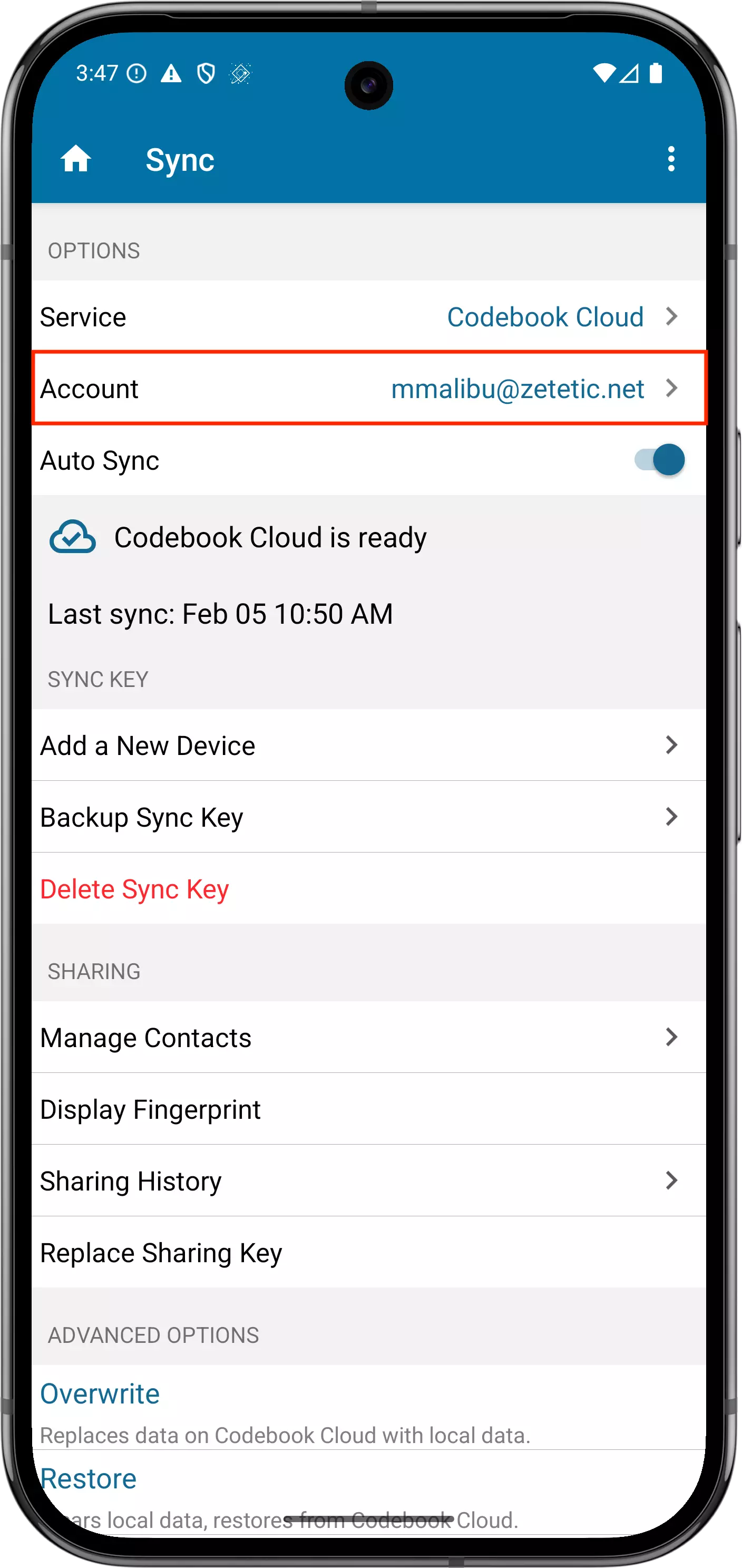
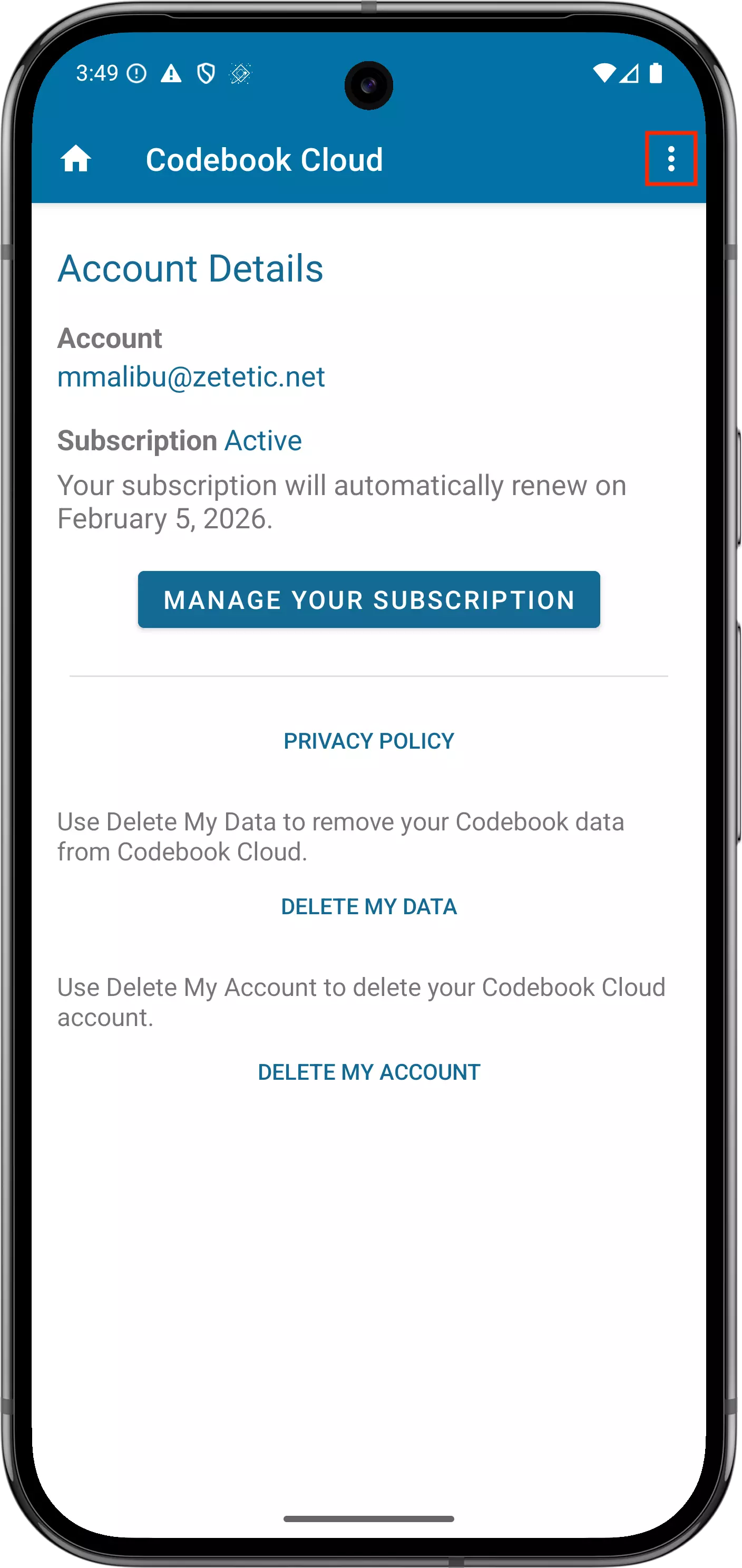
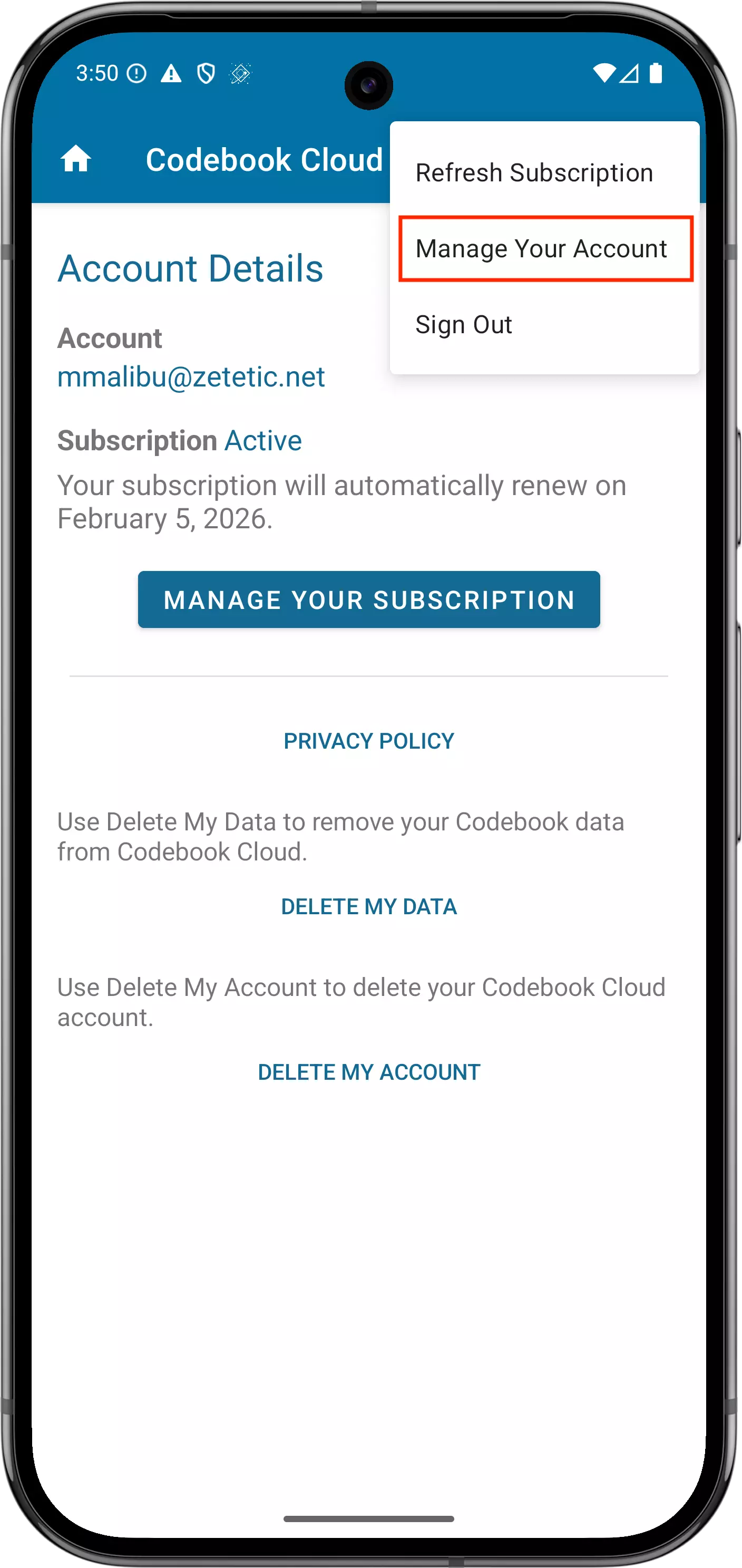
- When you are signed in to Codebook Cloud, go to the Sync view.
- Tap on the Account row to display Account Details. Your subscription status will be displayed.
- Tap on the Options Menu (the three vertical dots).
- Tap on Manage Your Account.
- If your subscription was purchased from the Google Play Store, you will be taken there where you can
update
your billing details or cancel your subscription.
If you did not purchased your subscription from Google Play, the Codebook Cloud Sign In page will be
displayed. Your Codebook Cloud account password was saved in Codebook in the Codebook Cloud category/Codebook
Cloud Entry when you created your account. Navigate to Dashboard -> Subscription
Status -> Manage Your Subscription link where you can update
your billing information or cancel your subscription.
On ios
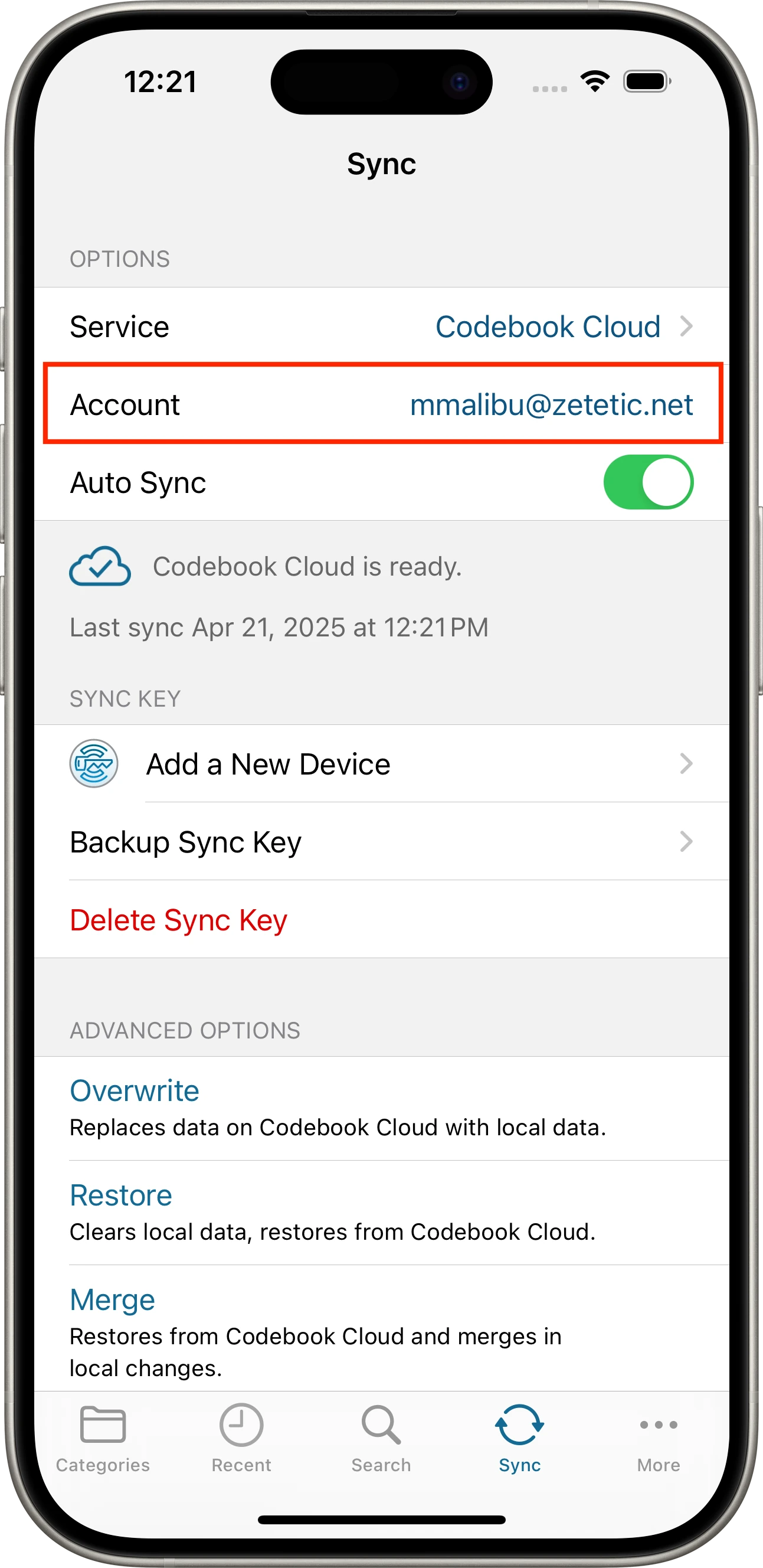
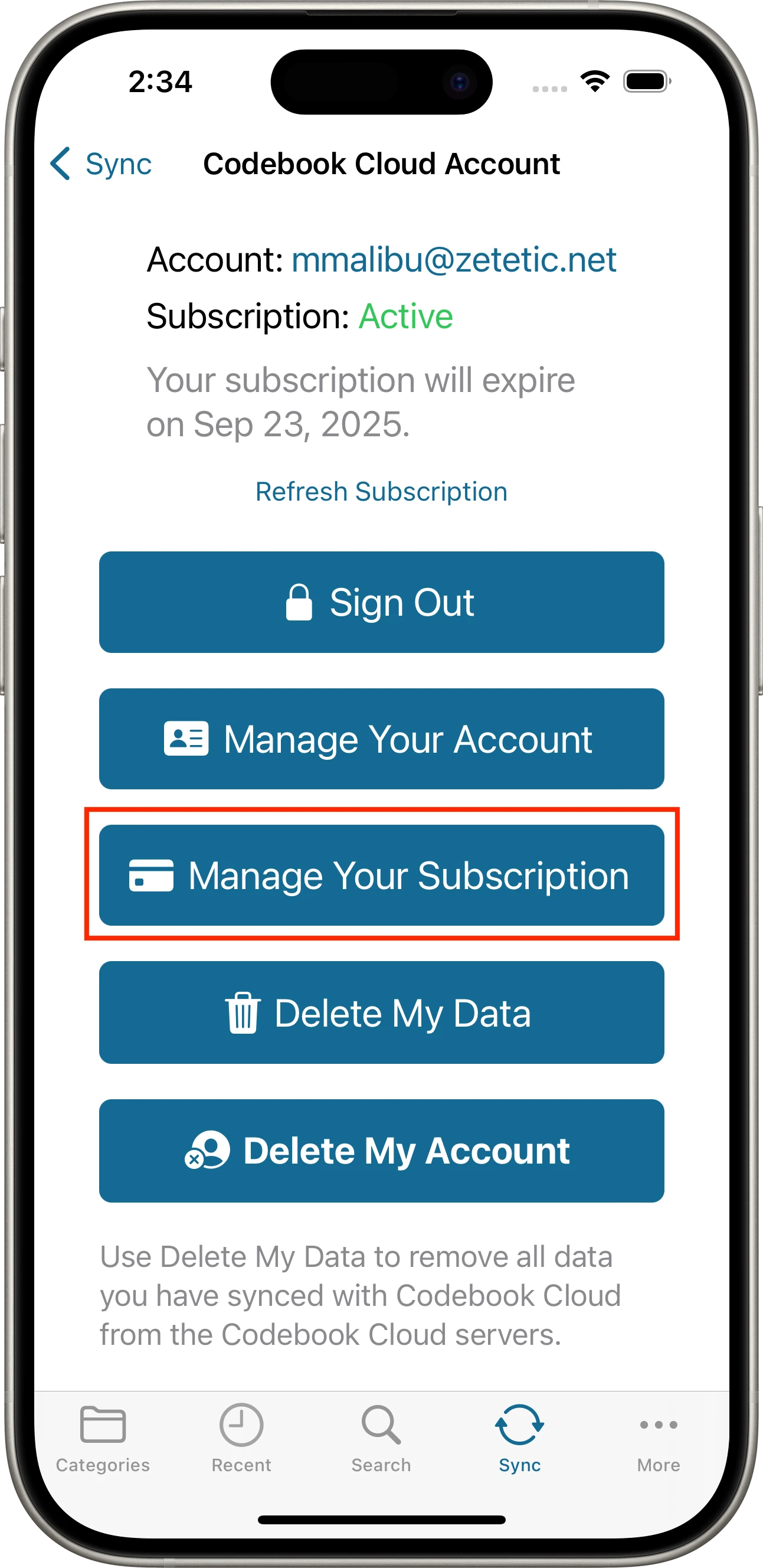
- When you are signed in to Codebook Cloud, go to the Sync view.
- Tap on the Account row to display Account Details.
- Subscription status is shown at the top of Account Details view. Tap on the Manage
Your Subscription button to cancel or update billing details. The Manage
Your Subscription button is only available if your subscription was purchased from Apple.
If you did not purchase your subscription from Apple, you must access your Account and Subscription from within
Codebook on the device where you purchased the subscription or from the Codebook Cloud Dashboard - Codebook Cloud Sign In.
On macos
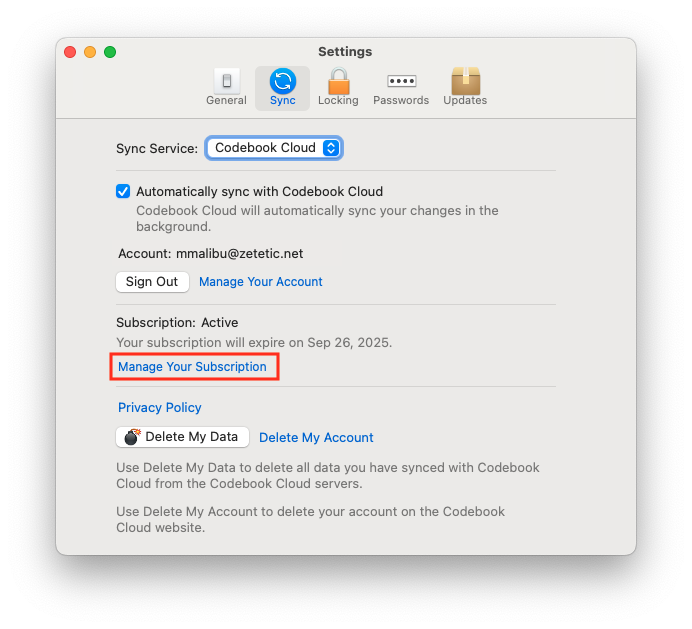
-
When you are signed in to Codebook Cloud, go to Codebook -> Settings -> Sync tab.
-
If you purchased your subscription from Apple or Fast Spring, the link Manage Your Subscription link will be displayed. Click the link to be taken to the store where the subscription was purchased. From there, you
can update your billing details or cancel your subscription
If you purchased your subscription from Google Play, you must access your Account and Subscription from within
Codebook on the device where you purchased the subscription or from the Codebook Cloud Dashboard - Codebook Cloud Sign In.
On windows
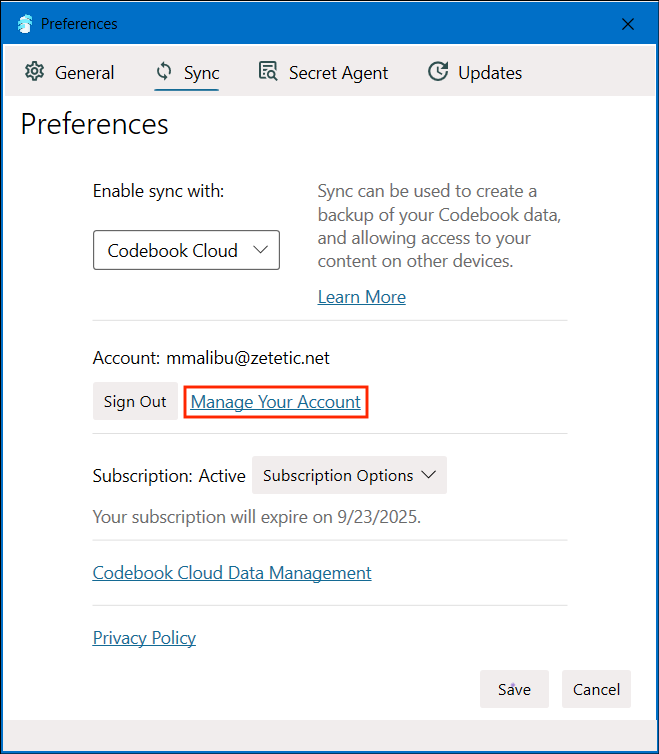
- When you are signed in to Codebook Cloud, go to File -> Preferences -> Sync tab.
- Click the "Manage Your Account" link.
- Sign in to your Codebook Cloud account. Your Codebook Cloud account password was saved in Codebook in the Codebook Cloud category/Codebook Cloud entry when you created your account.
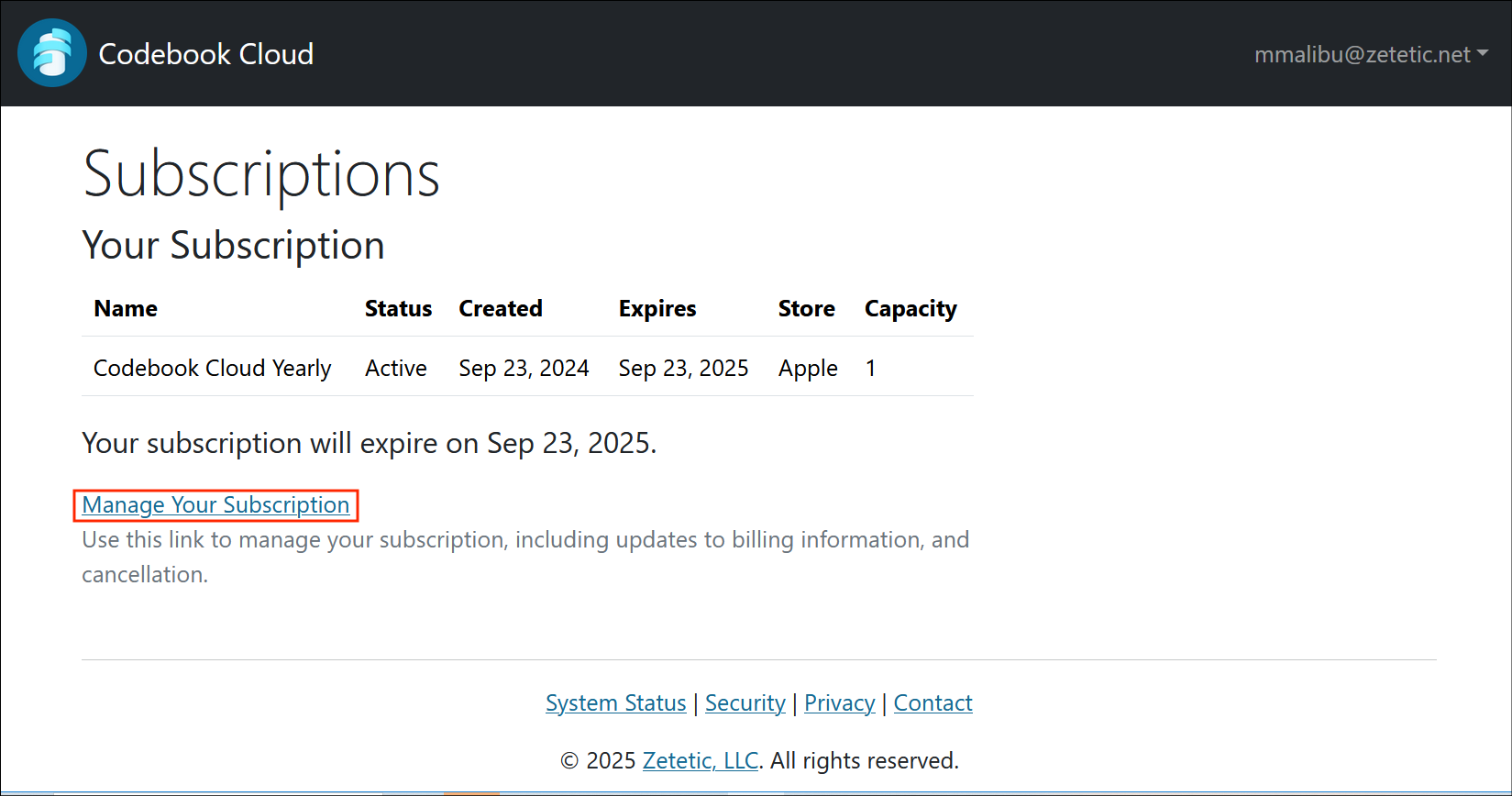
- Click on the Subscription Status button.
-
Click on the "Manage Your Subscription" link.
- The "Manage Your Subsciption" link will bring you to the store where you purchased your Codebook Cloud subscription where you can update your billing information or cancel your subscription.
